01 Getting started
Vectis POS is a till that runs in a web browser. The till program itself runs as a service on the till PC in your restaurant; you open it in a browser, log in with your user name and then work with the header bar and the side menu. This chapter shows how to open the till, log in and out, how the screen is laid out and how to switch the language.
Open the till
Goal: Open the till screen in the browser.
Who can do this: All users.
- Open the till in one of these ways:
- On the till PC via the shortcut: Double-click Open Vectis POS on the desktop or in the Start menu (if this shortcut was created during installation).
- On the till PC via Vectis Manager: Right-click the Vectis icon in the notification area of the taskbar (bottom right, next to the clock) and choose Open POS. Double-clicking the icon opens the Vectis Manager window, which also has an Open POS button.
- Directly in the browser: On the till PC enter
http://localhost:10110. On a tablet or phone in the same network enterhttp://<till-IP-address>:10110.
- The login page appears. If you are still logged in, the home page opens straight away.
Note: The Open POS button in Vectis Manager is only active while the till service is running. If it is greyed out, start the service in Vectis Manager (Start) or contact your Vectis service partner.
Note: The Open Vectis POS shortcut always opens the default address http://localhost:10110/. If your till was set up on a different port, use Open POS in Vectis Manager.
Log in
Goal: Log in to the till with your own user account.
Who can do this: All users with an active user account.
- Choose the language at the top right of the login page: DE or EN.
- In the Login field enter your user name (for example
kasse). A stored e-mail address is accepted instead of the user name. - In the Password field enter your password.
- Tap Log in.
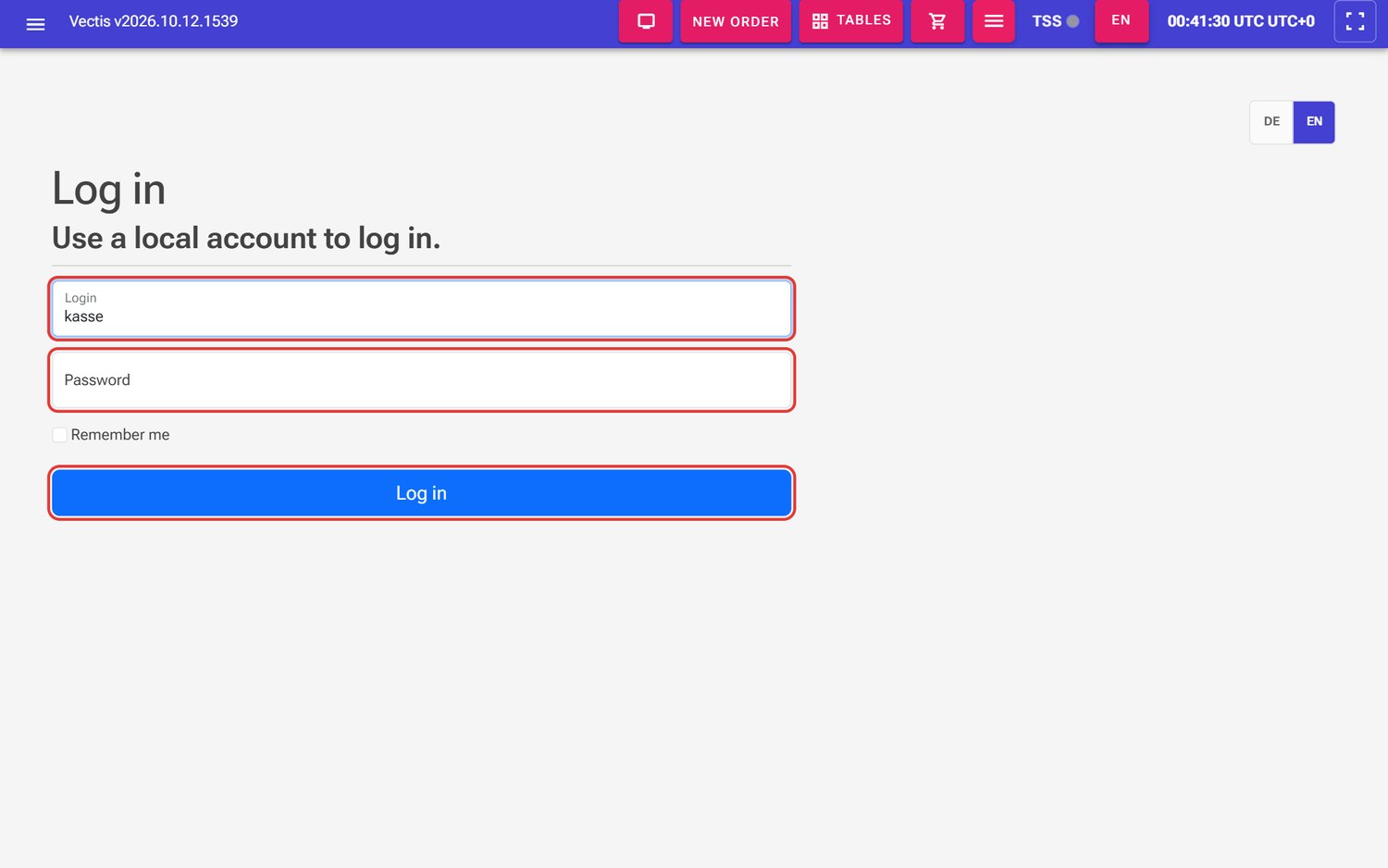 Login page with the Login and Password fields and the Log in button (outlined in red)
 - The till opens the home page. Kitchen, order display and self-checkout devices jump to their own screen automatically; a waiter on a phone or tablet jumps to the mobile view (see Waiters on a phone).
Note: There is no PIN login for till staff. Every employee logs in with user name and password. A "PIN" exists only as the password of device accounts (kitchen, order display, terminal).
Note: If the login name or password is wrong, or the account is deactivated, a red message appears: "Invalid email or password". Check your entry or ask an administrator to check your account.
Note: The login stays stored in the browser until you log out – with or without the Remember me tick.
The home page (Dashboard)
Goal: Check the state of the till at a glance.
Who can do this: All logged-in users.
After logging in you see the home page Vectis POS. You can reach it at any time via Menu › Dashboard.
 Top of the home page for the administrator: status badges and the Kassenmeldung (ELSTER) button (outlined in red)
At the top of the home page you see:
- the heading Vectis POS,
- the status badges: whether the till is Registered or Not Registered with the fiscal service (green or red badge) and, next to it, short details about the fiscal service,
- for administrators and managers, the Kassenmeldung (ELSTER) button at the top right (it keeps its German name in the English interface; the menu entry is called Till registration (ELSTER)). It opens all the data you need to notify the tax office of this till.
Further down follow further technical data about the till and the TSE (only for your service partner).
Note: You do not need the technical details on the home page in daily work. If a red or yellow box appears here, tell your Vectis service partner.
Caution: Vectis sends nothing to ELSTER. You (or your tax adviser) file the till registration yourself in the ELSTER portal.
The header bar
Goal: Know the buttons in the header bar.
Who can do this: All logged-in till users (Admin, Manager, Cashier, Waiter).
The coloured bar at the top is the same on all till pages. From left to right:
 Header bar on the Orders page, the buttons are outlined in red
| Element | What it does |
|---|---|
| Menu icon (three lines, far left) | Opens and closes the side menu. |
| Vectis v… | Shows the program version. A click opens the System Info window with version and device data and a Copy All button – useful when support asks for it. |
| Venue selector (shop icon) | Selects the venue (for example «Demo Restaurant»). Appears only if at least one active venue exists. |
| Waiter selector | Filters the list by waiter (All waiters or one name). Only on the Orders and Reservations pages and not for waiters. |
| Display settings | Only in the order screen (Catalog display settings) and in the floor plan (Table display settings): columns, text sizes, product photos. The settings apply to this device. |
| Screen icon | Opens the customer display in a new browser window. |
| New Order | Starts a new order (see the Orders chapter). |
| Tables | Opens the floor plan. |
| Shopping cart icon | Opens the Orders list. |
| Pink menu button | Opens More POS actions (see below). |
| TSS with a dot | Shows whether the till can sign. A click opens the home page. |
| DE / EN | Switches the interface language. |
| Clock | Till time in the time zone from Cash Register Setup (for example «02:41:58 Berlin UTC+2»). |
| Full screen icon | Enter fullscreen / Exit fullscreen. |
The TSS dot:
- green (pulses slowly): TSE set up and active. All is well.
- red: the till cannot sign. Call your Vectis service partner or support.
- yellow or grey: there is a warning or the status is unknown. Hover over the dot to read the text and tell your service partner.
Caution: With a red TSS dot, the till cannot sign sales. The till does not block sales, but receipts may carry the TSE-Ausfall note. Call your Vectis service partner immediately (see chapter 14).
More POS actions
The pink menu button with the three lines (right of the shopping cart) is there on every screen. On narrower screens (tablets) the till hides some header elements; you then also find them in this menu.
- Tap the pink button with the three lines.
- More POS actions opens with:
- Order context: venue and waiter (only on narrow screens),
- Quick actions: Customer Display, Orders, Tables; in the order screen and the floor plan also the display settings,
- System / secondary: Enter fullscreen, TSS with its dot, Language and Time of the till.
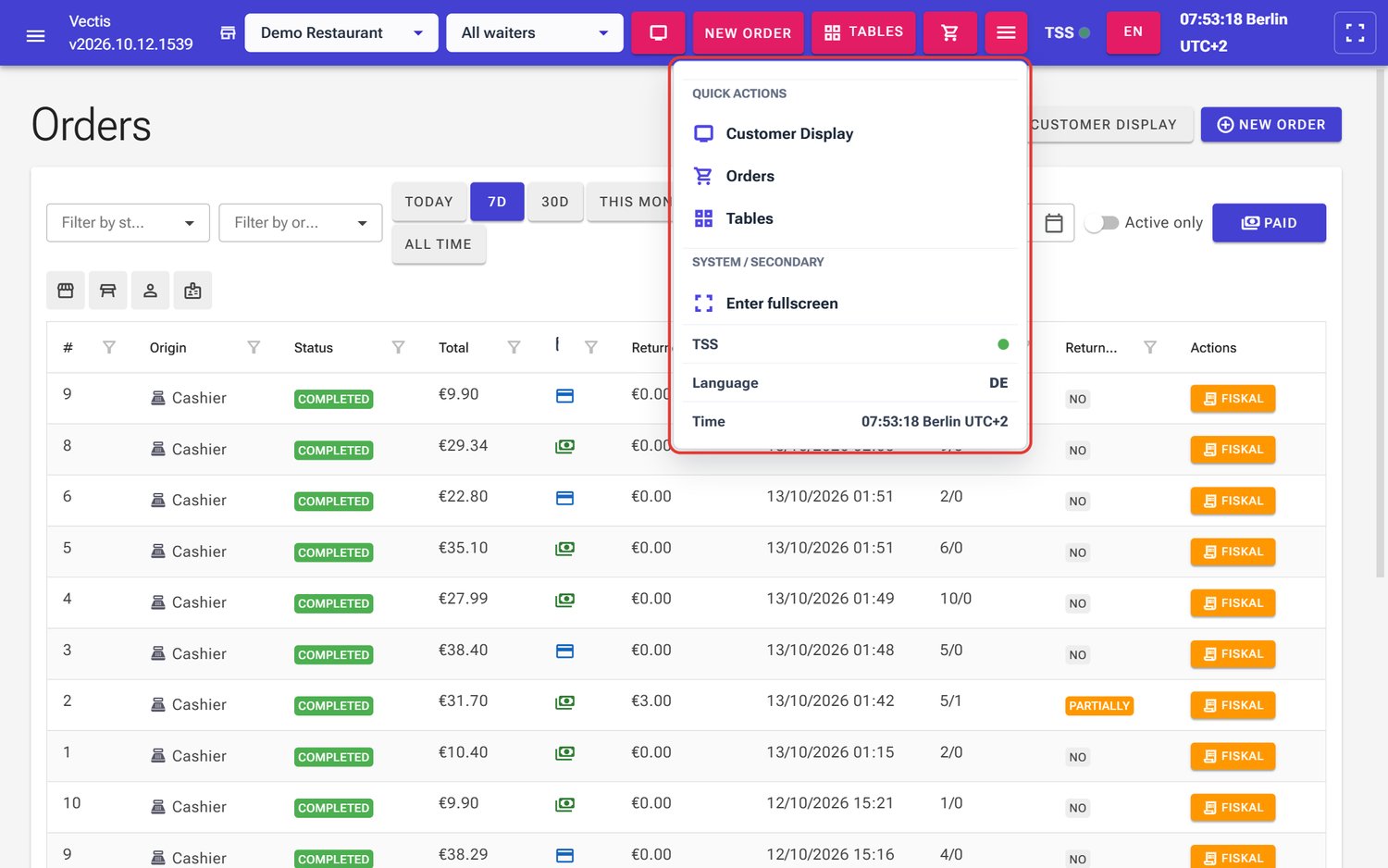 More POS actions on the Orders page (outlined in red)
- Tap next to the menu to close it.
Note: The Language line in this menu shows the till and receipt language from Cash Register Setup (for example «DE», even when the interface is in English). It is display only. You change the language of your screen with DE / EN.
The side menu
Goal: Open the side menu and find the areas.
Who can do this: All logged-in till users; everyone sees only the areas of their role.
- Tap the menu icon (three lines) on the left of the header bar.
- The side menu slides over the page. Tap an area to expand it, then tap the entry.
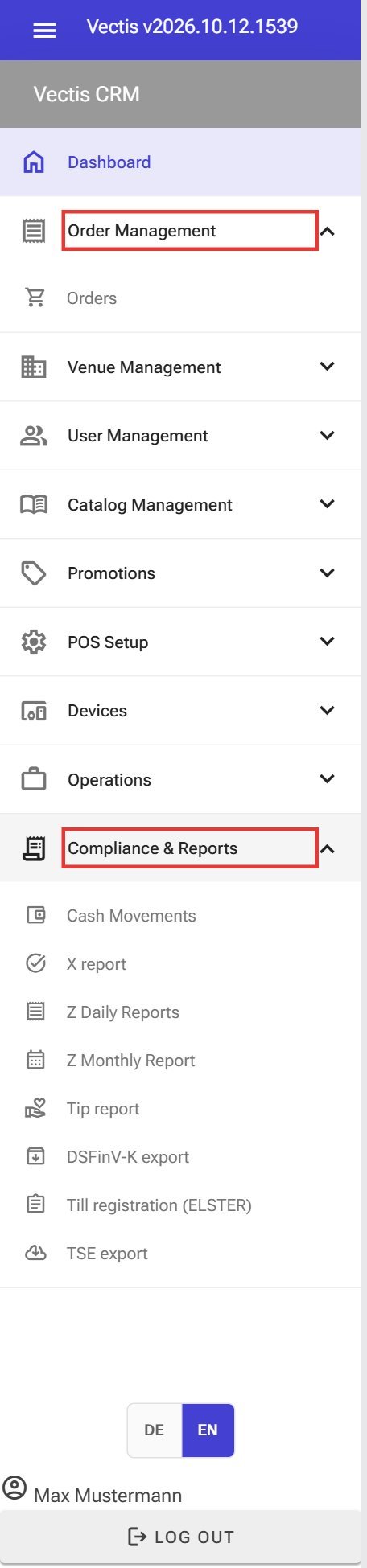 Side menu as administrator, Order Management and Compliance & Reports are expanded
 - At the bottom of the menu you find the language switch DE / EN, your name and the Log out button.
Which areas you see depends on your role:
| Menu area | Admin | Manager | Cashier | Waiter |
|---|---|---|---|---|
| Dashboard | yes | yes | yes | yes |
| Order Management › Orders | yes | yes | yes | yes |
| Venue Management › Venues | yes | yes | – | – |
| Venue Management › POS Floor Plan, Reservations | yes | yes | yes | yes |
| Compliance & Reports (only X report, Tip report, DSFinV-K export, Cash Movements) | – | – | yes | – |
| Compliance & Reports (complete, except TSE export) | yes | yes | – | – |
| Compliance & Reports › TSE export | yes | – | – | – |
| User Management › Users | yes | visible but locked¹ | – | – |
| Catalog Management, Promotions › Discounts | yes | yes | – | – |
| POS Setup, Devices, Operations | yes | yes | – | – |
¹ A manager sees the Users entry but gets the Access denied page when opening it. Only the administrator manages users (see chapter 02).
Note: Waiters see the Reservations entry in the menu. Reservations are taken by a cashier, manager or administrator.
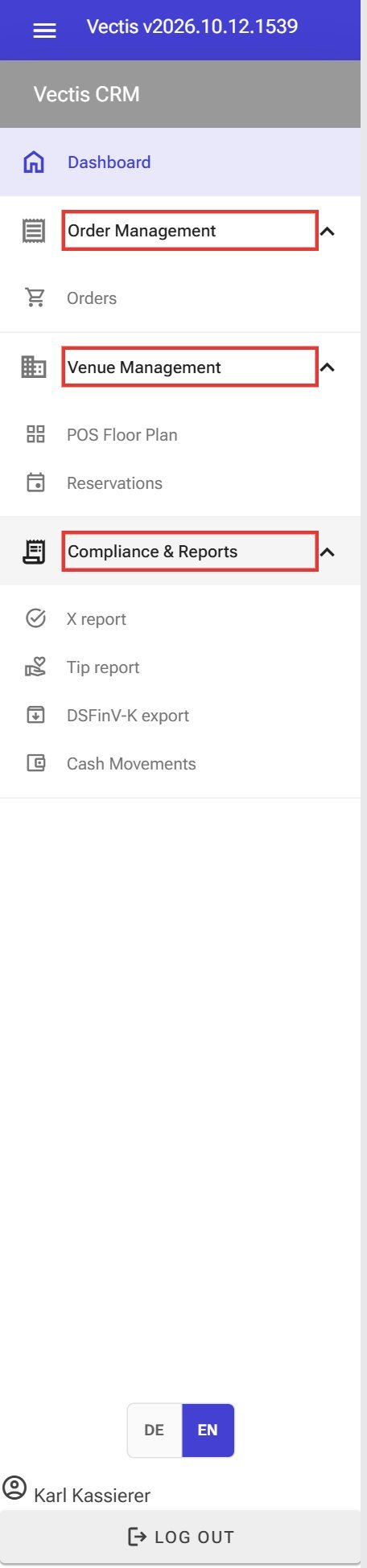 Side menu as cashier: Order Management, Venue Management and Compliance & Reports with X report, Tip report, DSFinV-K export and Cash Movements
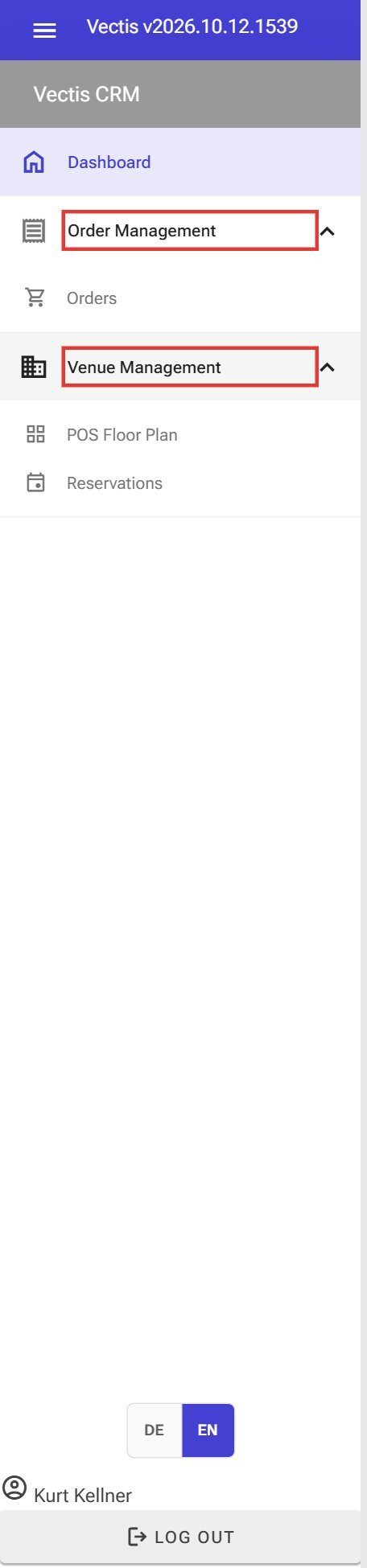 Side menu as waiter: only Order Management and Venue Management
Note: The top of the side menu says "Vectis CRM". That is only the name of the menu header; you are in the till.
The complete overview of who may do what is in Appendix A "Rights matrix".
Switch the language
Goal: Switch the interface to German or English.
Who can do this: All users.
The till has two languages: German (DE) and English (EN). You can switch in three places:
- on the login page at the top right (DE / EN),
- in the header bar with the DE or EN button – one tap switches to the other language,
- at the bottom of the side menu (DE / EN; the active language is highlighted).
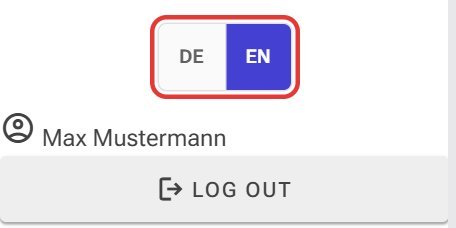 DE / EN language switch at the bottom of the side menu (outlined in red)
Note: The language is saved in this browser on this device, not in the user account. On another device, set it there again.
Note: Some windows (for example "Create New User" in User Management) are labelled in English only, even in the German interface. The receipt language is set separately in Cash Register Setup.
Full screen
Goal: Show the till without browser bars.
Who can do this: All users.
- Tap the full screen icon at the far right of the header bar (Enter fullscreen).
- To leave, tap it again (Exit fullscreen) or press
Esc.
Note: If the icon is greyed out, the browser does not support full screen.
Log out
Goal: Free the till for the next employee.
Who can do this: All users.
- Open the side menu (menu icon at the top left).
- Tap Log out at the bottom.
- The login page appears.
Caution: Always log out at the end of your shift or when someone else takes over the till. Everything booked under your name appears under your name in the reports.
New version notice
Goal: Load the new version after an update.
Who can do this: All users.
When a new version has been installed on the till PC, a bar appears at the top with the text A new version is available. and two buttons: Refresh and Later.
- First finish what you are doing (for example a payment).
- Tap Refresh. The page reloads with the new version.
- If it is not a good moment, tap Later. The bar comes back as soon as the till detects a new version again.
Waiters on a phone (mobile view)
Goal: Work as a waiter on a phone with the mobile view.
Who can do this: Waiters (automatically). Other roles can open the mobile view only via the address /mobile/waiter/tables.
- On the phone open
http://<till-IP-address>:10110and log in. - If your account is a Waiter and the device is a phone or tablet with a touch screen, the till opens the mobile table view automatically.
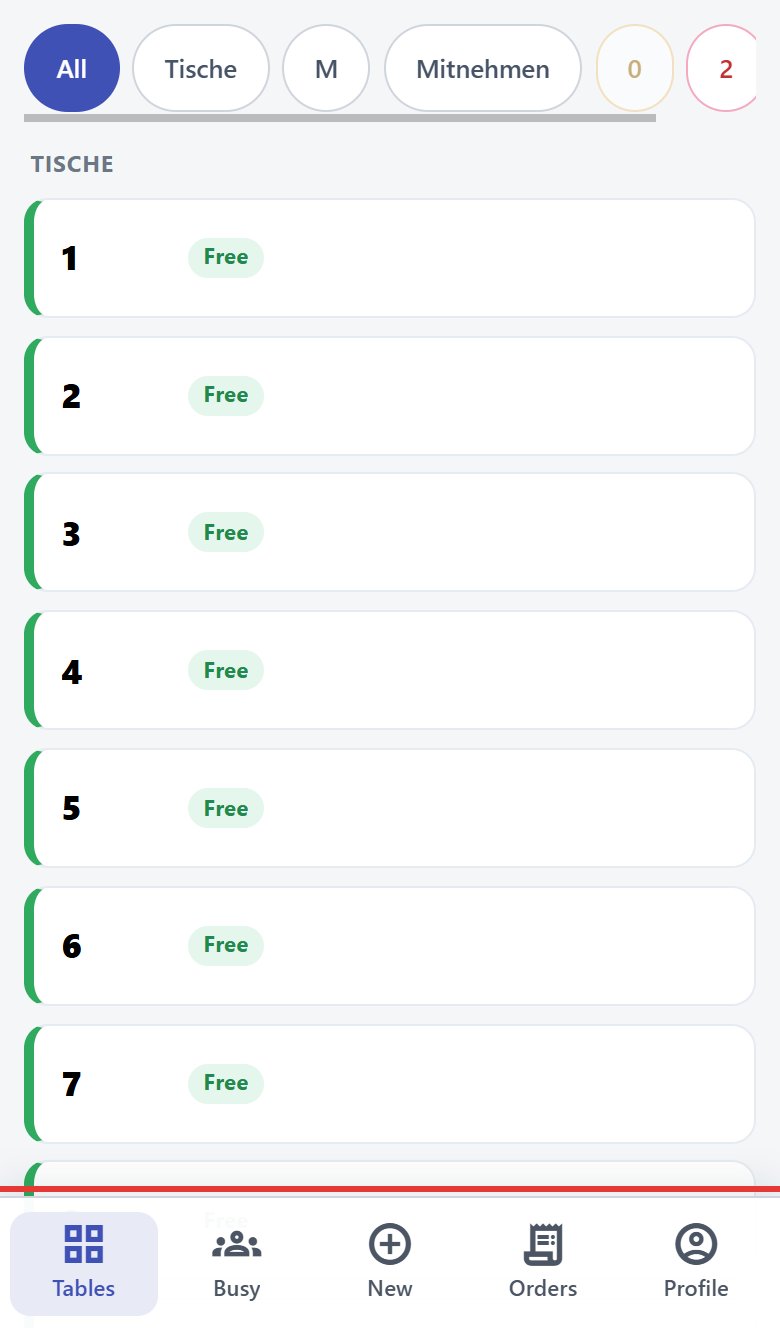 Mobile table view on a phone: area chips at the top, tables with their status below, the bottom bar (outlined in red)
 - At the top choose the area (All or for example «Tische», «M», «Mitnehmen»). At the bottom you find the bar Tables, Busy, New, Orders and Profile.
- Under Profile you see your name and role, the Today statistics (Paid orders, Cash, Card, Total), the Venue, the Language and the buttons Desktop view and Log out.
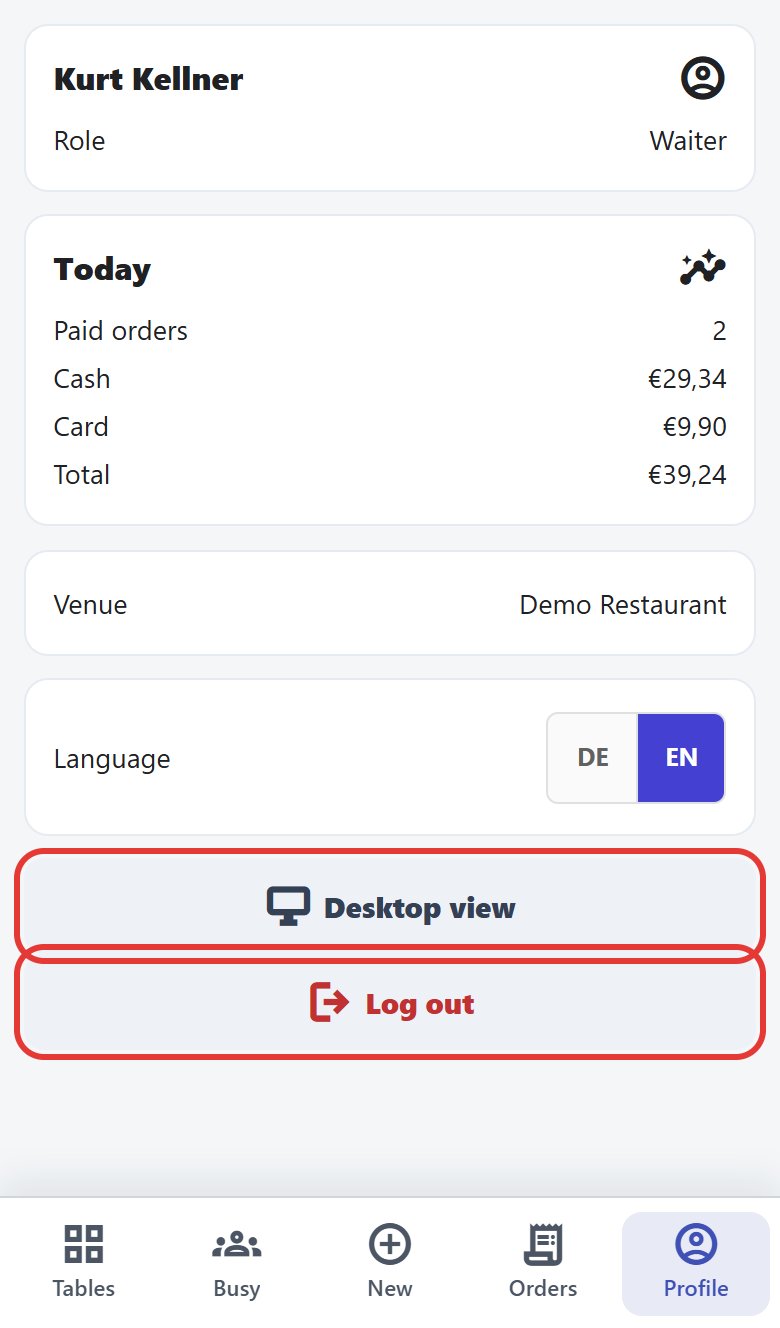 Waiter's mobile profile: today 2 paid orders, cash €29,34, card €9,90, total €39,24; Desktop view and Log out are outlined in red
Note: With Desktop view this device stays in the normal till view permanently, even after logging in again. To get back to the mobile view, open the address http://<till-IP-address>:10110/mobile/waiter/tables; there is no button for it.
Note: The automatic redirect only applies when the home page opens. If you open a direct link (for example to an order), the till stays there.
When "Access denied" appears
Goal: Understand why a page is locked.
Who can do this: All users.
If you open a page your role may not use (for example from a bookmark), the till shows a lock and Access denied with the text "Your account does not have permission to open this page. Contact an administrator."
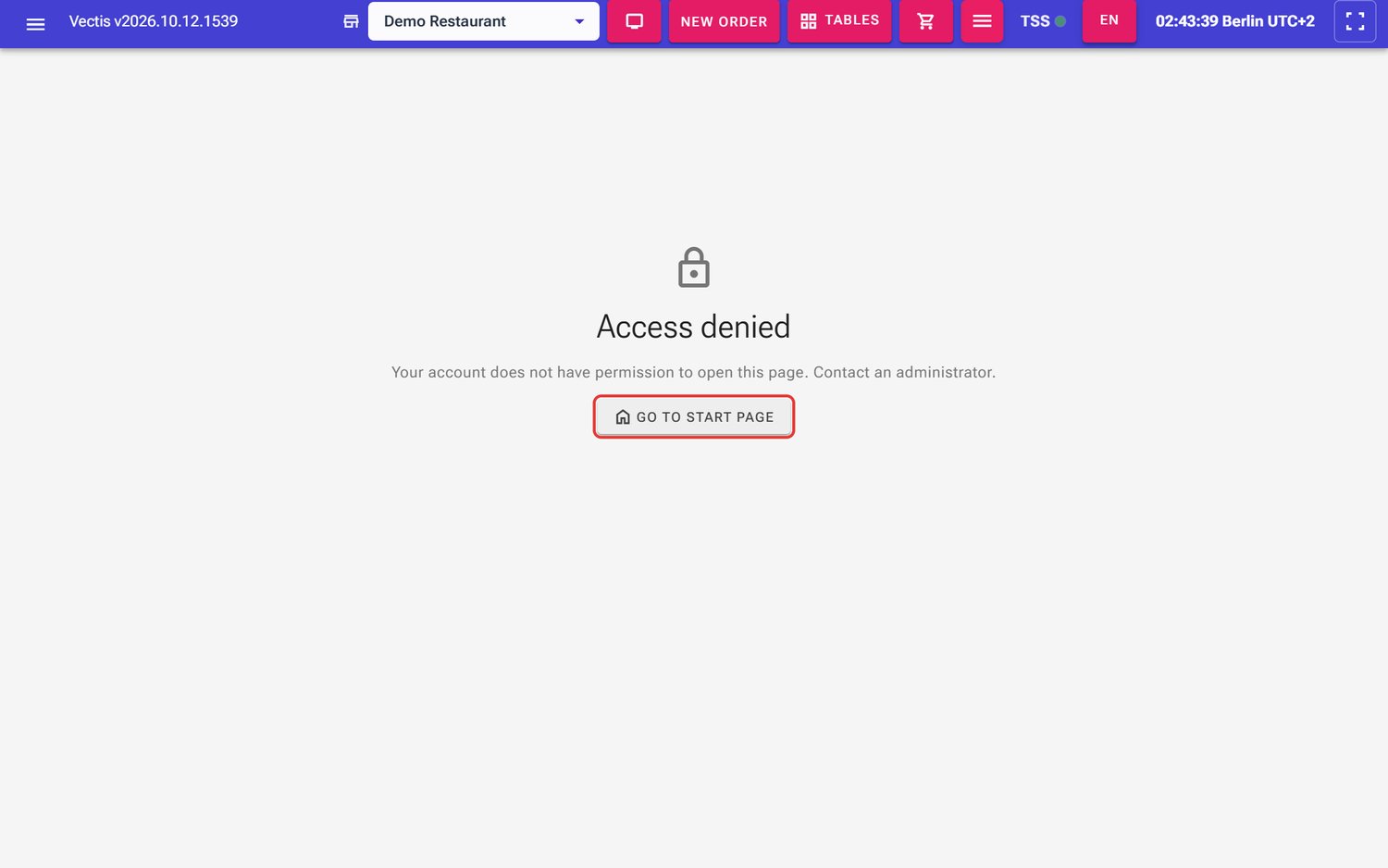 Access denied page with the Go to start page button (outlined in red)
- Tap Go to start page.
- If you need the function, ask the administrator to check your role.
Note: If you are not logged in at all (for example after a long break), the till sends you to the login page instead and, after login, back to the page you wanted.
Frequently asked questions
Q: I forgot my password. What now? An administrator sets a new password under Menu › User Management › Users (see chapter 02). There is no "forgot password" function.
Q: Is there a quick PIN login for waiters? No. All till users log in with user name and password.
Q: The login page says "Invalid email or password" although the password is right. A common cause: the account is deactivated. An administrator can activate it again under Users.
Q: The page does not load, the browser says "site can't be reached". The till service is not running or the till PC is off. Check in Vectis Manager whether the service is running (Start POS in the taskbar menu), or call your service partner.
Q: Why do I see fewer menu entries than my colleague? The menu shows only the areas of your role. The overview is in Appendix A "Rights matrix".
Q: I am a manager and see "Users" in the menu but get "Access denied". That is intended: only the administrator may create and change users.
Q: The TSS dot is red. May I keep taking payments? The till lets you sell, but receipts may not be signed (note TSE-Ausfall). Call your Vectis service partner immediately and follow chapter 14 "TSS indicator is red".
Q: Where do I see the program version? On the left of the header bar (Vectis v…). A click opens System Info.
Q: I switched the language, but the tablet still shows the old one. The language applies per device and browser. Switch it on the tablet as well.
Q: As a waiter I ended up in the normal view on my phone.
Either Desktop view was chosen once on this device, or the device is not recognised as a touch device. Open http://<till-IP-address>:10110/mobile/waiter/tables.
Q: What happens to open orders when I log out? Nothing. Orders are stored in the till and stay open until they are paid or cancelled.