12 Exports and authorities
During a cash register inspection (Kassen-Nachschau) or a tax audit, the tax office can ask for your till data. Vectis offers two exports for this: the DSFinV-K export (the till data of closed days) and the TSE export (the signature data of the security device). In addition, the Till registration (ELSTER) page collects everything you have to report about your till to the tax office via ELSTER.
| What | Menu | Who can do this |
|---|---|---|
| DSFinV-K export | Menu › Compliance & Reports › DSFinV-K export | Admin, Manager, Cashier |
| TSE export | Menu › Compliance & Reports › TSE export | Admin only |
| Till registration | Menu › Compliance & Reports › Till registration (ELSTER) | Admin, Manager |
Caution: Vectis sends no data to the tax office and nothing to ELSTER. You download every export as a file and hand it over yourself. You (or your tax adviser) file the till registration yourself in Mein ELSTER.
Download the DSFinV-K export for a period
Goal: Save the till data of several days as a ZIP file for the tax office or your tax adviser.
Who can do this: Admin, Manager, Cashier.
- Open Menu › Compliance & Reports › DSFinV-K export.
- Choose From (business date) and To (business date). The current month up to today is preset (in the picture 2026-10-01 to 2026-10-13).
- Tap Export period. A reminder below says that only closed days (Z closing) are exported.
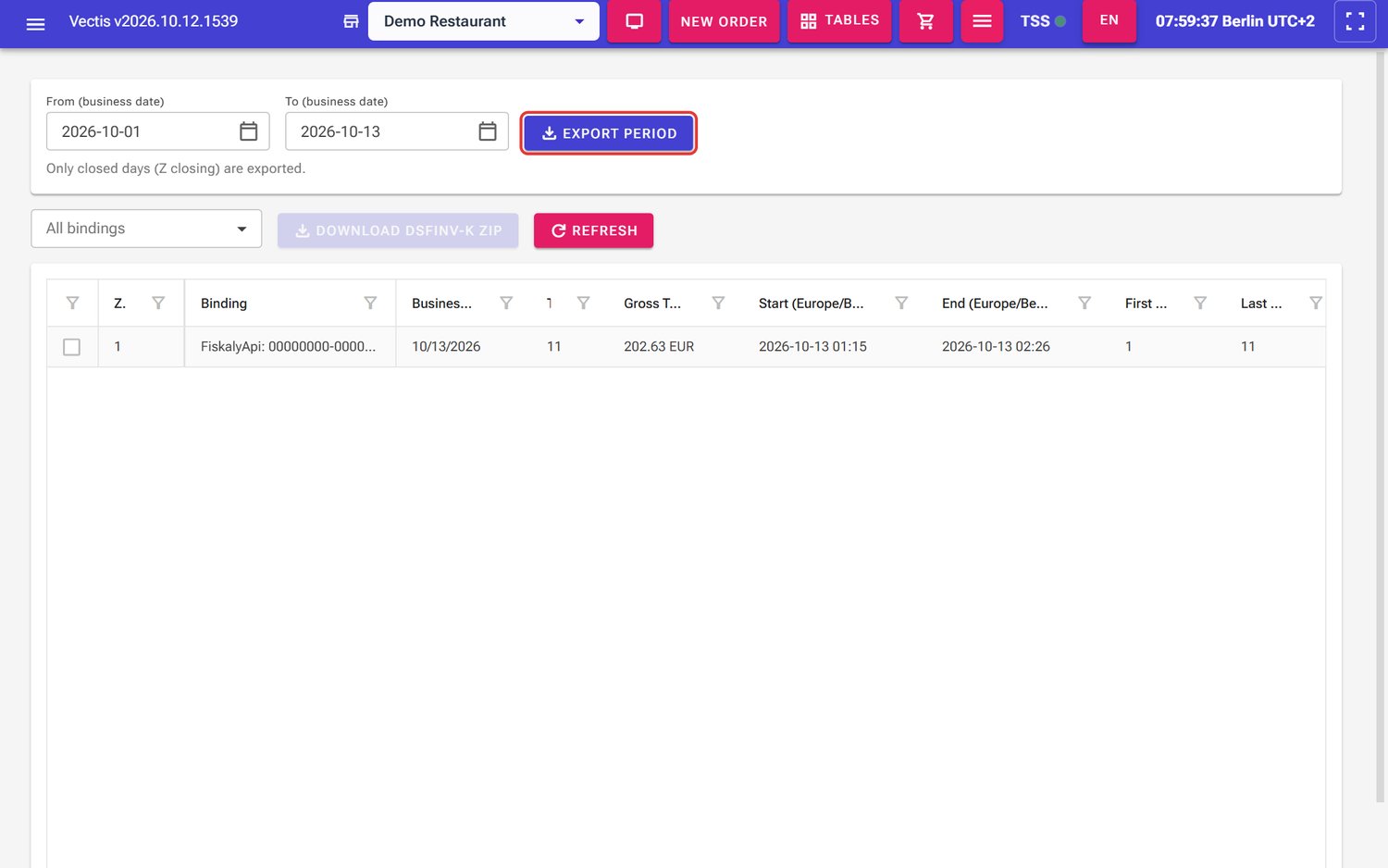 DSFinV-K export page with the period and the Export period button (outlined in red)
 - The browser saves a ZIP file, usually in the "Downloads" folder.
- Hand the ZIP file over unchanged to the tax office or your tax adviser, for example on a USB stick.
Caution: Only closed days (Z closing) are exported. A day without a Z closing is missing from the export. So close every day (see chapter 11 Closing and reports).
Note: If the period has no closed day or the date is wrong, a red box Download failed: shows the reason.
Export single Z closings
Goal: Download only specific Z closings as a ZIP file.
Who can do this: Admin, Manager, Cashier.
- Open Menu › Compliance & Reports › DSFinV-K export.
- If needed, choose a binding above the list (default: All bindings).
- The list shows each Z closing with Z#, Binding, Business Date, number of receipts (Tx), Gross Total, start, end, First BON_ID and Last BON_ID. Admins and managers also see Opening Cash and Closing Cash.
- Tick the box in the first column for each Z closing you want. Only then can you tap Download DSFinV-K ZIP. Column headers are often shortened; scroll the table to the right for more columns.
- Tap Download DSFinV-K ZIP.
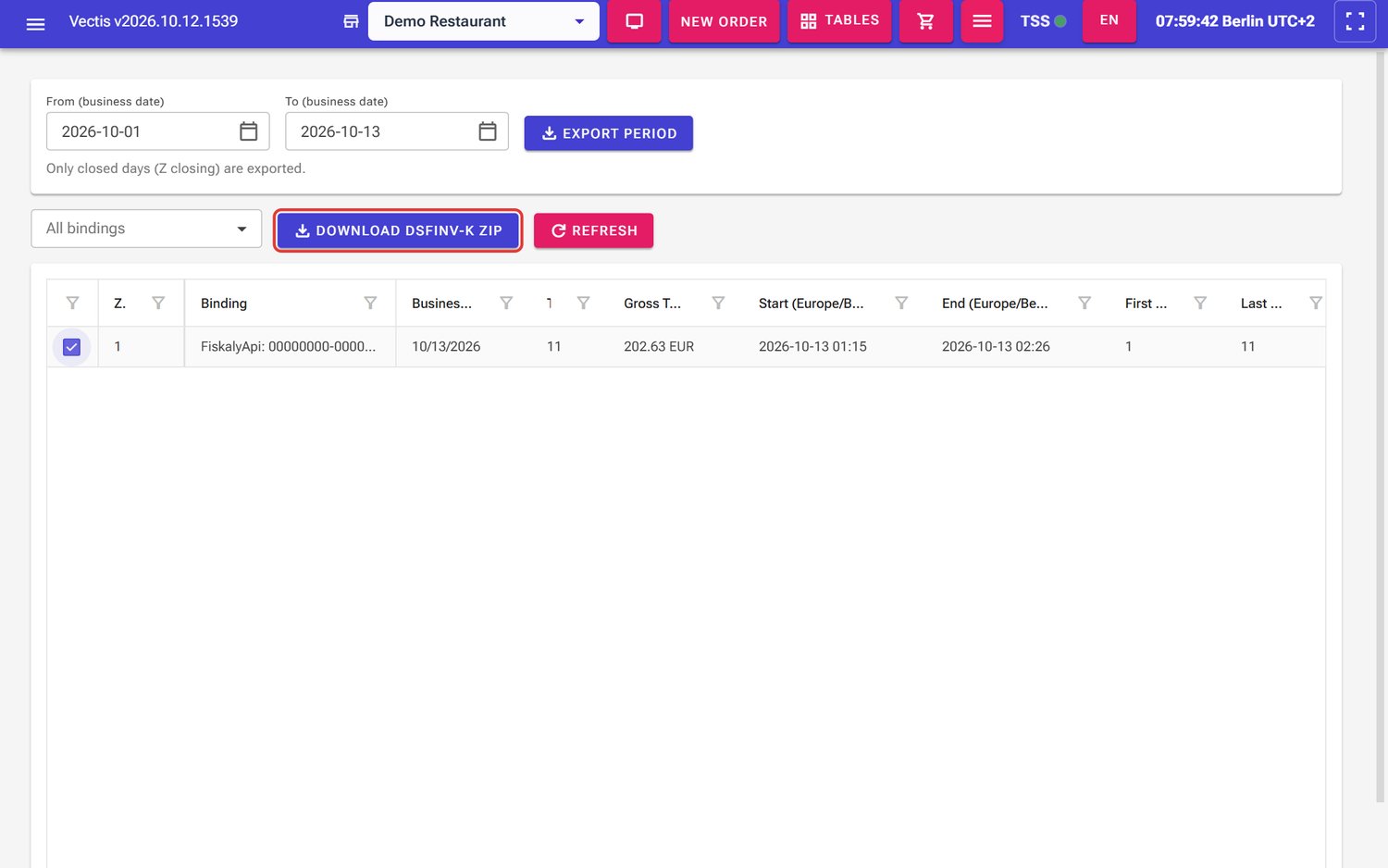 Z closing 1 ticked, Download DSFinV-K ZIP button (outlined in red)
Note: Refresh next to the button reloads the list, for example right after a Z closing.
Note: For longer periods (for example a whole year), use Export period.
Request and download the TSE export
Goal: Download the TSE signature data (TAR file) for the tax office.
Who can do this: Admin.
The TSE stores every signature. This data is kept by the TSE provider. A TSE export is created there and can take some time.
- Open Menu › Compliance & Reports › TSE export. The page is called Export management.
- In Filter by TSS at the top, choose your TSE, for example "fiskaly sign cloud-TSE (…)". With All TSS, Trigger export is disabled ("Select a TSS before triggering export.").
- Tap Trigger export at the top right.
- The Trigger export window opens. All fields are optional:
- Date Range: Start Date (inclusive) and End Date (inclusive) – preset to the last seven days up to now,
- Client & Counters: Client ID (optional), Transaction Number, Transaction Range (Start / End) and Signature Counter Range (Start / End) – only if the tax office explicitly asks for it,
- Advanced: Maximum Number of Records.
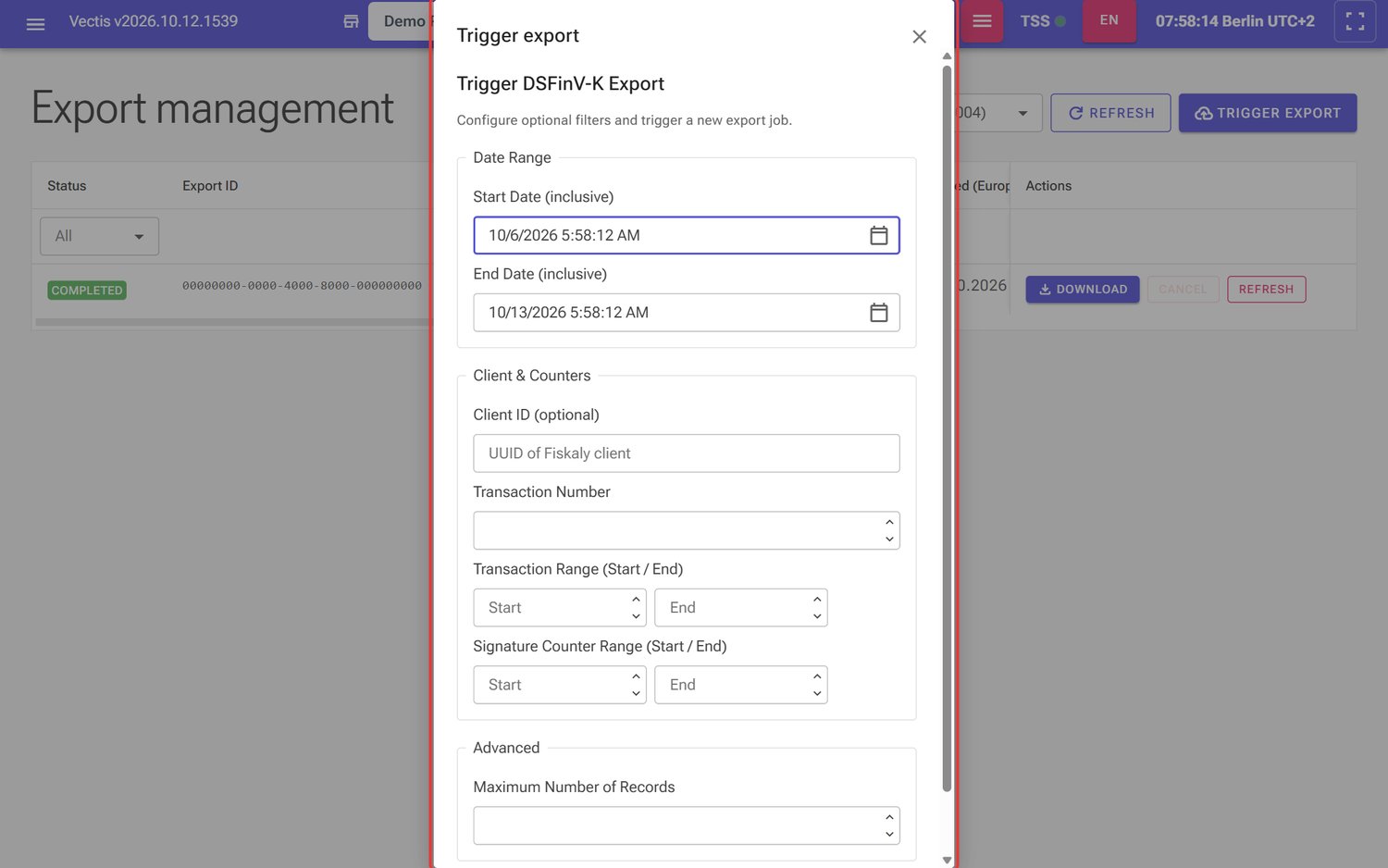 Trigger export window with Date Range, Client & Counters and Advanced
- Tap Trigger Export at the bottom of the window. The message "Export triggered: Export … is PENDING." appears, and the export appears in the list with the status PENDING or WORKING.
- Wait until the status shows COMPLETED. Refresh in the row asks for the latest state.
- In the Actions column, tap Download. The browser saves a TAR file.
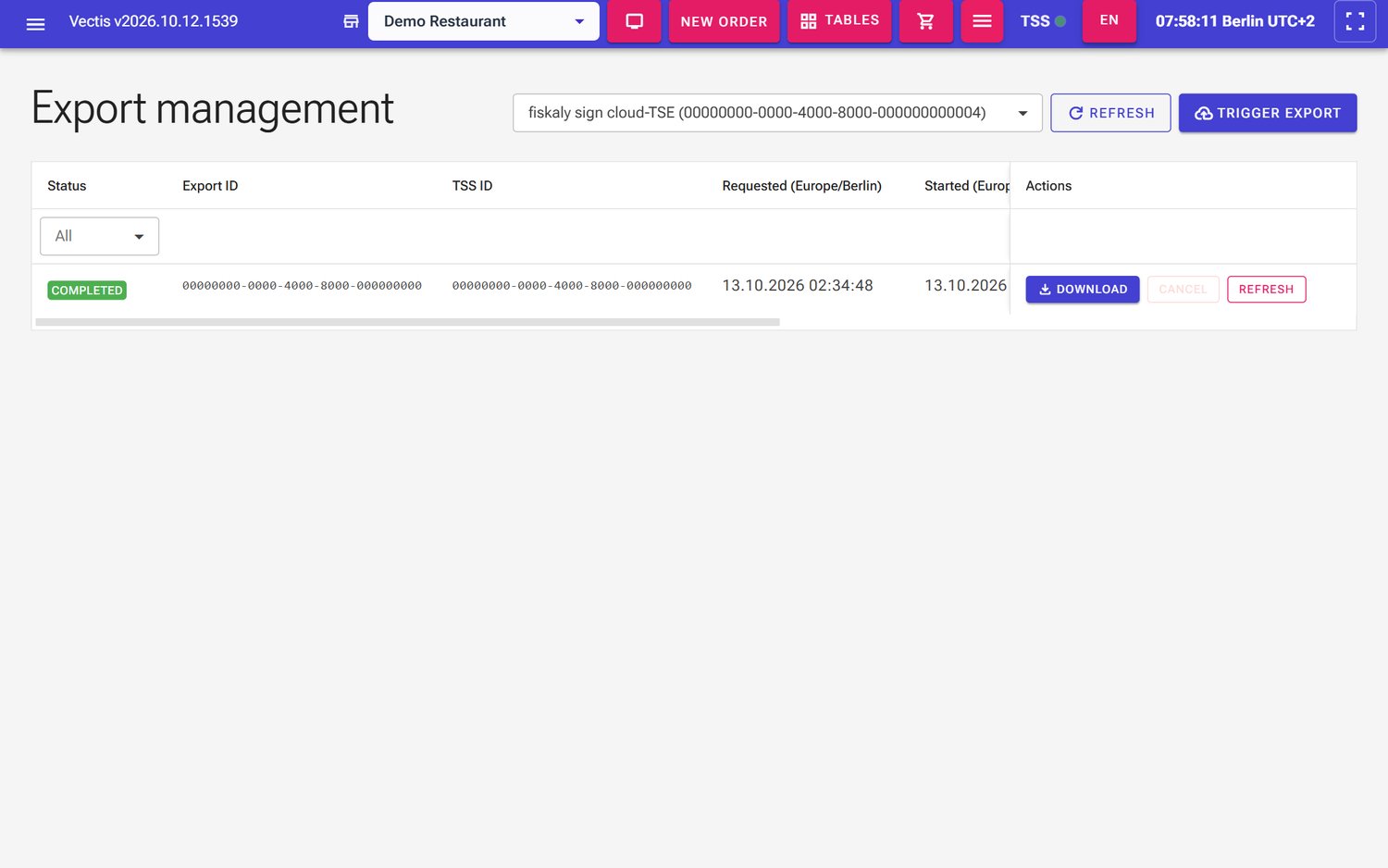 Export management: export with status COMPLETED and the Download, Cancel (disabled) and Refresh buttons
Note: The All field in the Status column filters the list by status.
Note: The Expires column shows until when the finished export can be downloaded. Download it before then; afterwards, request a new one.
Note: A running export (PENDING, WORKING) can be stopped with Cancel. ERROR means the export failed – start it again or contact your Vectis service partner.
Note: Despite the heading "Trigger DSFinV-K Export" inside it, this window creates the TSE export. The DSFinV-K export of the till data is on the DSFinV-K export page.
Prepare the till registration (ELSTER)
Goal: Collect all data for notifying the tax office of your till under § 146a (4) AO.
Who can do this: Admin, Manager.
Since 2025, businesses in Germany must report their electronic tills to the tax office. You file this notice in Mein ELSTER. Vectis prefills the Till registration page with the data from the till, so you only have to copy the values.
- Open Menu › Compliance & Reports › Till registration (ELSTER). The home page also has a Kassenmeldung (ELSTER) button for it. The page is called Till registration under § 146a (4) AO (ELSTER "Kassenmeldung"); at the top are Reload and Print / PDF.
- Below it says: "Vectis sends nothing to ELSTER – copy the values into Mein ELSTER with "Copy"."
- Below, a box shows the state:
- Ready to submit – all data is there,
- Missing: – a list of missing data,
- Please check: – values that Vectis suggested and that you should confirm (in the picture, for example, the name and address of the business location and the commissioning dates of the till and the TSE).
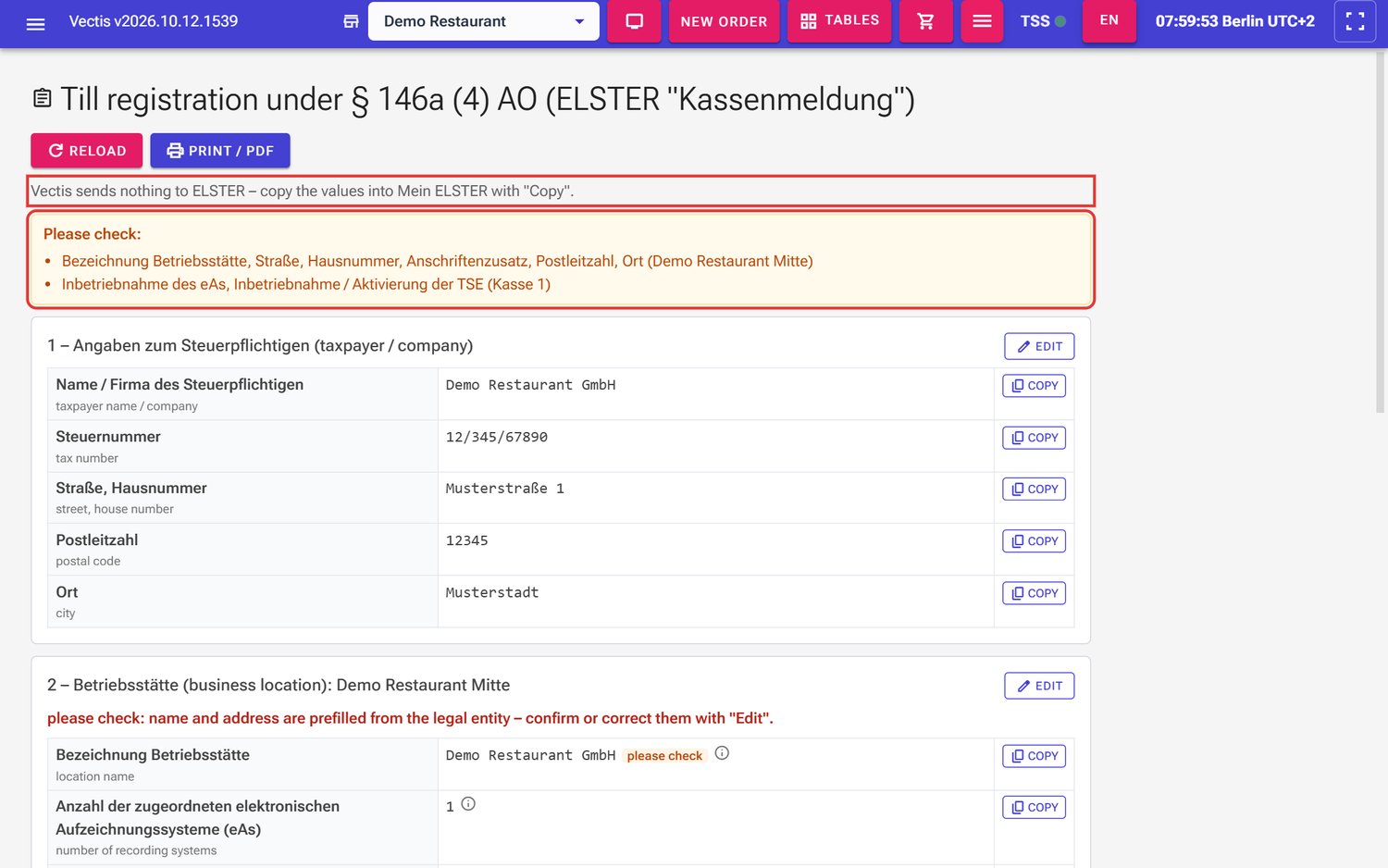 Till registration page: note "Vectis sends nothing to ELSTER" and the Please check box (outlined in red)
- The page follows the ELSTER form:
- 1 – Angaben zum Steuerpflichtigen (taxpayer / company),
- 2 – Betriebsstätte (business location): …,
- Angaben zum elektronischen Aufzeichnungssystem (eAs, recording system): … (your till),
- Angaben zur technischen Sicherheitseinrichtung (TSE).
- Each row shows the German field name as in ELSTER, an English translation and the value. Instead of a value it may say missing, leave empty or please check. The Note icon (i) explains where a value comes from. If data was prefilled from the company, a red line above the section says so, for example "please check: name and address are prefilled from the legal entity – confirm or correct them with "Edit".".
Note: Name, address and tax number come from Menu › POS Setup › Legal Entity Setup, the till data from the cash point settings. If the till record is missing entirely, the page shows Till (cash point record): missing – then contact your Vectis service partner.
Add missing data with "Edit"
Goal: Enter data that Vectis cannot know (for example the acquisition date).
Who can do this: Admin, Manager.
- In the section concerned, tap Edit.
- Fill in the fields:
- taxpayer: tick "The taxpayer is a natural person …", then Date of birth and Tax identification number,
- business location: name, street, house number, postal code, city and – only when the location is given up – the closing date,
- till (eAs): Acquired on (date of the invoice or delivery note), Put into operation on, if needed not in operation yet, Taken out of service on with Reason and Remarks,
- TSE: Commissioning / activation of the TSE.
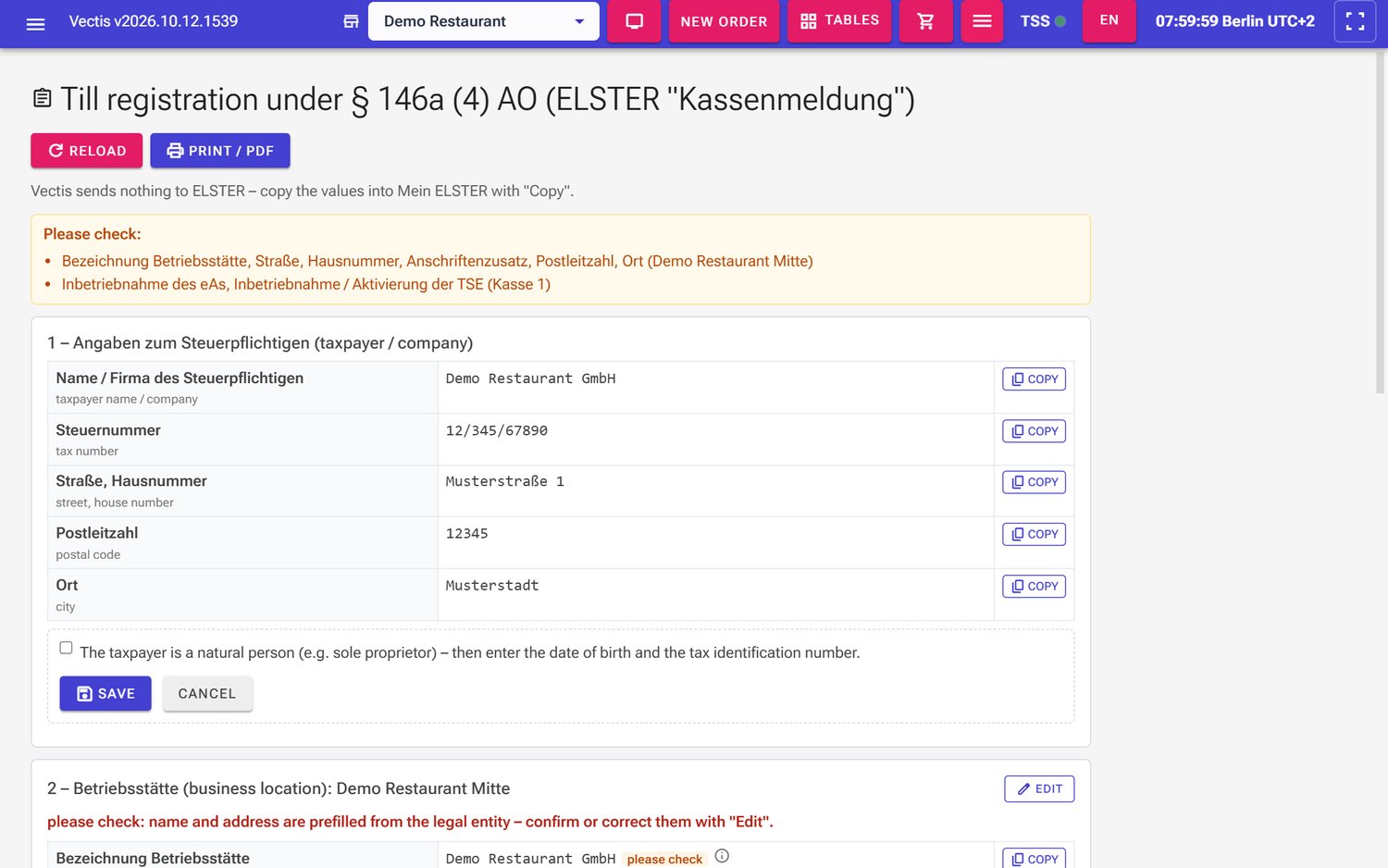 Section 1 (taxpayer) after Edit: "natural person" tick box, Save and Cancel
- If Vectis suggests a date, you can enter it with Use suggestion. It only counts after saving.
- Tap Save. Saved appears next to the button. Cancel discards your input.
Note: Dates in the future are rejected, as is a commissioning date before the acquisition. The error message appears right in the form.
Copy the values into ELSTER
Goal: Fill in the notice in Mein ELSTER.
Who can do this: Owner or tax adviser (in ELSTER); Admin and Manager see the values on the page.
- In a second browser window, open Mein ELSTER and the form for the notice under § 146a (4) AO.
- In Vectis, tap Copy in the row of the field. The button briefly shows Copied, and "Copied to the clipboard" appears in green below the value.
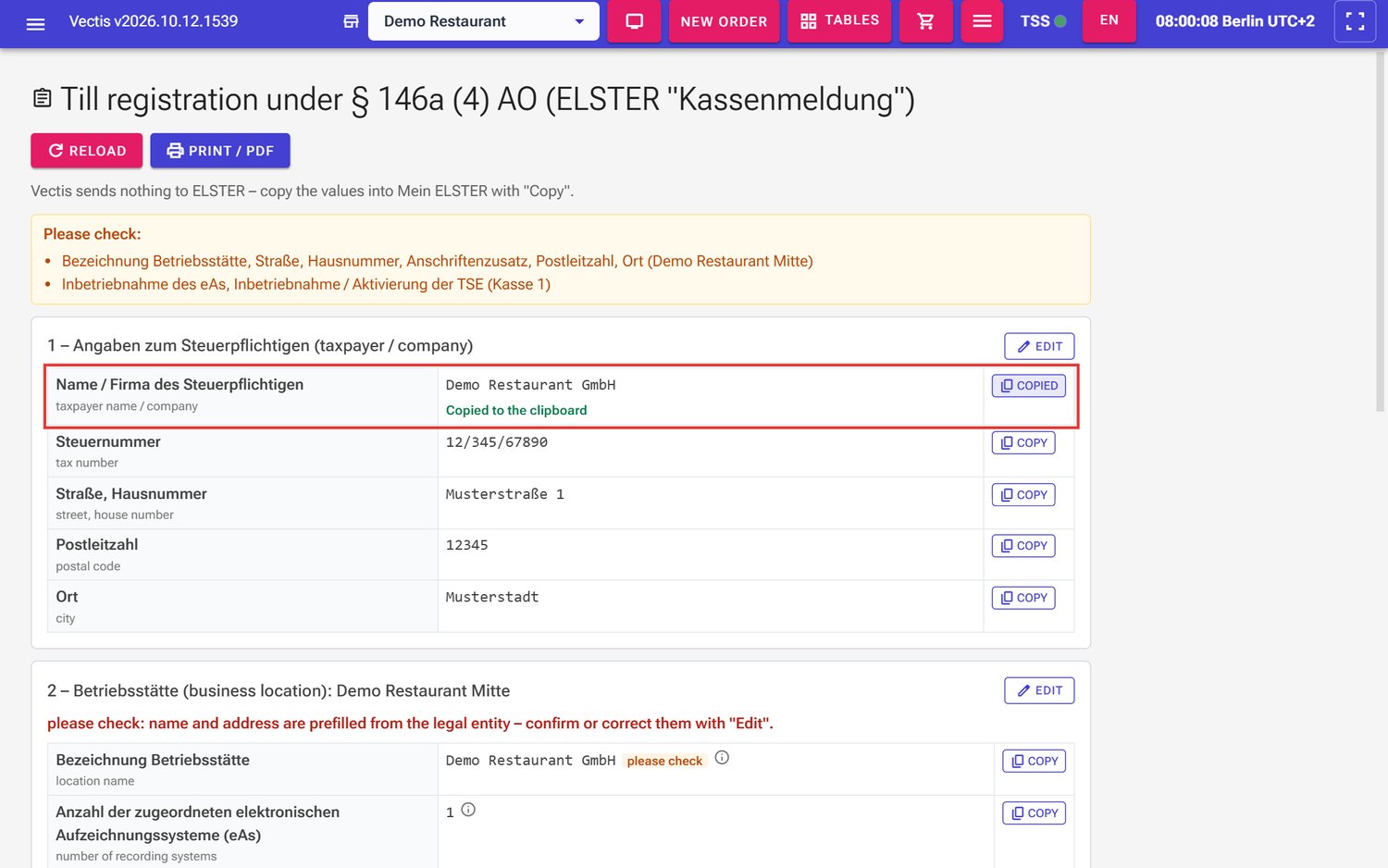 Row taxpayer name / company after Copy (outlined in red)
 - Paste the value into the field with the same name in ELSTER (Ctrl+V).
- Repeat for all fields. Do not fill in fields marked leave empty in ELSTER.
- Submit the notice in ELSTER.
Note: If copying does not work, you see "Could not copy – please select the value and press Ctrl+C."
Print the till registration or save it as PDF
Goal: Keep the data on paper or as a PDF, for example for your tax adviser.
Who can do this: Admin, Manager.
- Tap Print / PDF at the top.
- The browser's print dialog opens. Choose your printer or Save as PDF.
- The printout shows "As of:" with date and time at the top.
Note: This printout goes through the browser, not through the receipt printer.
Caution: If the till is finally taken out of service or moves to another business location, enter the out-of-service date and report it in ELSTER (according to the hint on the page, within one month). Ask your tax adviser for the exact deadlines.
Frequently asked questions
Q: Does Vectis send my data to the tax office automatically? No. Vectis sends nothing to the tax office and nothing to ELSTER.
Q: What do I hand over during a cash register inspection? Usually the DSFinV-K export (ZIP) for the requested period and, if asked, the TSE export (TAR). Ask the inspector what is needed.
Q: Why is a day missing from the DSFinV-K export? That day has no Z closing. Only closed days are exported.
Q: May a cashier download the DSFinV-K export? Yes, but the cashier does not see the opening and closing cash.
Q: Why don't I see the TSE export menu item? The TSE export is for Admin only.
Q: The TSE export has been on WORKING for minutes. That is normal; the export is created by the TSE provider. Tap Refresh later.
Q: My finished TSE export can no longer be downloaded. It has expired (column Expires). Trigger a new export.
Q: What does "Ready to submit" mean on the till registration? All data is present. You can now copy the values into ELSTER and submit the notice.
Q: Where do I find the till's acquisition date? On the invoice or delivery note; for rent or leasing, the start of the provision counts.
Q: Do I have to report the TSE as well? Yes, the TSE data is part of the notice. Vectis prefills it in the TSE section.