11 Closing and reports
At the end of every business day you close the till with a Z closing. Before that you can check at any time with the X report what has been sold since the last closing. This chapter explains the X report, the Z closing (by hand and automatic), the Z daily and Z monthly reports, and the tip report.
Why a Z closing is needed
Under the German Cash Register Security Regulation (KassenSichV) and the DSFinV-K, a till must end every business day with a cash closing. The Z closing sums up all signed receipts since the last closing and gets a running Z number. Only closed days can later be exported for the tax office (see chapter 12 Exports and authorities).
Caution: A Z closing cannot be undone or deleted. If a business day has no Z closing, that day is also missing from the DSFinV-K export. So close every day – by hand or automatically.
| X report | Z closing | |
|---|---|---|
| What | interim figures since the last Z | closing of the business day |
| Changes anything? | No, display only | Yes, creates a Z closing with a Z number |
| How often | as often as you like | once per business day |
View the X report
Goal: Check sales since the last Z closing without closing anything.
Who can do this: Admin, Manager, Cashier.
- Open Menu › Compliance & Reports › X report.
- The active binding is already selected at the top left. On the left you see all receipts since the last Z with #, GV_TYP, To date, Gross turnover, Discount, Total amount and User name; more columns (Cash, Card, Other, Storno) appear when you scroll the table to the right.
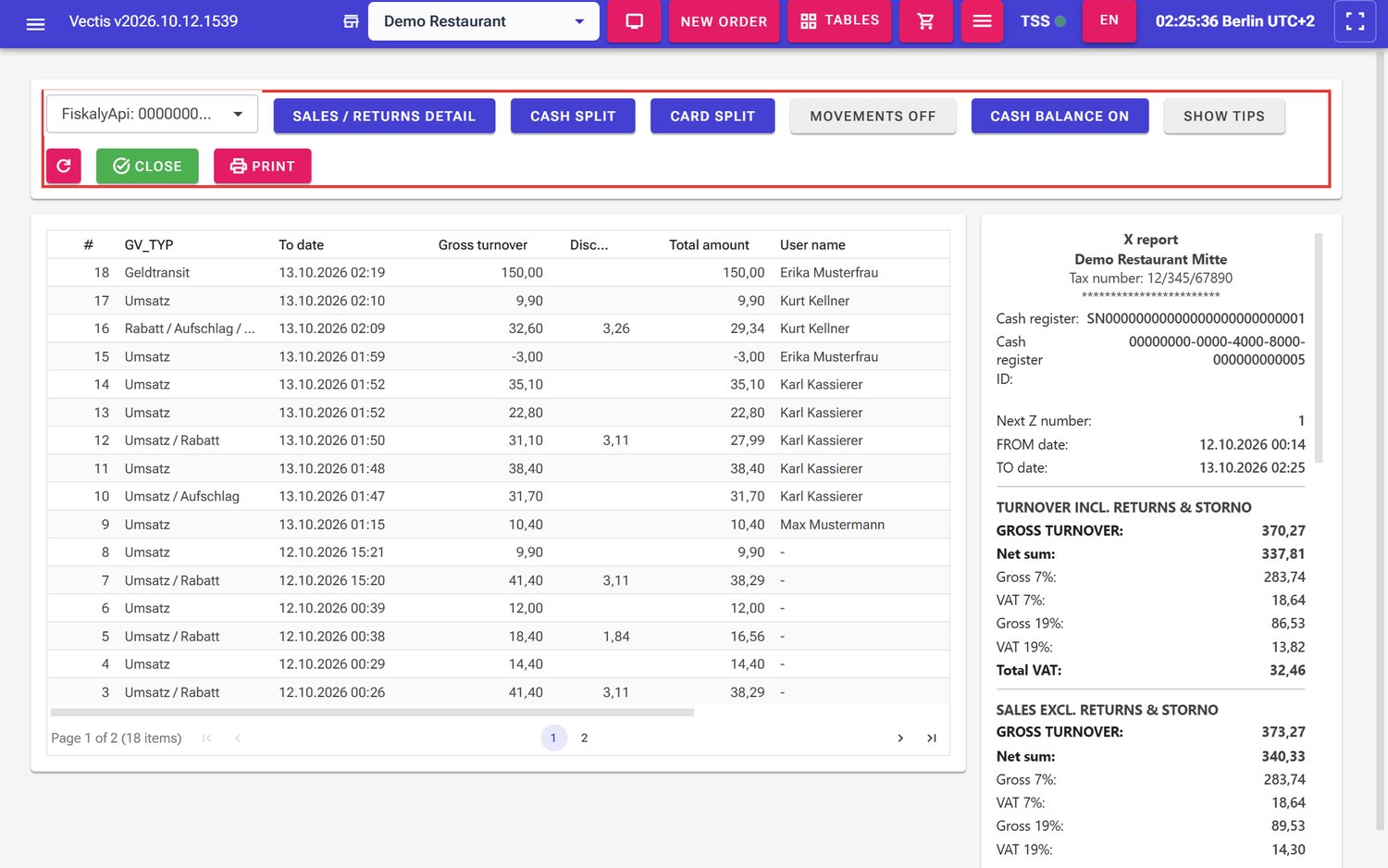 X report for a manager: button bar (outlined in red), receipt list on the left, preview on the right
 - On the right you see the X report as it would be printed: header with name and tax number, Cash register, Cash register ID, Next Z number, FROM date and TO date, then turnover incl. and excl. returns & storno with GROSS TURNOVER, Net sum and gross/VAT per rate, further down cash and card payments and Cash taken today. In the example: GROSS TURNOVER 370.27.
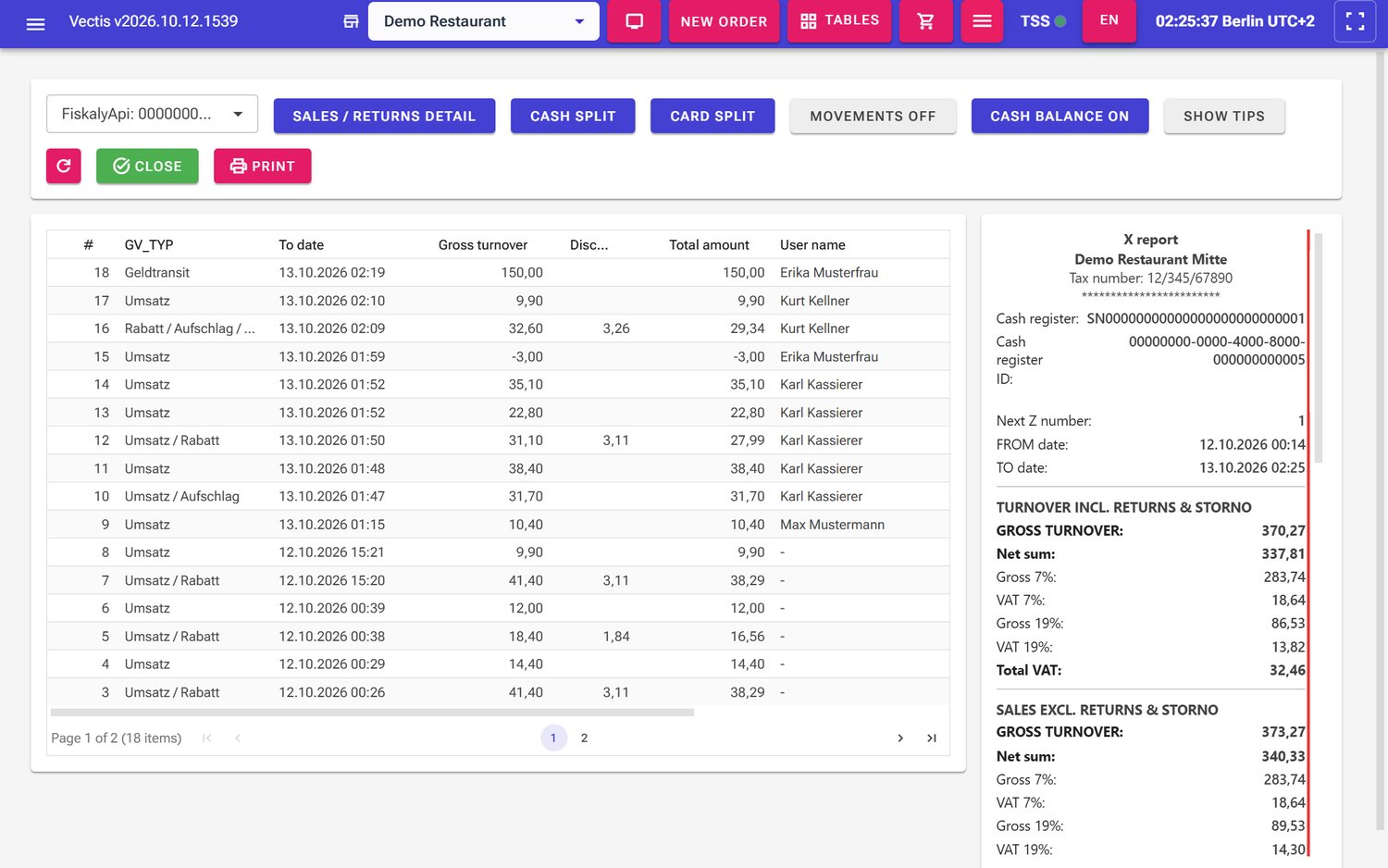 Preview of the X report (outlined in red)
 - Use the buttons at the top to show or hide parts:
- Sales / returns detail – sales and stornos separately,
- Cash split and Card split – payments split into sales and returns,
- Show tips – card tips and tip payouts,
- Admin and Manager only: Cash balance on/Cash balance off and the cash movement button (Movements off › Movement balance › Movements +/- › Details +/-; each tap moves on).
- The circular-arrow icon (Refresh) loads new receipts.
- Tap Print to print the X report on the printer with the Z reports role.
Note: A cashier sees no Cash balance and no cash movements (for example the change put into the drawer) on the X report. Instead, the cashier sees Cash taken today – the cash guests paid during this shift.
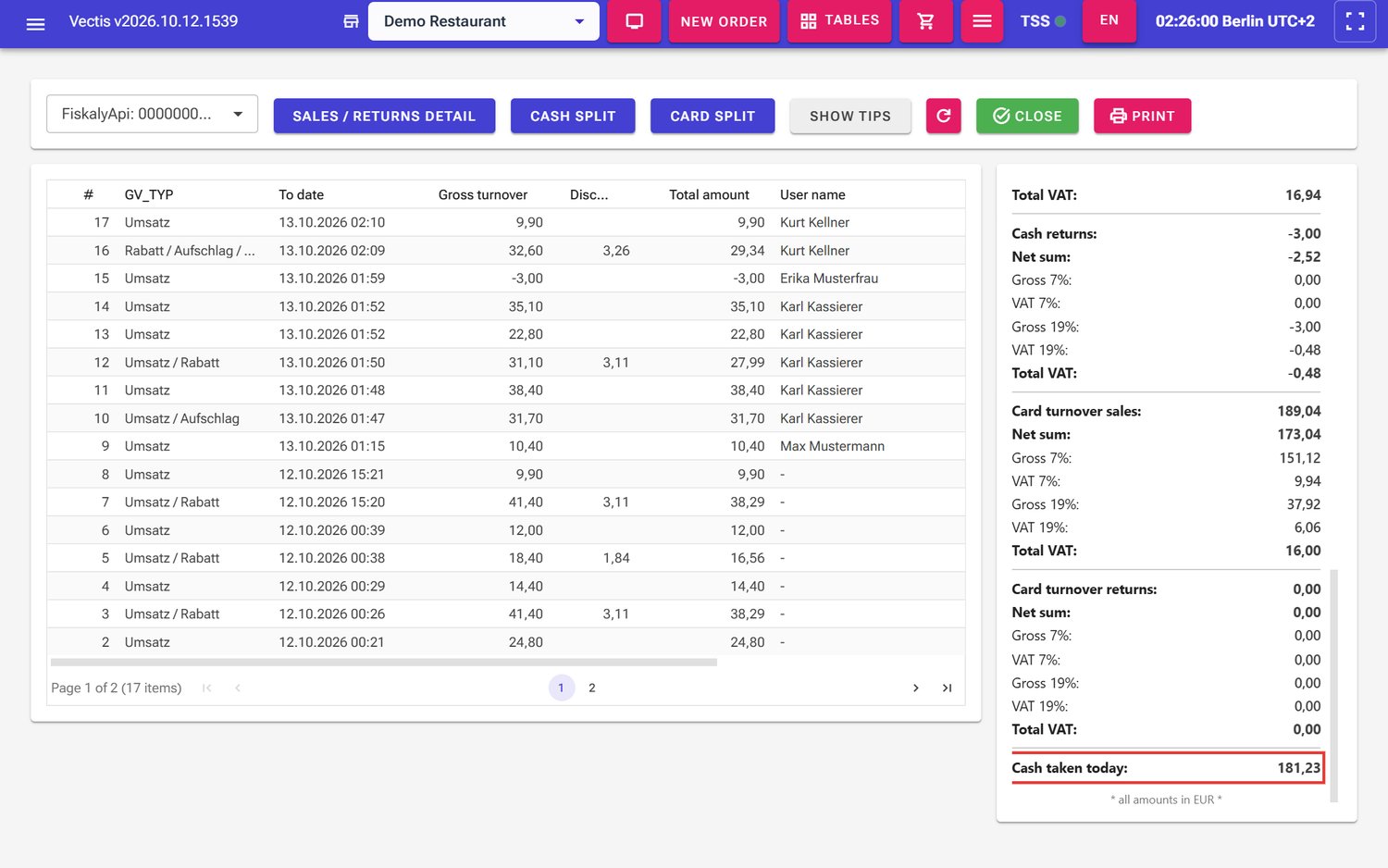 X report for a cashier: no movement or cash balance buttons; Cash taken today at the bottom of the report (outlined in red)
Note: The browser remembers the button settings. A cashier never sees the cash balance or cash movements, even if a manager switched them on earlier on the same device.
Run the daily closing (Z) by hand
Goal: Close the business day for fiscal purposes.
Who can do this: Admin, Manager, Cashier.
- Take payment for all orders that should be closed today. Open tables may stay open (see next section).
- Open Menu › Compliance & Reports › X report.
- Check the figures. Count the drawer and compare (Admin/Manager: Cash balance).
- Tap Print if you need the report on paper. See the note below.
- Tap the green Close button in the button bar.
X report: the green Close button is at the right end of the button bar
- The X report reloads: the receipt list is empty, all totals are 0.00 and Next Z number is one higher (in the example 2 instead of 1). That tells you the Z closing was created.
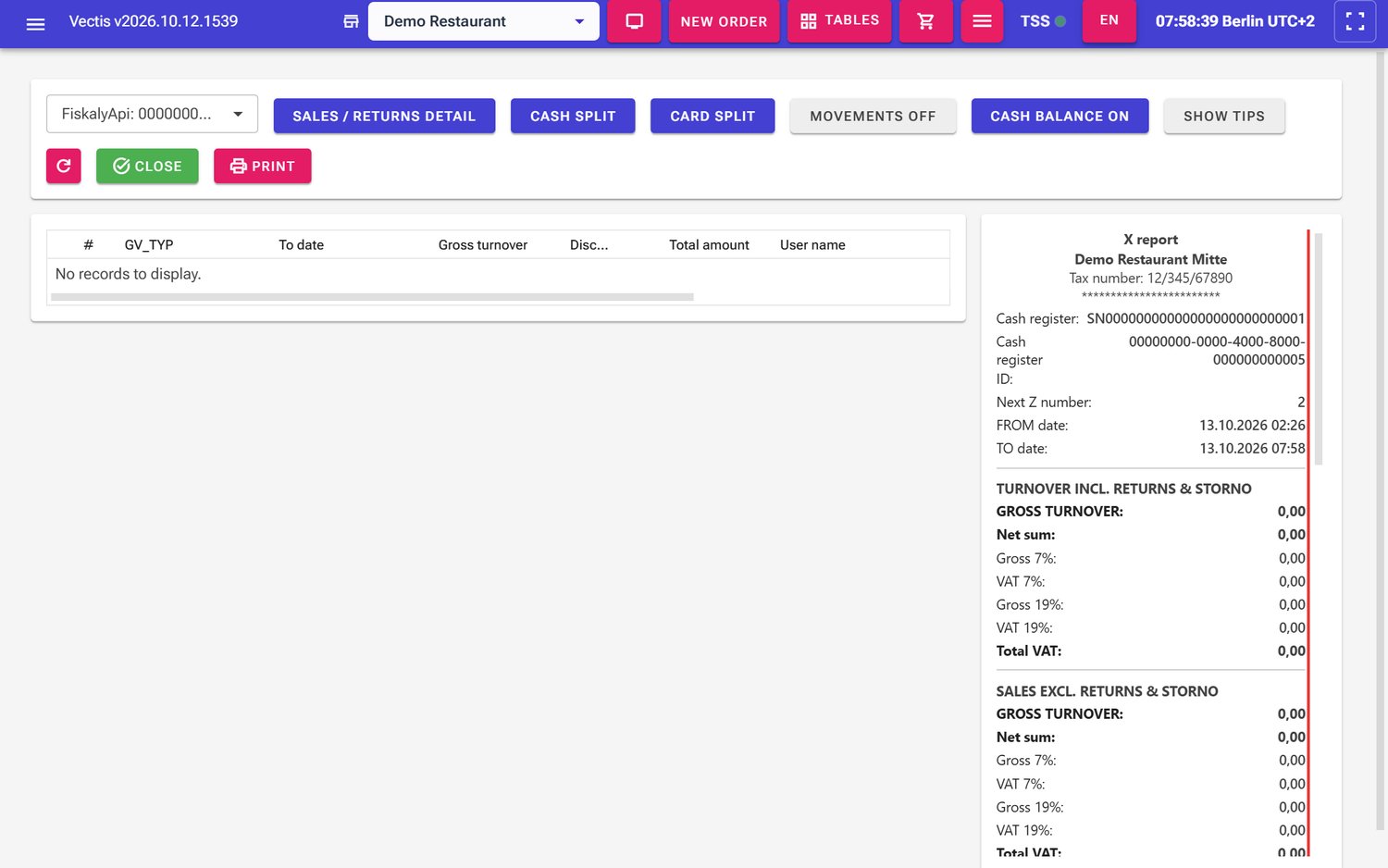 X report right after closing: empty list, Next Z number 2
Caution: Close does not ask again. The Z closing is created at once and cannot be undone.
Note: The page shows no success message after closing; it only reloads. If Next Z number stays the same, the closing failed: reload the page and check under Z Daily Reports or DSFinV-K export whether the closing is in the list.
Note: The Z report is not printed automatically when you close. Admins and managers print it afterwards under Z Daily Reports. A cashier has no access to the Z daily report – so as a cashier, print the X report before you close; it has the same figures.
What happens to open tables?
A Z closing contains only paid, signed receipts. Open orders do not block the closing and stay open:
- If an open table is paid after the Z, its receipt is on the new X report and in the next Z closing.
- Cashiers and waiters see the current business day in Orders: everything since the last Z closing plus open tables carried over the closing.
- Open orders created at most 24 hours before the Z are carried over. Cashiers and waiters no longer see older open orders; admins and managers find them with the date filter in Orders.
Note: Without any Z closing, the business day for cashiers and waiters starts at midnight.
Set up the automatic Z closing
Goal: Let the till close itself every day at the same time.
Who can do this: Admin, Manager (the menu item is shown only to Admin and Manager).
- Open Menu › Operations › Z Closing Automation.
- Switch on Enable daily Z closing.
- Under Time (local), choose the time, for example 23:59. Next to it you see the till's time zone.
- Tap Save.
- Under Status you see Next scheduled (local time and UTC), Last closing, Last Z number and the Active binding (Client ID). Reload brings back the saved values.
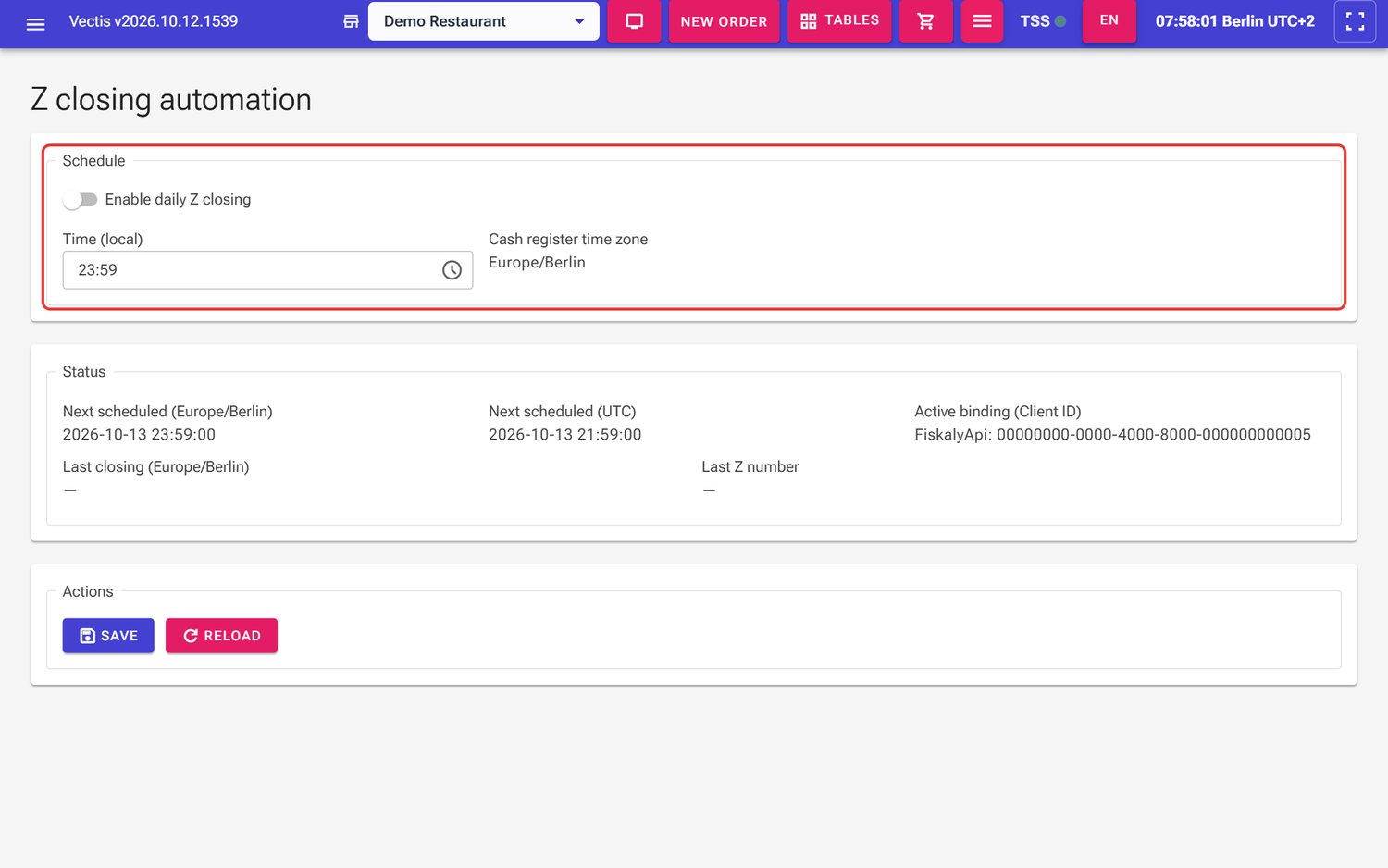 Z closing automation page: Schedule section (outlined in red), still switched off, time 23:59
Note: You see the latest Z closing in Z Daily Reports.
Note: The business date of an automatic closing is the calendar day of the set time. With 03:00, the closing gets the date of the new day.
Note: If the till PC was off at the set time, Vectis catches up the missing closings as soon as the till runs again – one Z closing for each missed day.
Note: The automatic closing prints nothing either. Print the Z report under Z Daily Reports when you need it.
Note: You can still close by hand at any time. If the manual closing is before the set time, the automation creates another closing at the set time for the receipts after it.
View and print the Z daily report
Goal: Check and print an earlier Z closing.
Who can do this: Admin, Manager.
- Open Menu › Compliance & Reports › Z Daily Reports.
- At the top, choose the binding (or All cash register bindings) and the month (for example 10.2026).
- The list shows each Z closing with Z number, From date, To date, Gross turnover and Cash balance. In the example: Z number 1, gross turnover 370.27 EUR, cash balance 328.23 EUR.
- Tap a row. Below it Receipts in Z closing appears (with an icon for the payment type, user name, GV_TYP, date, total and storno yes/no), and on the right the Z report.
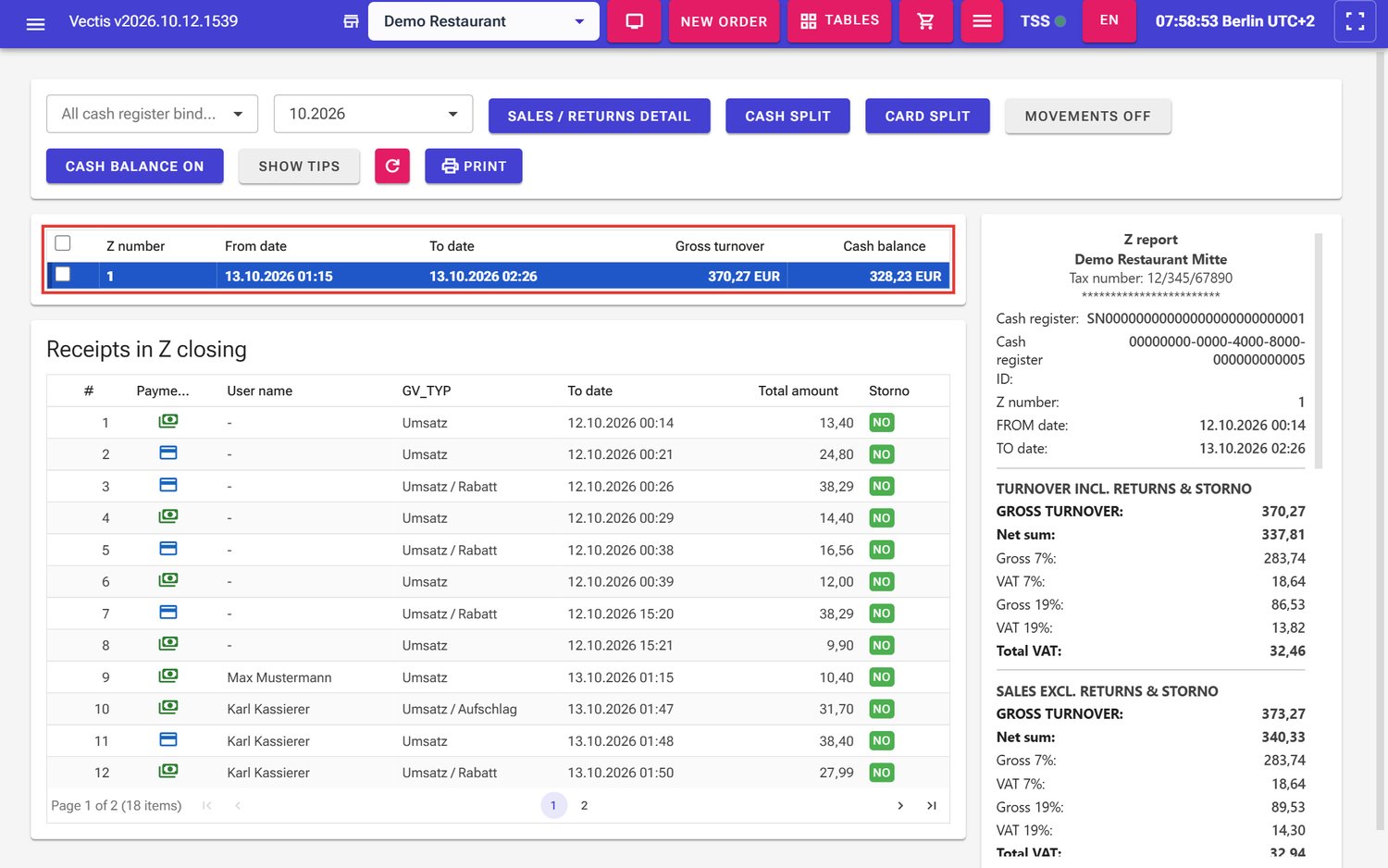 Z daily report: selected Z closing 1 (outlined in red), its receipts below, the Z report on the right
 - Tap Print.
Note: To print several Z reports at once, tick each closing you want in the first column (the box in the column header selects all) and tap Print.
Note: The same buttons as on the X report are available (Sales / returns detail, Cash split, Card split, Cash balance on/off, cash movements, Show tips).
View and print the Z monthly report
Goal: See the totals of a whole month.
Who can do this: Admin, Manager.
- Open Menu › Compliance & Reports › Z Monthly Report.
- Choose the binding and the month.
- The list shows all Z closings of the month with Z number, From date, Gross turnover, Cash balance, storno and discount totals. The Monthly report is on the right.
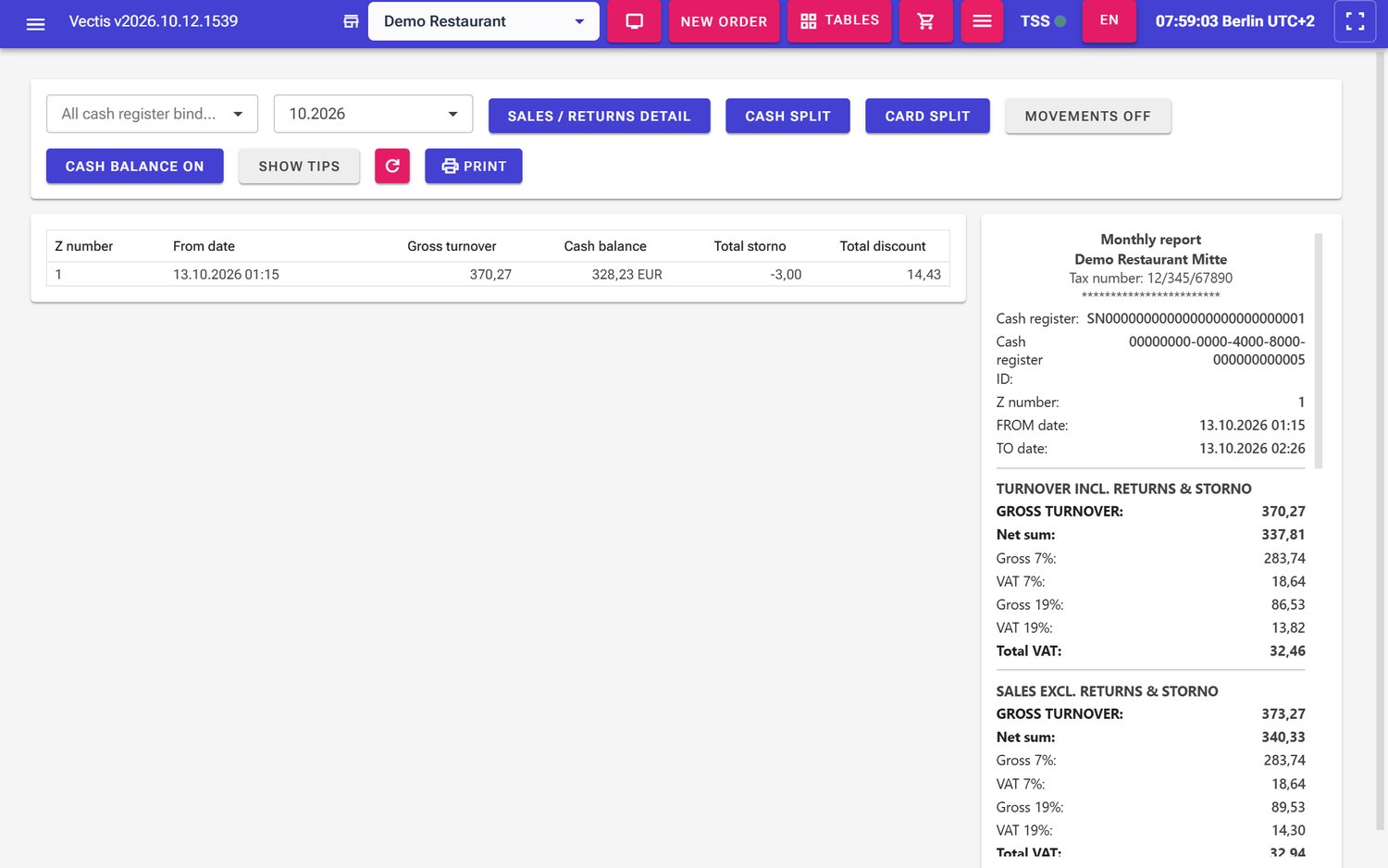 Z monthly report for 10.2026 with Z closing 1 and the monthly report on the right
 - Tap Print.
Tip report
Goal: See how much card tip came in and how much was paid out.
Who can do this: Admin, Manager, Cashier.
- Open Menu › Compliance & Reports › Tip report.
- At the top, choose the period: Today, Yesterday, This week, This month, or your own dates in the two date fields.
- The tiles show Received (card) (with the number of orders), Paid out (cash), Paid out (non-cash) and Open (now). In the example for This month: 17.67 EUR received from 6 orders, 3.00 EUR paid out in cash, 0.00 EUR non-cash, 14.67 EUR open.
- The Payouts table shows each payout with Date/time, Amount, Method, Description, Booked by and Status.
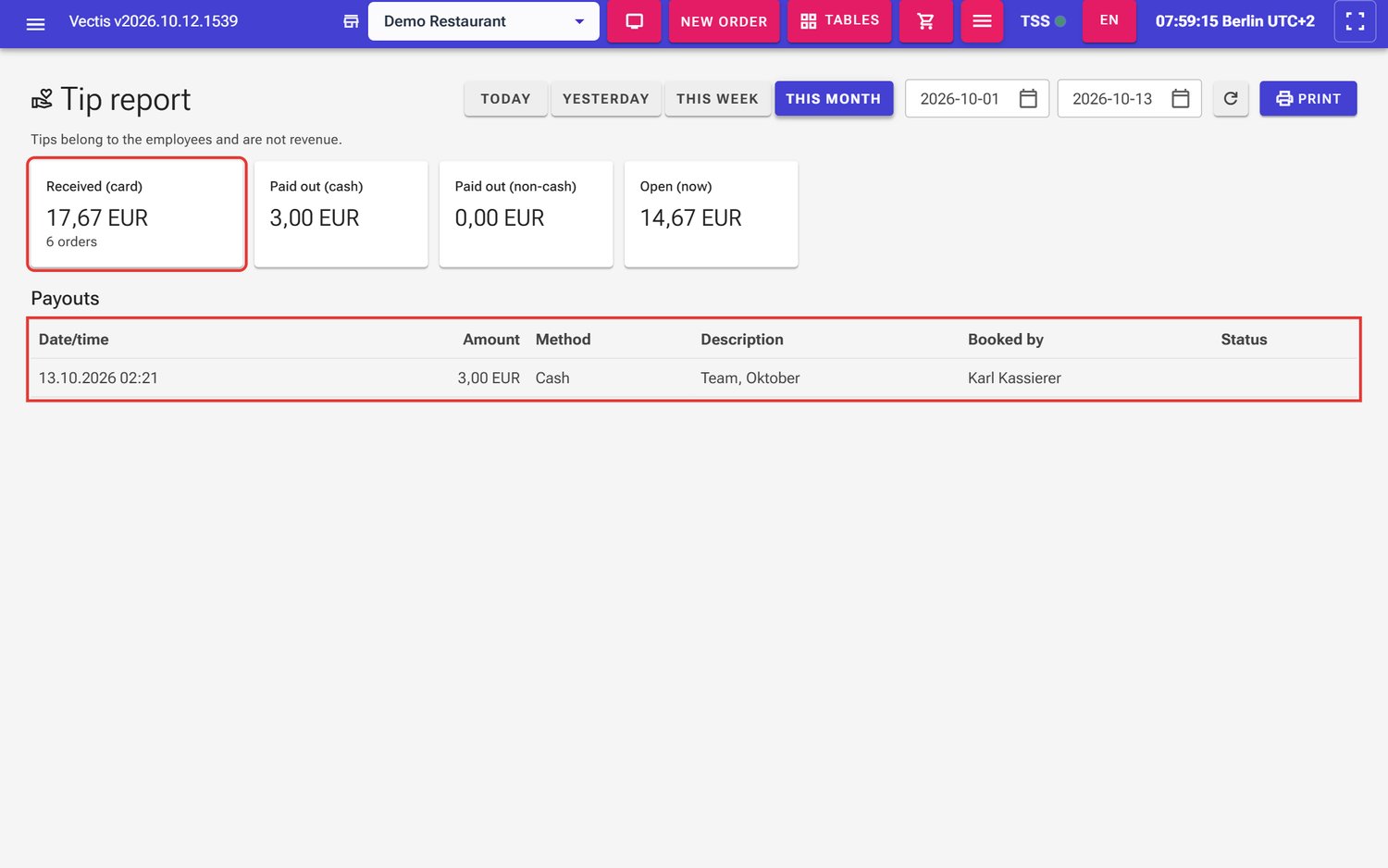 Tip report for This month: four tiles and the payout "Team, Oktober"
 - Tap Print at the top right to print the report.
Note: Tips belong to the employees and are not revenue. That is why they are not in the sales figures of the X or Z report, but only here and – with Show tips – as a separate block on the X/Z report.
Frequently asked questions
Q: What is the difference between the X report and the Z closing? The X report only shows interim figures. The Z closing closes the business day for good.
Q: Can I undo a Z closing? No. A Z closing is final.
Q: Do I need a Z closing every day? Yes, on every business day. The easiest way is the Z Closing Automation.
Q: May I close while tables are still open? Yes. Open orders stay open and land in the next closing once paid.
Q: I tapped "Close" twice by mistake. Then there are two Z closings; the second contains only the receipts in between (often none). This is allowed, but it cannot be deleted.
Q: Why does the cashier not see the cash balance? That is intended: on the X report a cashier only sees Cash taken today, not the money in the drawer.
Q: Is the Z report printed automatically? No – neither when closing by hand nor with the automation. Print it under Z Daily Reports.
Q: The PC was off overnight. Is a closing missing now? Not if the automation is on: Vectis catches up missed closings as soon as the till runs again.
Q: Which printer prints the X and Z reports? Every printer that has the Z reports role switched on in Receipt Options.