13 Vectis Manager (Windows app)
Vectis Manager is a small Windows program on the till PC. It shows whether the till service and the update service are running, and it installs new versions. In daily work you rarely need it: the till starts by itself and updates at night. Open the Manager when the till cannot be reached, when you want to install an update right away, or when your Vectis service partner asks you for log files.
Note: Vectis Manager is available in English only. The labels in this chapter are quoted exactly as the program shows them, e.g. Open POS or Export Logs.
Open Vectis Manager
Goal: Open the Vectis Manager window.
Who can do this: Anyone with access to the till PC. Windows asks for administrator rights when the program starts.
The Manager runs in the background as an icon in the notification area of the taskbar (bottom right, next to the clock). The icon is a coloured dot:
| Colour | Meaning (text when you hover over it) |
|---|---|
| Green | Till is running – "Vectis POS: Running" |
| Red | Till is stopped – "Vectis POS: Stopped" |
| Orange | Till is starting or stopping – "Vectis POS: Starting..." / "Vectis POS: Stopping..." |
| Grey | State unknown (e.g. service not installed) – "Vectis POS: Unknown" |
- If the icon is hidden, click the small arrow ^ at the bottom right of the taskbar.
- Double-click the coloured dot. Or right-click it and choose Open Vectis Manager at the top of the context menu.
- The window Vectis Manager v… opens. The title shows the version of the Manager itself, in the example
v2026.06.18.2112.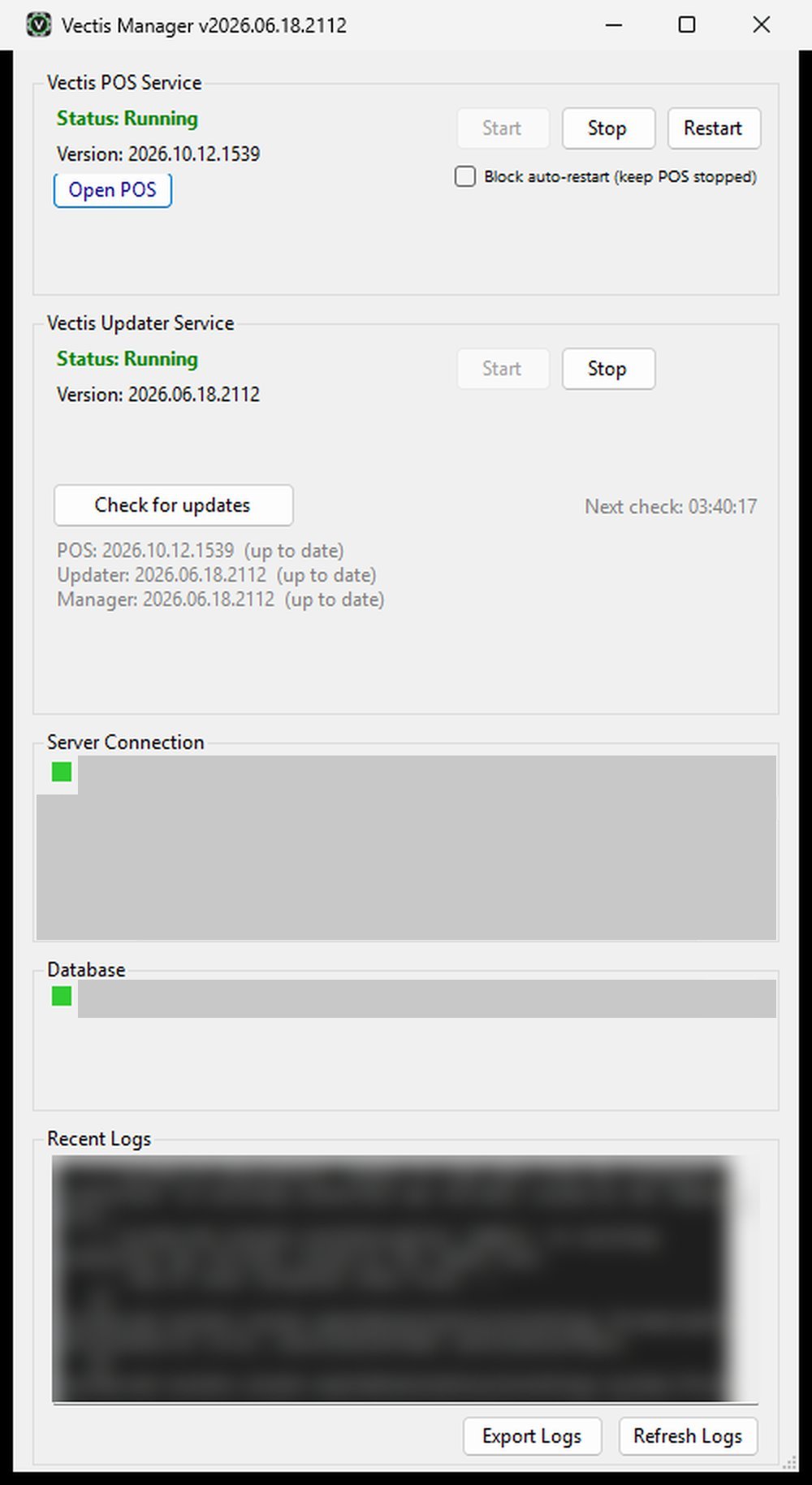 Vectis Manager window with all sections; the contents of Server Connection and Database are covered, only the coloured square stays visible
Note: The Manager has its own version number. It is usually older than the till's: in the picture the Manager is 2026.06.18.2112 and the till 2026.10.12.1539. This is normal. The till version is shown in the Vectis POS Service section after "Version:".
You can also start the Manager with the desktop shortcut Vectis Manager or from the Windows Start menu (search for "Vectis Manager"). If it is already running, no second copy opens.
Note: The X at the top right does not really close the program – the Manager keeps running in the notification area. To quit it completely, right-click the icon and choose Exit. The till itself keeps running without the Manager.
The icon's context menu (right-click) offers, from top to bottom:
- Open Vectis Manager – opens the window,
- Open POS – opens the till in the browser,
- Start POS, Stop POS, Restart POS – starts, stops or restarts the till service,
- Exit – quits the Manager (not the till).
The window at a glance
Goal: Understand what the parts of the window show.
Who can do this: Anyone with access to the till PC.
The window has five sections from top to bottom and a status line at the very bottom:
| Section | What it shows |
|---|---|
| Vectis POS Service | State and version of the till, buttons Start, Stop, Restart, Open POS and the check box Block auto-restart (keep POS stopped). When a new till version is ready, the wide button Update POS to … (bold green text) appears here below Open POS. |
| Vectis Updater Service | State and version of the update service, buttons Start and Stop, Check for updates, time of the next check ("Next check: …") and a version overview. |
| Server Connection | Connection to your service partner's server. Updates arrive through it, and the till sends its data to it. See Areas for your service partner. |
| Database | State of the till's database. See Areas for your service partner. |
| Recent Logs | The last lines of the update service log, buttons Export Logs and Refresh Logs. |
| Status line | Message about the last action, e.g. "Ready" or "Working...". |
The value after "Status:" means:
- Running (green) – the service is running.
- Stopped (red) – the service is stopped.
- Starting / Stopping (orange) – the service is starting or stopping.
- Unknown (grey) – the state cannot be read, e.g. because the service is not installed.
"Version:" shows the installed version, in the picture 2026.10.12.1539 for the till and 2026.06.18.2112 for the update service. "Not installed" means the service is not yet installed on this PC.
The window refreshes the display automatically.
Caution: Do not stop the Vectis Updater Service. Without it no updates arrive, and a stopped till is no longer restarted automatically.
Open the till in the browser
Goal: Open the till screen on this PC in the browser.
Who can do this: Anyone with access to the till PC.
- Open Vectis Manager.
- In the Vectis POS Service section, click Open POS.
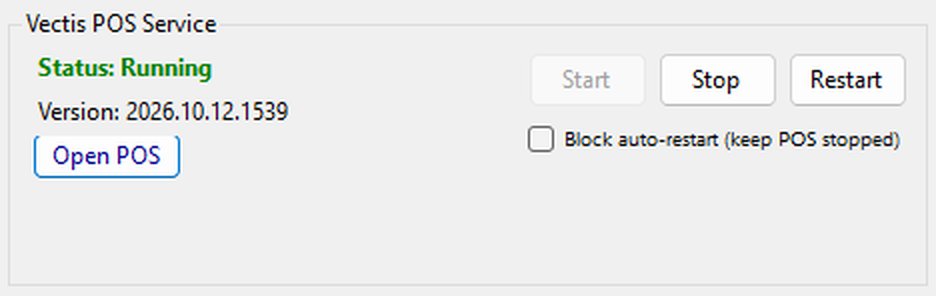 Vectis POS Service section: Status Running, Version 2026.10.12.1539, Open POS button
 - Your default browser opens the till (normally
http://localhost:10110). Log in as usual.
Note: Open POS can only be clicked while the till is running (status Running). A quicker way is the desktop shortcut Open Vectis POS or Open POS in the icon's context menu.
Restart the till service
Goal: Restart the till when it does not respond or cannot be reached.
Who can do this: Anyone with access to the till PC (Windows asks for administrator rights).
- Open Vectis Manager.
- In the Vectis POS Service section, click Restart.
- The status line shows "Working...". Wait until the status is Running (green) again.
- Reload the till in the browser (F5) or open it with Open POS.
If the till is stopped (status Stopped), click Start instead.
Caution: During the restart the till cannot be reached on any device (including the waiters' phones) for a short time. Do not restart it in the middle of a payment. Orders that are already saved are kept.
Note: The update service regularly checks whether the till is running. If it is stopped, the service starts it again by itself. If you want the till to stay stopped on purpose (e.g. for maintenance), tick Block auto-restart (keep POS stopped) before you click Stop. Start removes this tick again automatically.
If the till stops unexpectedly, Windows shows the message "Vectis POS Stopped" at the icon.
How updates work
Goal: Understand when a new till version is installed.
Who can do this: – (runs automatically)
The update service works without your help:
- Check and download: About once an hour it asks for a new till version. It downloads a new version right away and keeps it ready.
- Install at night: The prepared version is installed in the update window from 02:00 to 05:00 (local time of the till PC). The PC must be switched on.
- Install after switching on in the morning: If the PC was off for more than 4 hours (e.g. switched off overnight), a new version is also installed shortly after switch-on – outside the night window.
- What happens during installation: The service stops the till, backs up the old version, installs the new one and starts the till again. The till cannot be reached during this time. The Manager shows a progress bar with "Downloading … %", "Installing...", "Starting..." and finally "Installed!".
- Safety net: If the new version crashes repeatedly after the update, the service automatically restores the previous version.
Note: If you switch the PC off every night, updates are usually installed in the morning shortly after you switch it on. Allow a few minutes before opening – or install the update yourself at a quiet time with Update POS to … (see below).
The update service and Vectis Manager also keep themselves up to date automatically.
Check for updates
Goal: Check right now whether new versions exist.
Who can do this: Anyone with access to the till PC.
- Open Vectis Manager.
- In the Vectis Updater Service section, click Check for updates.
- The status line shows "Checking for updates...". Then the section shows one line per component below the button – in the picture everything is current:
- "POS: 2026.10.12.1539 (up to date)" – the till is current.
- "Updater: 2026.06.18.2112 (up to date)" and "Manager: 2026.06.18.2112 (up to date)" – update service and Manager are current.
- "POS: … -> … (update available, installs 02:00-05:00 or after an overnight power-off)" – a new version is there and will be installed in the night window or after the PC is switched on in the morning.
- "(could not check)" – the check was not possible, e.g. without internet.
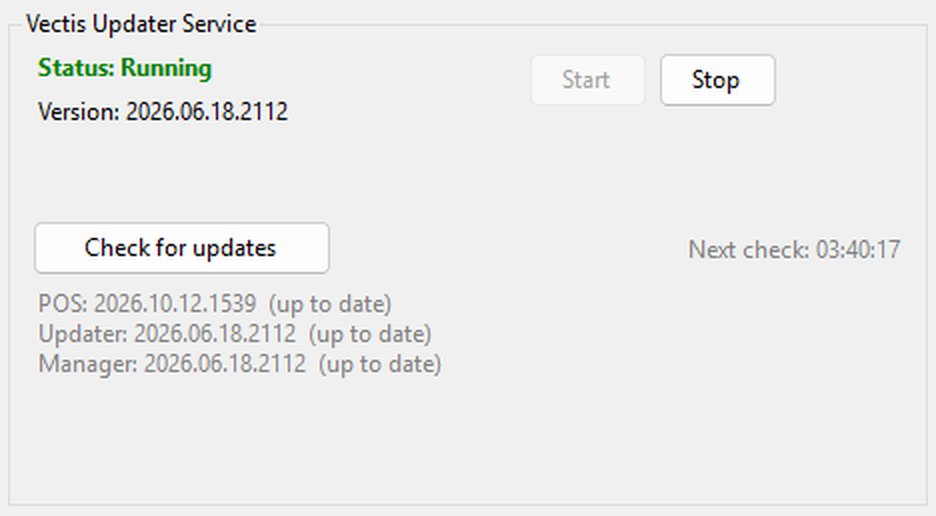 Version overview after Check for updates: POS, Updater and Manager "up to date"
- Finally the status line shows "All components up to date" or "Update available".
Note: Check for updates only downloads a new till version. It is installed in the night window, after switching on in the morning, or when you click Update POS to ….
Install an update now
Goal: Install a new till version that is ready, instead of waiting for the night.
Who can do this: Anyone with access to the till PC. Best done by the owner or shift lead at a quiet time.
- Finish running payments. Tell the team that the till will be unavailable for a few minutes.
- Open Vectis Manager.
- In the Vectis POS Service section, click the wide button Update POS to … with the new version number (bold green text, below Open POS).
- The status line shows "Update will be applied shortly...". A progress bar in the same section shows, one after the other, "Starting update...", "Downloading … %", "Installing...", "Starting..." and finally "Installed!".
- When "Version:" shows the new number and the status is Running, reload the till in the browser (F5).
Note: The button is called Update POS to … – there is no "Install now" button in the Manager. It only appears when a version newer than the installed one is ready. If you do not see it, click Check for updates first and wait about a minute.
Note: If the progress shows "Failed: …", the old version stays installed. Export the logs (see below) and contact your Vectis service partner.
Update Vectis Manager
Goal: Take over a new version of Vectis Manager.
Who can do this: Anyone with access to the till PC.
The Manager downloads new versions of itself in the background. When one is ready, Windows shows the message "Vectis Manager update ready" at the icon.
- Open Vectis Manager.
- In the Vectis Updater Service section, click Restart to update … (with the new version number). The button only appears when a new Manager version is ready.
- The Manager closes briefly and starts again in the new version.
Note: You do not have to do anything: when the Manager window is closed, the Manager takes over the new version by itself. The till keeps running without interruption.
Areas for your service partner
Goal: Understand what the Server Connection and Database sections show.
Who can do this: Anyone with access to the till PC may look at them. Only your Vectis service partner sets them up and changes them.
Your Vectis service partner sets up the Server Connection and Database sections and uses them for maintenance. For you, only the coloured square matters:
- Green – the connection or the database is fine.
- Red – there is a problem.
- Grey – the check is running or the section has not been set up yet. If the square stays grey, call your Vectis service partner.
If Server Connection is red, the till keeps selling on the till PC. Updates do not arrive, and data for your service partner is sent later. Check the internet. If it is down, chapter 14, "No internet or no network", also applies. If Database is red, the till cannot work. Restart the PC once.
If a section stays red, call your Vectis service partner.
Caution: Do not change anything in these sections. Only your Vectis service partner does that.
Export logs
Goal: Save log files for support as a ZIP file.
Who can do this: Anyone with access to the till PC.
- Open Vectis Manager.
- In the Recent Logs section, click Export Logs.
- The Manager creates a file
VectisLogs_YYYY-MM-DD_hh-mm-ss.zipon the desktop (e.g.VectisLogs_2026-10-13_14-05-00.zip). The status line shows "Logs exported to Desktop: …" and Windows Explorer opens with the file selected. - Send the file only to your Vectis service partner.
The ZIP file contains the logs of the till and the update service plus their settings.
Caution: The ZIP file contains confidential settings of the till. Give it only to your Vectis service partner and delete it from the desktop afterwards.
Refresh Logs reloads the Recent Logs view. It shows the last 50 lines of the update service log.
Desktop shortcuts
Goal: Know which icons the installation creates.
Who can do this: – (chosen during installation)
During installation your service partner can create these shortcuts (all are ticked by default):
| Shortcut | Where | What it does |
|---|---|---|
| Vectis Manager | Desktop (optional) and Start menu (always) | Opens Vectis Manager. |
| Open Vectis POS | Desktop and Start menu (each optional) | Opens the till in the browser at http://localhost:10110/. |
Note: The Open Vectis POS shortcut always uses the default port 10110. If your till runs on a different port, use Open POS in the Manager – it reads the correct port from the settings.
If the Vectis icon does not appear in the notification area after you sign in to Windows, contact your Vectis service partner.
Frequently asked questions
Q: I cannot see the coloured icon at the bottom right. Is the till still running? Yes. The till is a Windows service and runs without the Manager. Start the Manager with the desktop shortcut Vectis Manager or from the Start menu when you need it.
Q: Is the Manager available in German? No. Vectis Manager is English only. The till itself can be used in German or English.
Q: The title shows an older version than the till. Is that a mistake? No. Manager, update service and till have their own version numbers. What matters is that after Check for updates every line shows "(up to date)".
Q: When is an update installed? At night between 02:00 and 05:00 if the PC is on. If the PC was off for more than 4 hours, also shortly after you switch it on in the morning. Or immediately when you click Update POS to … in the Manager.
Q: Where is the "Install now" button? In the Manager it is called Update POS to … and appears in the Vectis POS Service section as soon as a new version is ready.
Q: What happens to open orders during an update or restart? They stay saved. The till is only unavailable for a few minutes. Reload the page in the browser afterwards.
Q: I stopped the till with Stop, but it is running again after a few minutes. The update service restarts a stopped till automatically. Tick Block auto-restart (keep POS stopped) if it should stay stopped.
Q: I closed the window with X. Has the Manager quit? No, it keeps running in the notification area. Only Exit in the icon's context menu quits it.
Q: Where does "Export Logs" save the file?
On the desktop of the signed-in Windows user, as VectisLogs_<date>_<time>.zip.
Q: The Server Connection section is red. Can I keep selling? Yes. The till keeps selling. Updates do not arrive, and data for your service partner is sent later. Check the internet; if it is down, chapter 14, "No internet or no network", also applies. If the section stays red, call your Vectis service partner.
Q: The Database section is red. What now? The till cannot work then. Restart the PC. If the section stays red, export the logs and call your Vectis service partner.