07 Discounts
Vectis has two kinds of discount: the bill discount, which you give at the till for a whole order (for example 10 % for a regular guest), and catalog discounts (promotions), which a manager sets up in advance for products, variants or categories and which the till applies automatically. This chapter shows both and explains how discounts appear on the payment page and on the receipt.
The example in this chapter is an order at table 45: "80 Scaloppine alla Griglia" (€12.50), "30 Spaghetti Napoli" (€7.50), two "242 Radeberger Pils vom Fass 0,4 l" (€3.90 each) and "220 Coca-Cola 0,3 l" (€3.30) – €31.10 in total.
Give a bill discount
Goal: Give a whole order a percentage discount. Example: 10 % off the bill.
Who can do this: Every user who edits orders: Admin, Manager, Cashier, Waiter (also in the mobile waiter view). There is no separate discount right.
- Open the order. It must have at least one item and a table, and no payment may be recorded yet.
- Tap Discount in the bottom bar (next to Split).
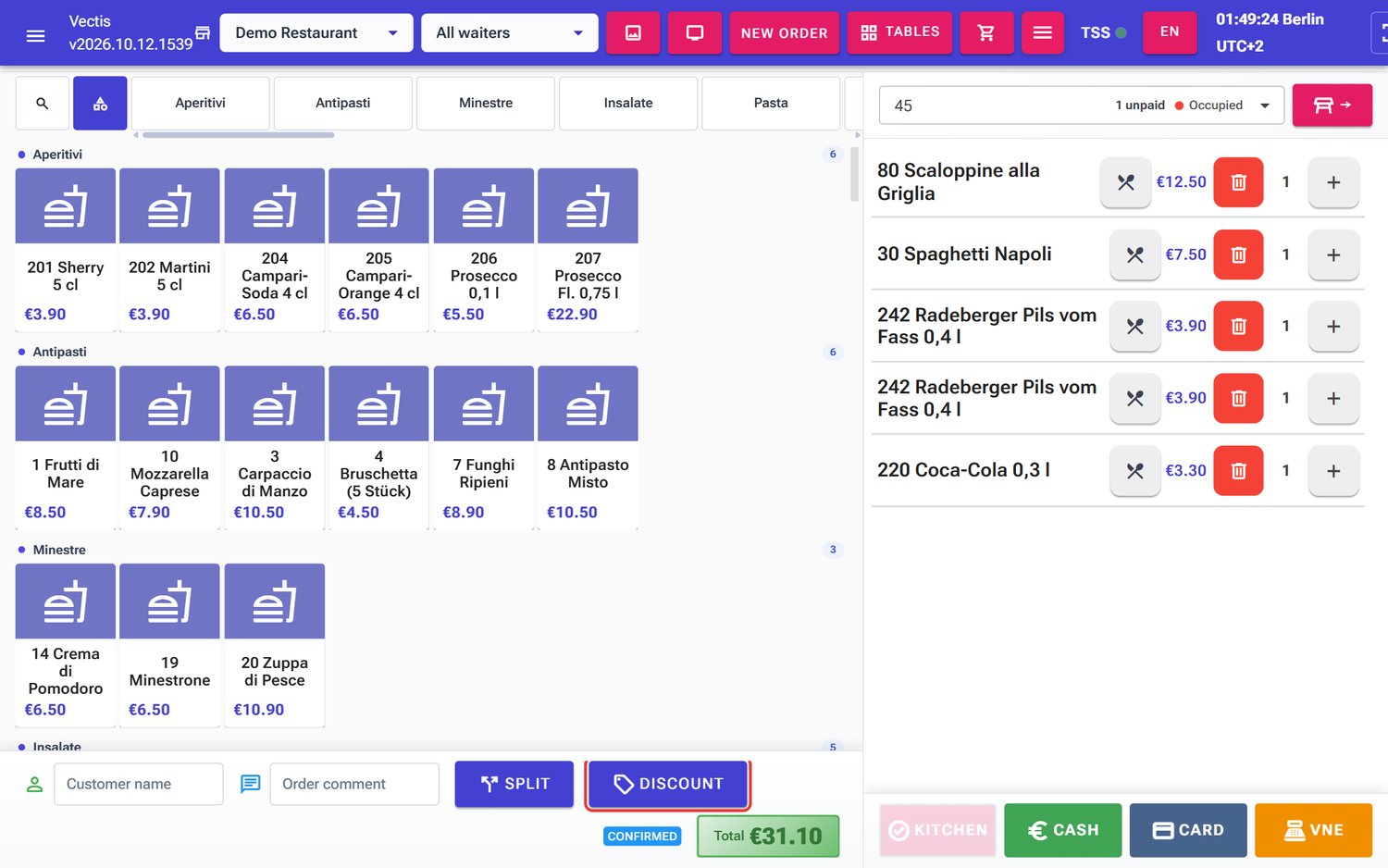 Order at table 45 (total €31.10) with the Discount button (outlined in red)
 - The Discount window opens. Tap one of the quick buttons 5 %, 10 % or 15 %. The discount applies at once and the window closes.
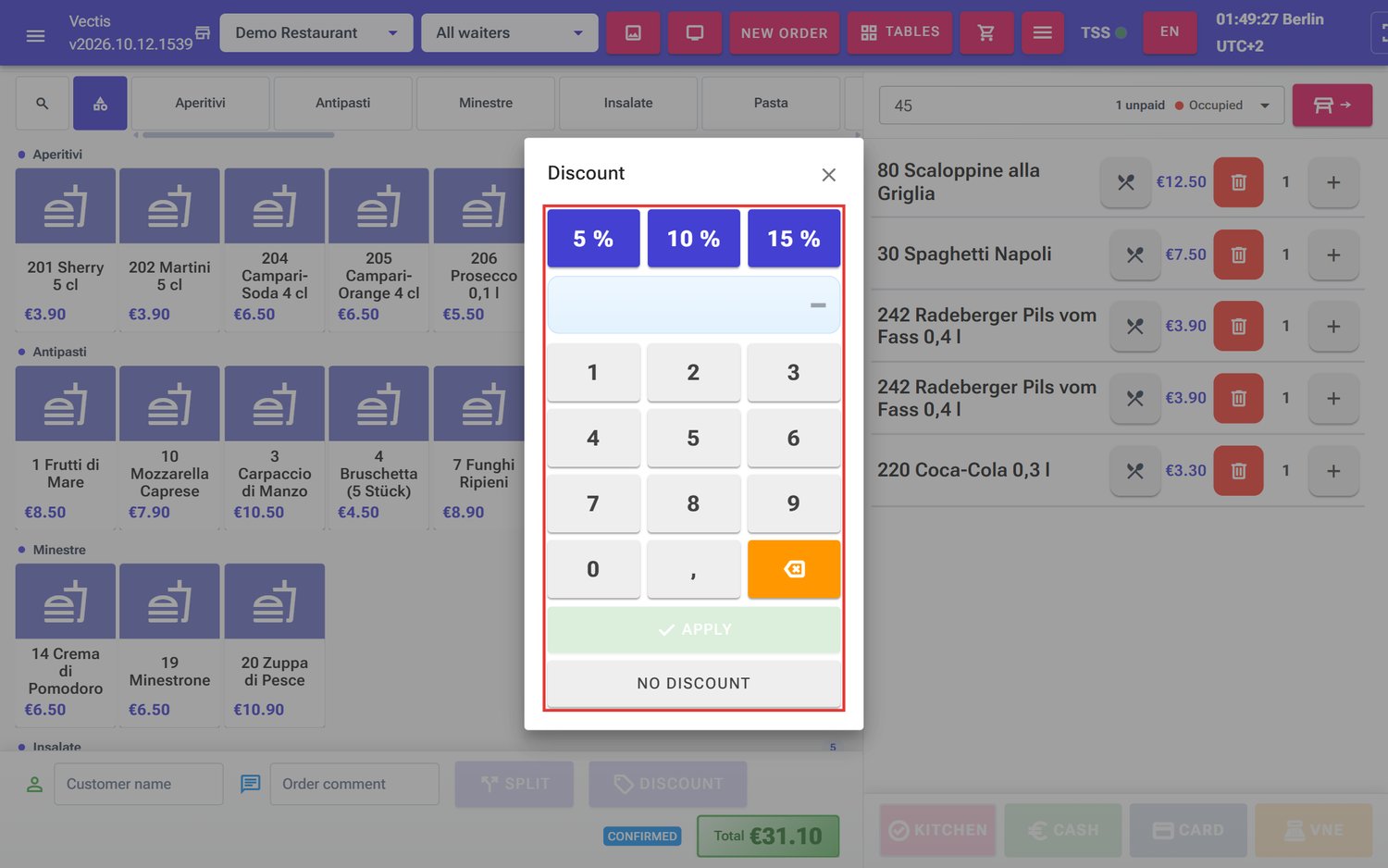 Discount window with quick buttons, keypad, Apply and No discount
 - The button now reads Discount 10 %. In the cart each item shows the old price struck through, a green "-10%" and the new price (e.g. ~~€12.50~~ -10% €11.25). The Total drops from €31.10 to €27.99.
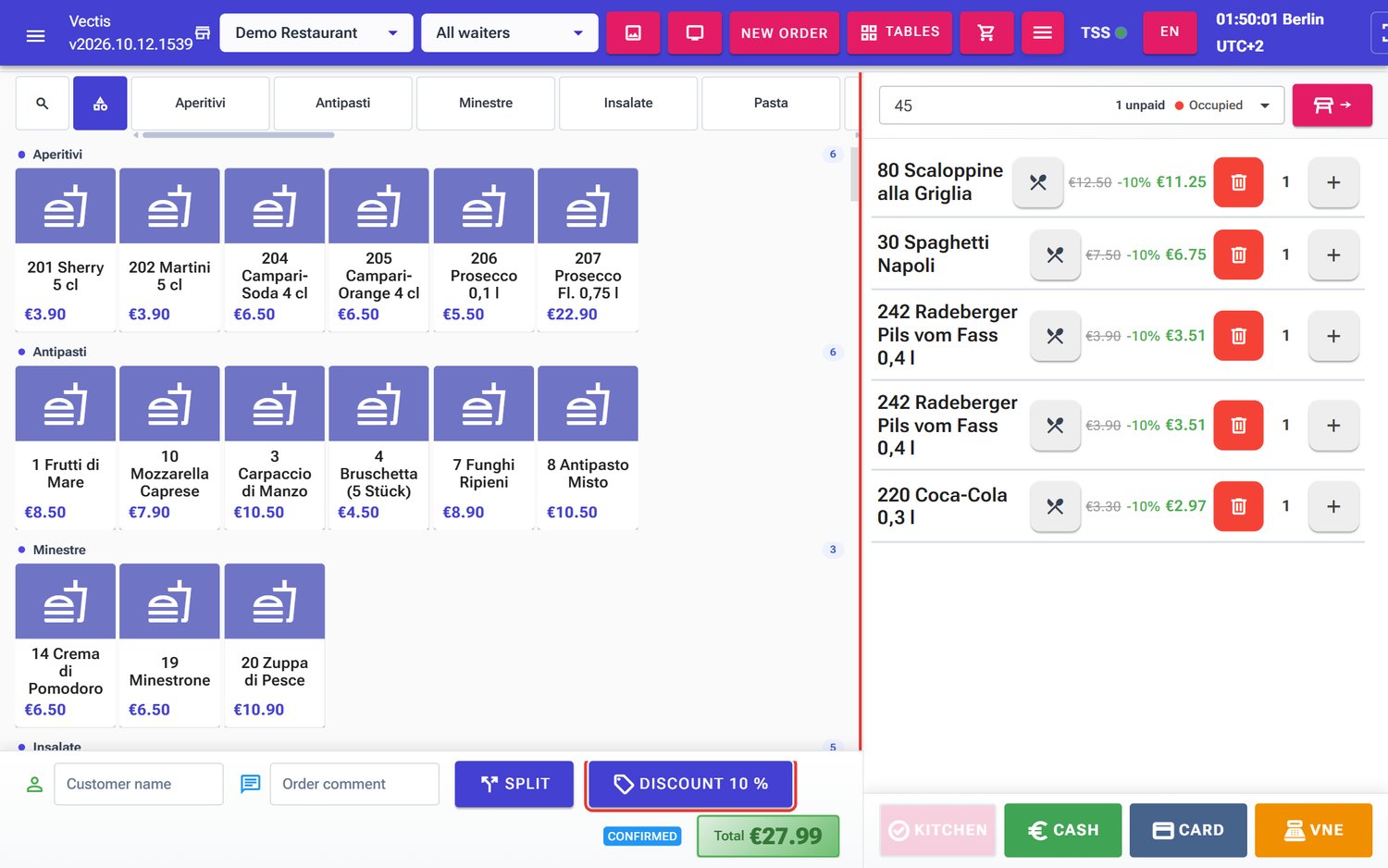 Order with a 10 % bill discount, total €27.99
Enter a different percentage
- Tap Discount.
- Type the percentage on the keypad: at most two digits before the comma and one after it, for example 7, , and 5 for 7.5 %. The display above the keypad shows what you typed ("7,5 %" – the keypad uses the German comma). The orange backspace key ⌫ deletes the last digit.
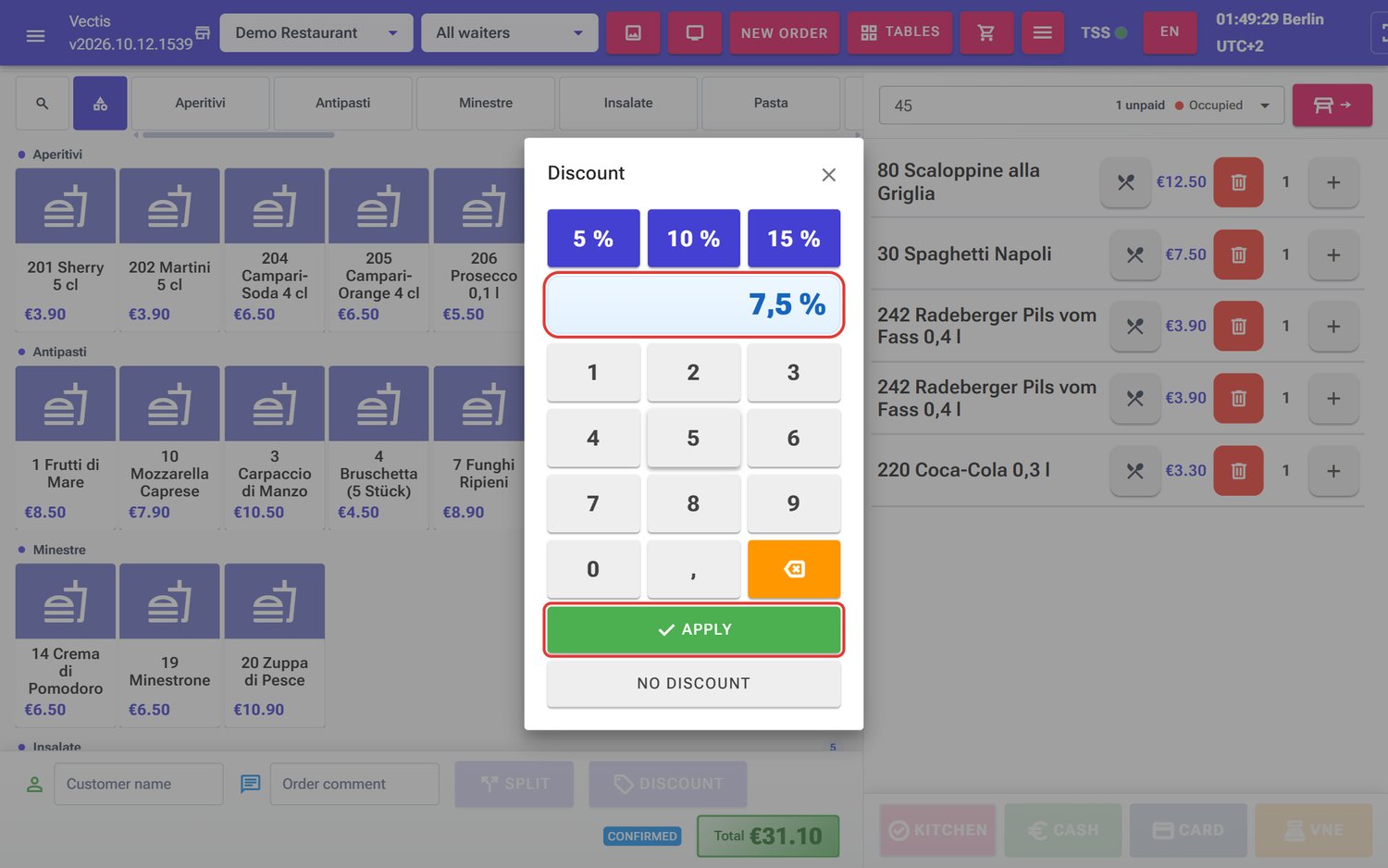 Entering 7.5 % on the keypad, Apply is now green
 - Tap Apply.
Note: You can enter 1 % to 99 % with at most one decimal place. While nothing or an invalid value (for example 0.5 %) is entered, Apply stays pale and cannot be tapped.
Note: When it opens, the window shows the current discount (a "–" if there is none). The first digit you type replaces it.
Remove or change the discount
- Tap Discount … (for example Discount 10 %).
- Tap No discount to remove the discount, or choose a different percentage.
Note: If you close the window without choosing anything (with the ×), nothing changes.
How the bill discount is calculated
Goal: Understand what the bill discount applies to.
Who can do this: Everyone.
- The discount is calculated per item (per unit, rounded to the cent). In the example: 10 % of €12.50 = €1.25, of €3.90 = €0.39, of €3.30 = €0.33; €3.11 altogether. Paid extras (for example ingredient surcharges) are discounted too, the deposit (Pfand) never.
- If an item already has a catalog promotion, the larger of the two discounts applies. Discounts are not added up. If both are equal, the catalog promotion stays.
- Custom items (free-text items) get no bill discount.
- After the discount an item always costs at least €0.01. If the discount would bring the whole bill to €0.00, the till refuses: "With this discount nothing would be left to pay."
- When the bill is split, the new part bill gets the same bill discount.
The discount on the payment page and on the receipt
Goal: Check how the discount is shown to the guest.
Who can do this: Everyone.
- Tap Cash or Card in the order. An entry window opens; close it with Cancel inside the window (not the red Cancel at the top of the page – that cancels the order). You now see the payment page (title for example "Pay Order #4").
- In the Order Summary, below each discounted item there is a line Discount: 10 % with the deduction (for example -€1.25 for the scaloppine). For a catalog promotion it shows its name, for example Discount: Happy Hour.
- Below that you see Subtotal before discount (€31.10), Discount (the sum of all deductions, -€3.11), the Deposit (Pfand) if any, and TOTAL (€27.99). On the right the same amount appears as Order Total.
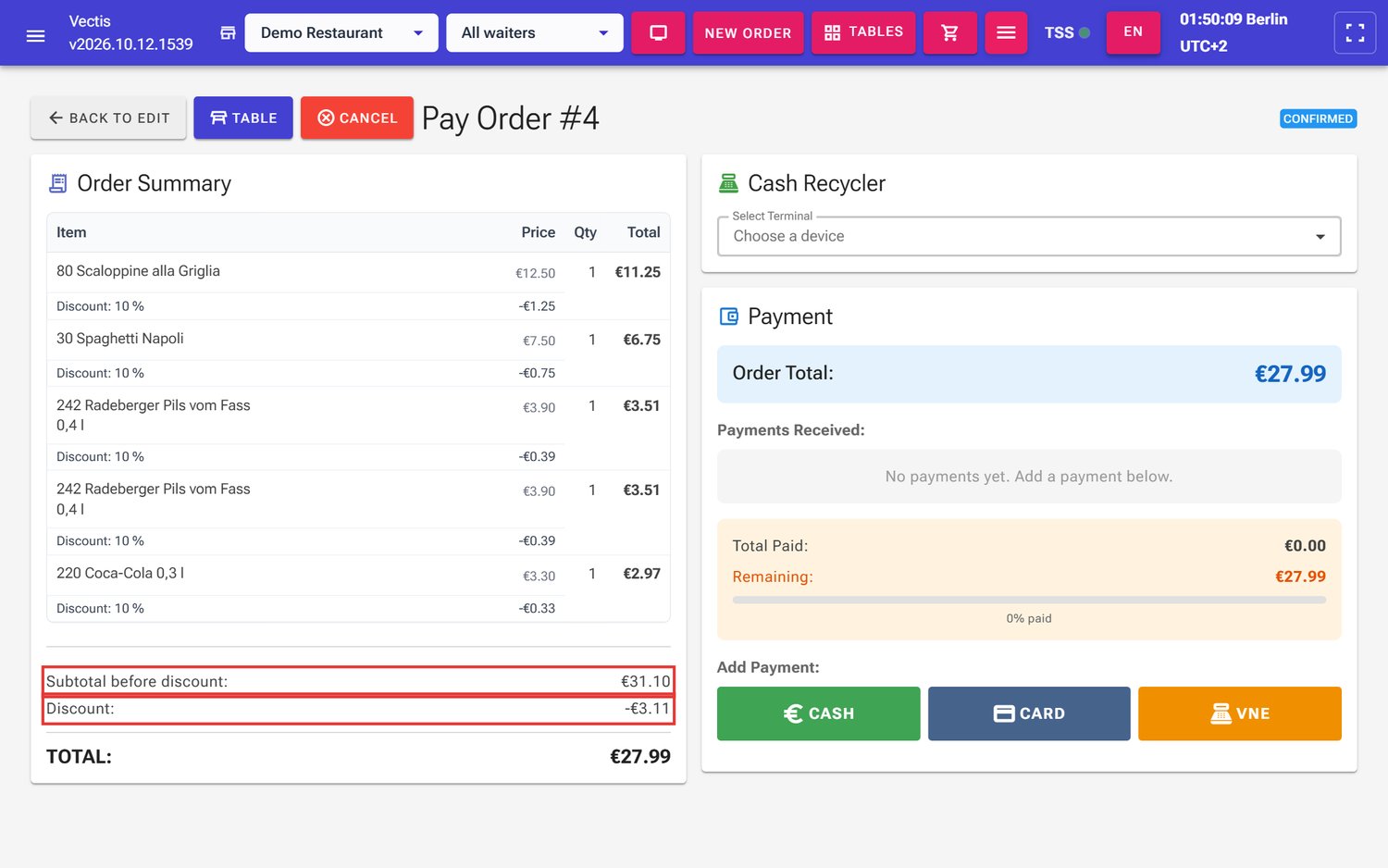 Payment page with "Subtotal before discount" and "Discount" (outlined in red) and TOTAL €27.99
 - The fiscal receipt shows the discount lines the same way below the items ("Rabatt: 10 %") plus a line "Rabatt gesamt" (total discount).
Note: On the customer display the guest sees the Discount savings.
When the discount is locked
Goal: Know when you can no longer change the discount.
Who can do this: Everyone.
The Discount button is grey
- as soon as a payment is recorded for the order or a VNE payment is running,
- when the order has no item or no table,
- when the order is paid, completed or cancelled.
In the example a partial cash payment of €10 was recorded. After that Discount 10 %, Split and the line buttons are grey, and the top of the cart says: "Items can no longer be changed once a payment has been recorded."
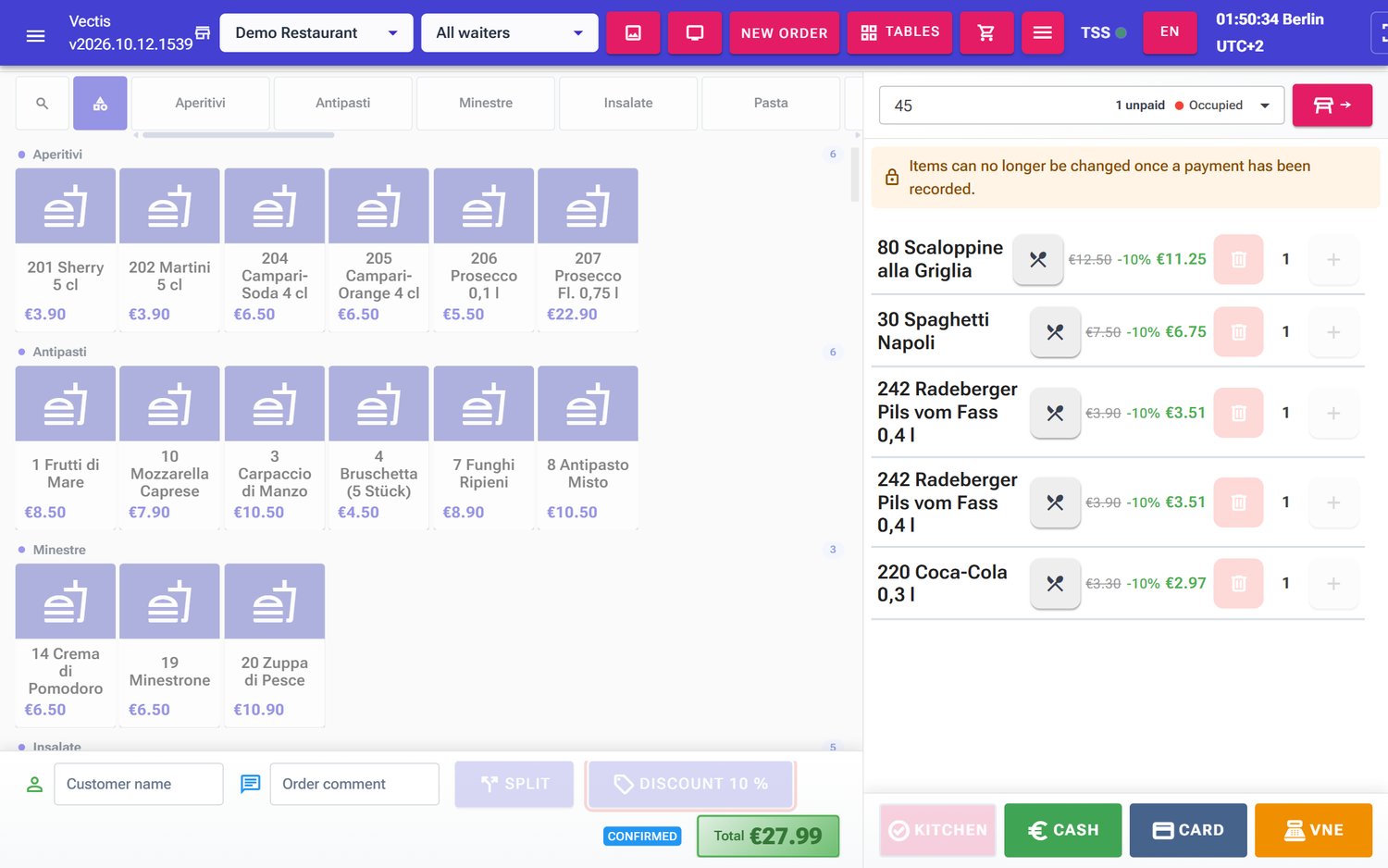 Order after a partial payment: "Discount 10 %" is locked, notice at the top of the cart
Caution: Give the discount before the first payment. Once the order is fully paid, the sale is signed with the TSE and can no longer be changed. A discount afterwards is then only possible as a return (see chapter 06 Payment).
Note: If only a partial payment is recorded, you can remove the payment (see chapter 06 Payment); then Discount is active again.
Manage catalog discounts (promotions)
Goal: Create a discount that is applied automatically to certain products, variants or a category. Example: "Happy Hour" with 20 % off "344 Mojito".
Who can do this: Admin, Manager (the menu item is shown only to Admin and Manager).
- Choose the right venue in the header at the top.
- Open Menu › Promotions › Discounts. The page Discounts Management lists all discounts of this venue's catalog with Name, Type, Value, Target, Target Name and Validity. There is a filter row above the list. While there are no discounts it says "No discounts yet. Create your first discount."
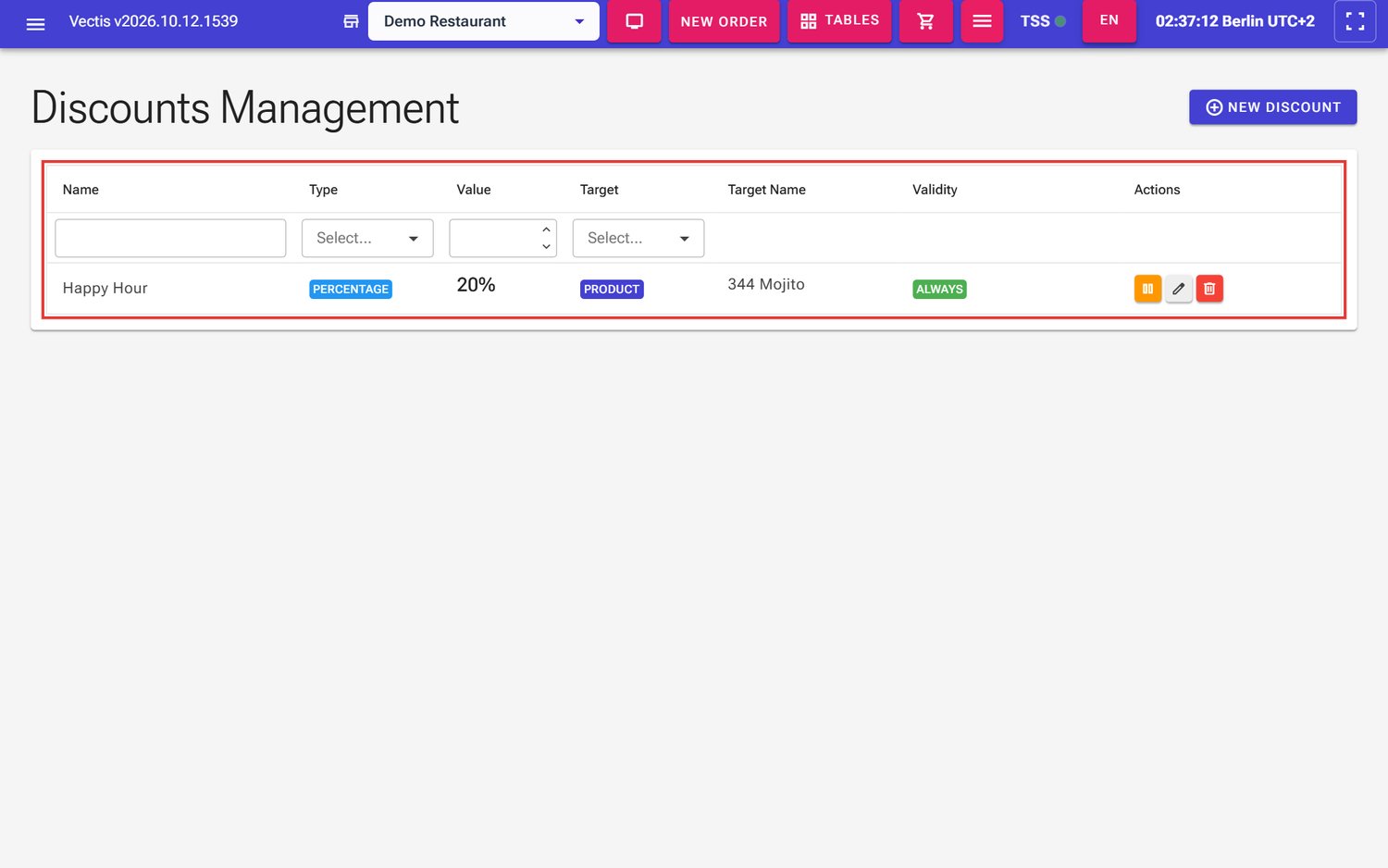 Discounts Management page with the promotion "Happy Hour" (20 %, 344 Mojito, Always)
 - Tap New Discount. The "Create New Discount" window opens.
- Fill in the window:
- section "Basic Information": Name (required) – appears on the receipt as "Rabatt:
", e.g. "Happy Hour"; Description – optional, e.g. "20 % auf Mojito", - section "Discount Value": Percentage (%) – 1 to 100, whole numbers (unlike the bill discount: no decimal place), e.g. 20,
- section "Apply To": Target Type – Product (all variants), Specific Variant or Category; then pick the product, the variant or the category in the field next to it (in the example Product = "344 Mojito"),
- section "Validity Period (optional)": Valid From / Valid To – empty means "Always".
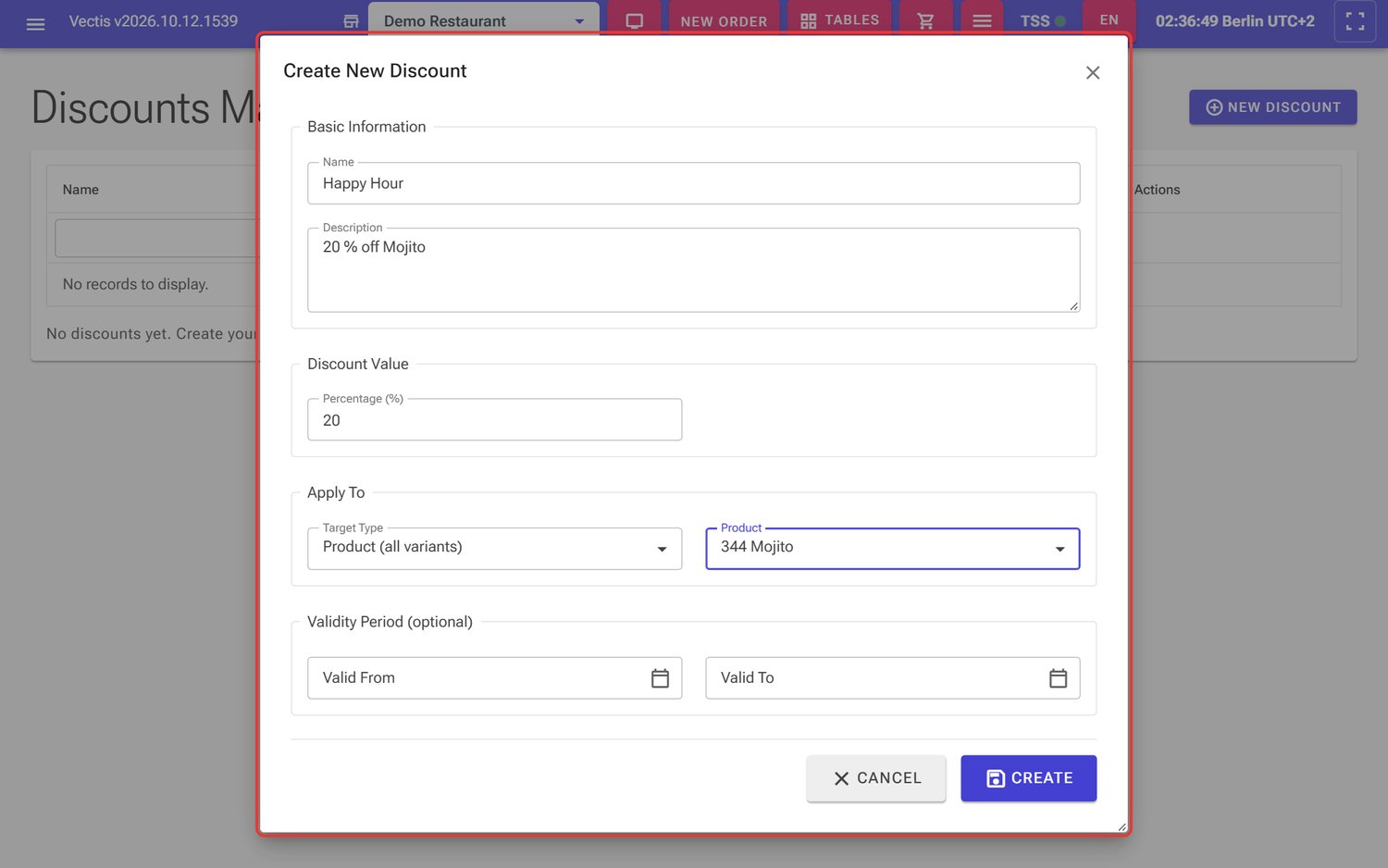 Create New Discount window for "Happy Hour", 20 %, product "344 Mojito"
- section "Basic Information": Name (required) – appears on the receipt as "Rabatt:
- Tap Create. Cancel closes the window without saving.
Working with the list (icons in the Actions column):
- Deactivate (orange pause icon) pauses a discount; it gets the badge Inactive and is no longer applied. Activate (play icon) switches it on again.
- Edit (pencil) changes name, description and validity. Percentage and target cannot be changed after creation ("Value cannot be changed after creation."). Create a new discount instead and deactivate the old one.
- Delete (red bin) removes the discount after the question Delete Discount ("Are you sure you want to delete this discount? This action cannot be undone.").
Note: Catalog discounts work automatically: the product tile on the order screen already shows a green "-20%" badge, the old price struck through and the new price (€4.90 → €3.92). When you add the product to the order, the line in the cart shows the reduced price "~~€4.90~~ -20% €3.92". For variants, the discounted variant is highlighted in green. You do not have to pick the promotion by hand. Check on the payment page that Discount: 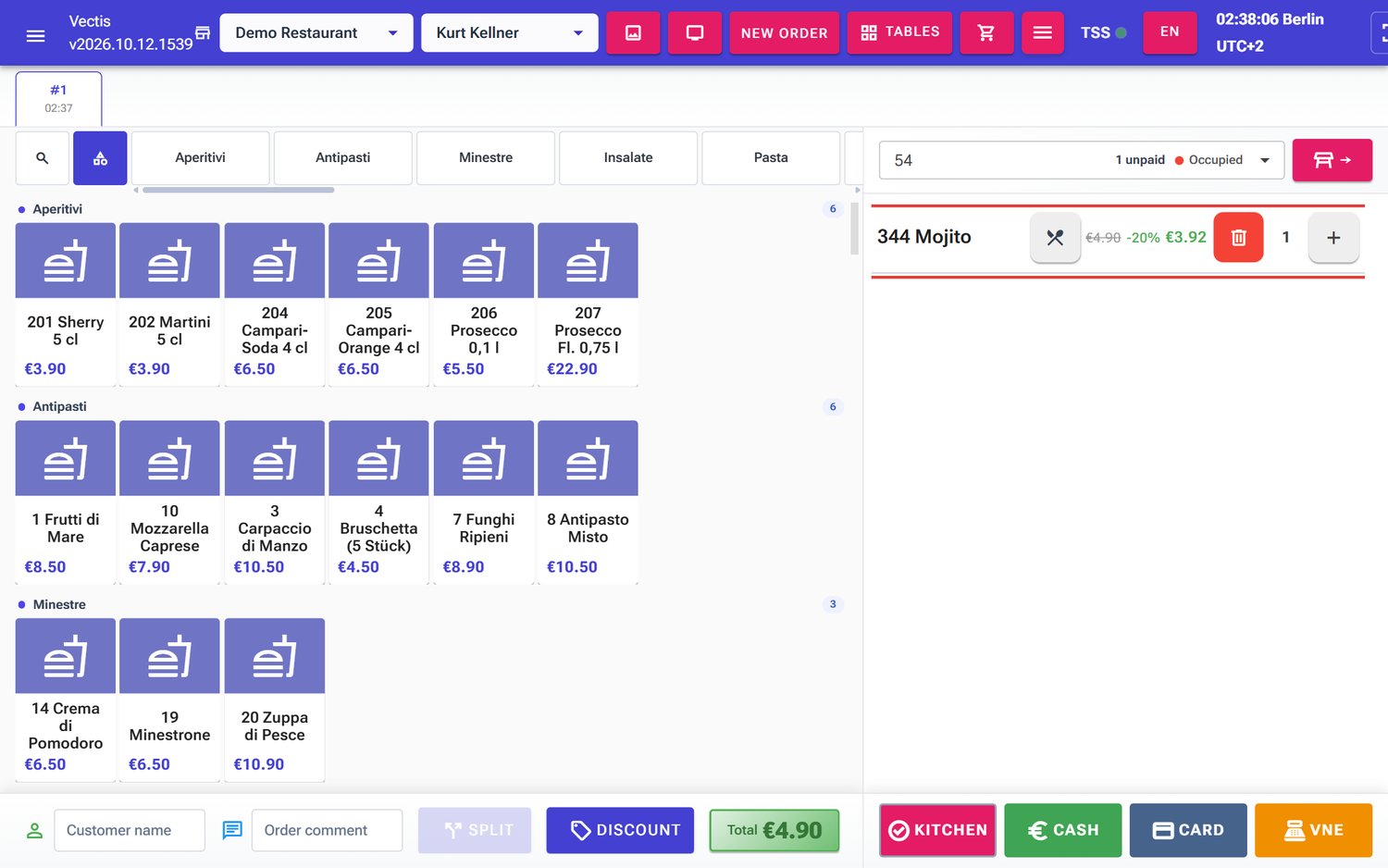 Order at table 54: "344 Mojito" with the promotion -20 % applied automatically
Note: If several promotions match one item (for example one for the product and one for its category), the one with the biggest saving applies. Promotions do not apply to custom items or to items with a typed-in (open) price.
Note: An item with a catalog promotion cannot be moved to a new bill when you split the bill.
Frequently asked questions
Q: Can I give a discount in euros instead of percent? No. Bill discounts and catalog discounts are always percentages.
Q: Can I give a discount on a single item only? Not at the till. The bill discount applies to the whole order. For single items a manager creates a catalog promotion.
Q: Are a catalog promotion and the bill discount added up? No. For each item the larger of the two applies.
Q: Why is the Discount button grey? A payment is already recorded, or the order has no item or no table.
Q: I forgot the discount and the order is already paid. What now? Book a return of the items concerned or of the whole order and take payment again with the discount (see chapter 06 Payment). This needs the storno right.
Q: May every employee give a discount? Yes, everyone who may edit orders. There is no separate right for it.
Q: How do I give 12.5 %? Tap Discount, then 1, 2, ,, 5 and Apply.
Q: Does the discount also apply to the deposit? No. The deposit (Pfand) is never discounted.
Q: How do I stop a promotion for a while, e.g. after happy hour? In Discounts Management tap the pause icon (Deactivate). The promotion then shows Inactive in the list. The play icon (Activate) switches it on again.
Q: Why is my new promotion not working? Check that it is active (not Inactive), that today is within Valid From / Valid To, and that it was created for the right venue (catalog).
Q: What does the receipt show?
Below each discounted item a line "Rabatt: 10 %" or "Rabatt: