02 Users and roles
Every employee logs in to the till with their own user account. The role of the account decides which menus and functions they see. This chapter explains the roles, shows how the administrator creates, changes and locks users and resets passwords, and explains the storno right, the "only my orders" filter and what the Terminals page is for.
The roles
Goal: Know which role has which tasks.
Who can do this: Everyone (information).
| Role (as shown in the user list, there in capitals) | For whom | What the role may do (short) |
|---|---|---|
| Admin | Owner, administrator | Everything. The only role that can create and change users and run the TSE export. May always storno. Not tied to a venue ("Global"). |
| Manager | Restaurant management | Almost everything: orders, all reports, Z closing, cash movements, catalog, discounts, setup, terminal profiles, Kassenmeldung. Not: manage users, TSE export. Storno only with the storno right. |
| Cashier | Till staff | Orders and payments, X report including closing, tip report, DSFinV-K export, paying out tips. Sees only the current business day in Orders. Storno only with the storno right. |
| Waiter | Service staff | Orders, floor plan, payments; the mobile view on a phone. No reports and no cash movements. Storno only with the storno right. |
| Terminal | Self-checkout kiosk (device) | Only the self-checkout screen. Needs a terminal profile. |
| Kitchen | Kitchen screen (device) | Only the kitchen view. |
| OrderDisplay | Pick-up display for guests (device) | Only the order display. |
The detailed overview per function is in Appendix A "Rights matrix".
Note: Every account has exactly one role. The device roles (Terminal, Kitchen, OrderDisplay) are meant for screens, not for people.
Open the user list
Goal: See all users of a venue.
Who can do this: Admin.
- Open Menu › User Management › Users.
- The User Management page shows a table with Name, Login, Role, Venue and Actions.
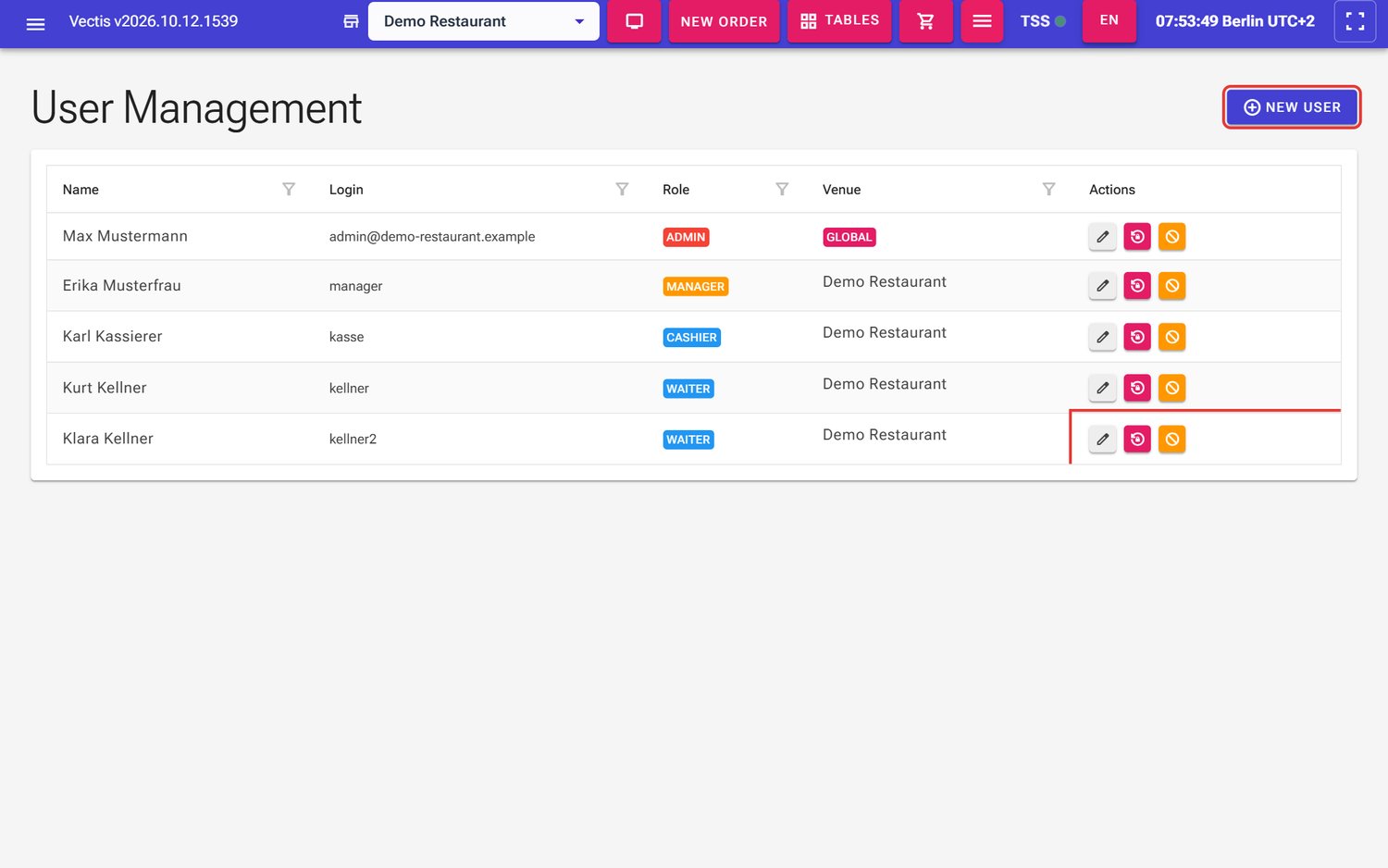 User Management with the demo users; New User and the three icons of one row are outlined in red
 - The list shows the users of the venue selected in the header bar (here «Demo Restaurant»), plus all administrators (venue GLOBAL). Select another venue at the top to see its staff.
In the Actions column every row has three icons:
- grey pencil: edit the user,
- red icon with a circular arrow and a lock: reset the password,
- orange "no entry" sign (crossed-out circle): deactivate the user (for inactive users a green tick instead: activate again).
Deactivated users have the red Inactive badge next to their name.
Note: A manager also sees the Users menu entry but gets Access denied when opening it. Only the administrator manages users.
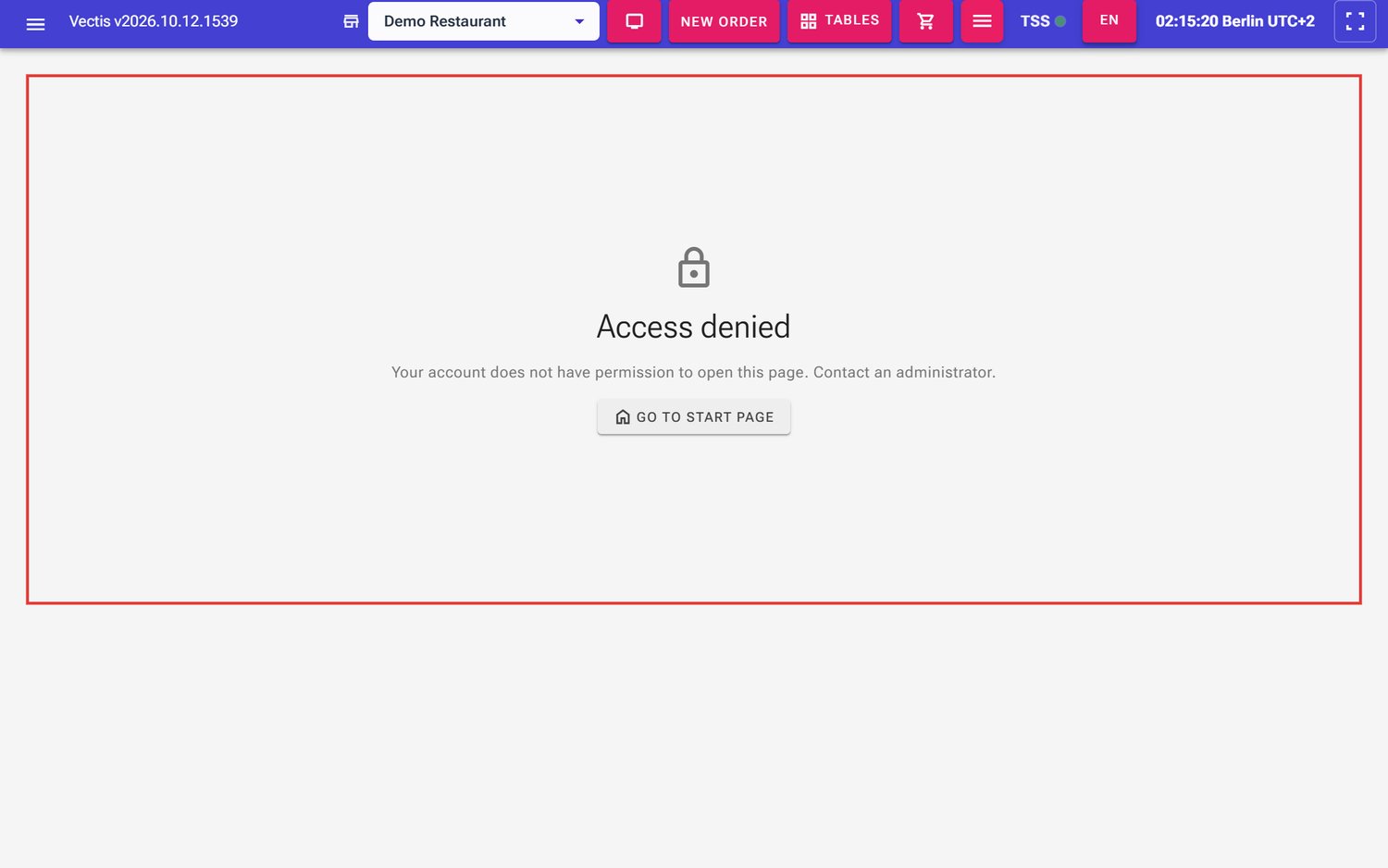 Manager opens Users: Access denied page
Create a new user
Goal: Give a new employee an account.
Who can do this: Admin.
- Open Menu › User Management › Users.
- Tap New User at the top right. The "Create New User" window opens.
- Fill in the fields:
- Login: the login name, 3 to 50 characters, only letters, digits, dot, underscore and hyphen (in the example
kellner3). It cannot be changed later. - Password and Confirm Password: the first password, at least 4 characters. The eye icon shows what you typed.
- First Name and Last Name: first and last name (in the example «Tom» and «Becker»). The name appears in lists and reports.
- Role: the role (preselected: Cashier; in the example Waiter).
- Venue: the venue, here «Demo Restaurant». Required for all roles except Admin; administrators apply to all venues.
- Allow storno (fiscal return/void): tick it if this employee may storno (see Grant the storno right).
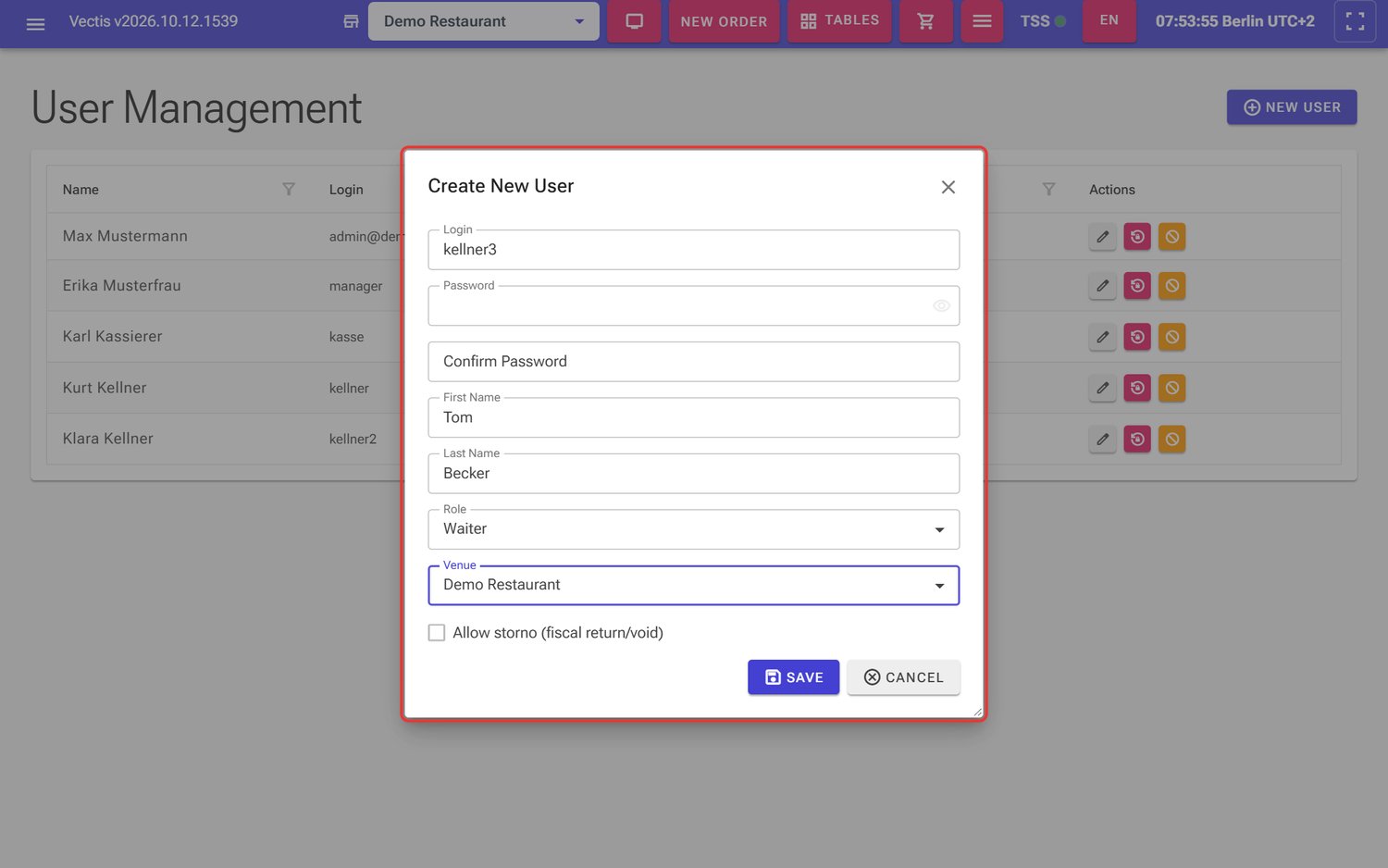 Create New User window with login kellner3, Tom Becker, role Waiter and venue Demo Restaurant
- Login: the login name, 3 to 50 characters, only letters, digits, dot, underscore and hyphen (in the example
- Tap Save (Cancel closes the window without saving).
- "User Created" appears at the bottom right. The new user is in the list and can log in straight away.
Note: For the roles Terminal, Kitchen and OrderDisplay the password field is called PIN. It works exactly like a password.
Note: Hand the first password to the employee in person. They cannot change it themselves; only the administrator can set a new password.
Change a user
Goal: Change a user's name, role, venue or storno right.
Who can do this: Admin.
- Open Menu › User Management › Users.
- Tap the pencil in the user's row. The "Edit User" window opens.
- Change First Name, Last Name, Role, Venue or Allow storno (fiscal return/void). The Login field is grey and cannot be changed. With the Active box you lock (untick) or unlock the account.
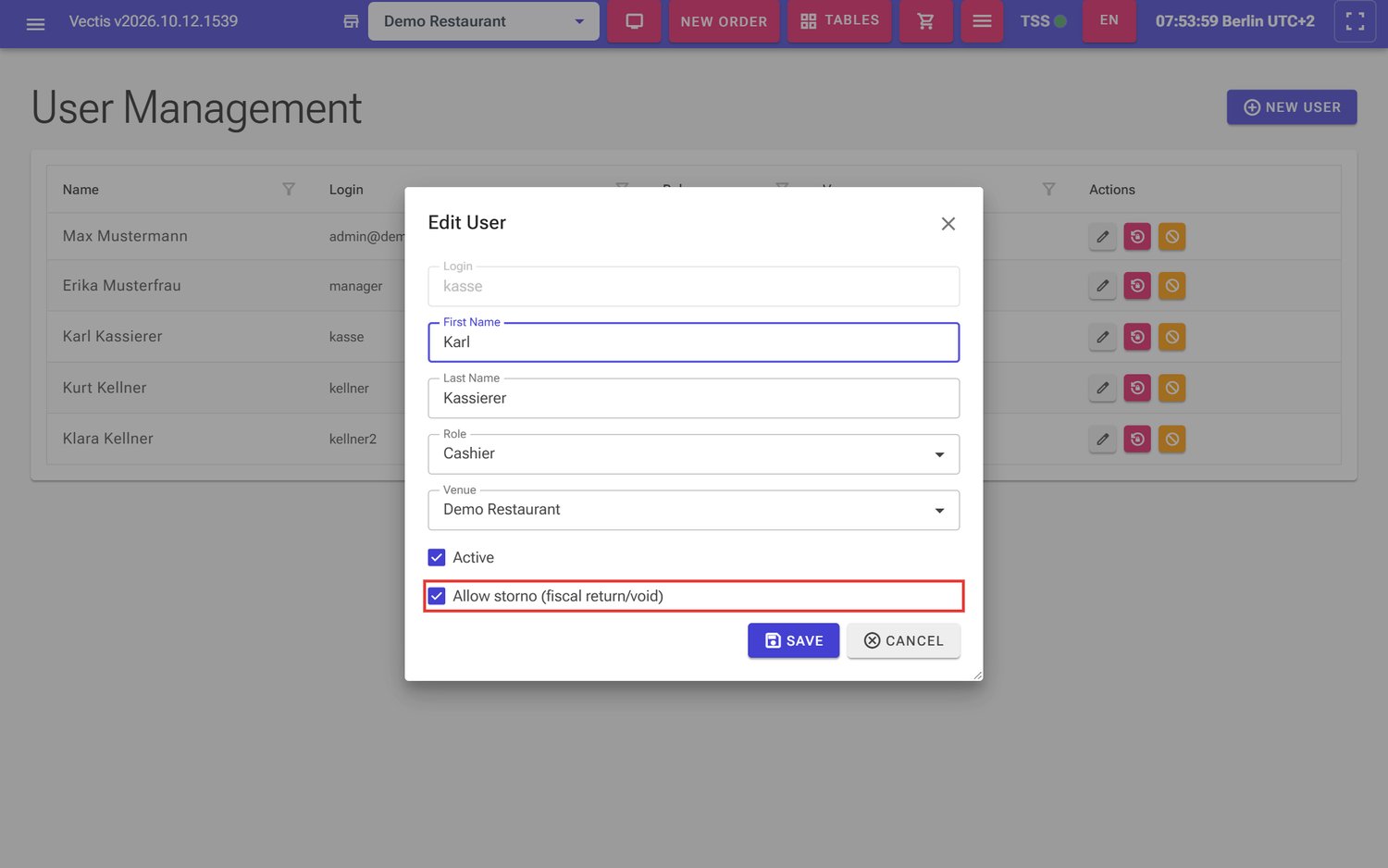 Edit User window for the cashier «kasse»: Active and Allow storno (outlined in red) are ticked
 - Tap Save. "User Updated" appears.
Note: Role and storno changes are saved at once. The employee's screen (menu, storno buttons) only adapts after they log out and in again.
Note: If you set the role to Admin, the venue is removed; administrators are "Global".
Reset a password
Goal: Give an employee who forgot their password a new one.
Who can do this: Admin.
- Open Menu › User Management › Users.
- Tap the red icon with the circular arrow and lock in the user's row. The "Reset Password" window opens and names the user ("Set a new password for …").
- Enter the new password under New Password (at least 6 characters) and repeat it under Confirm Password.
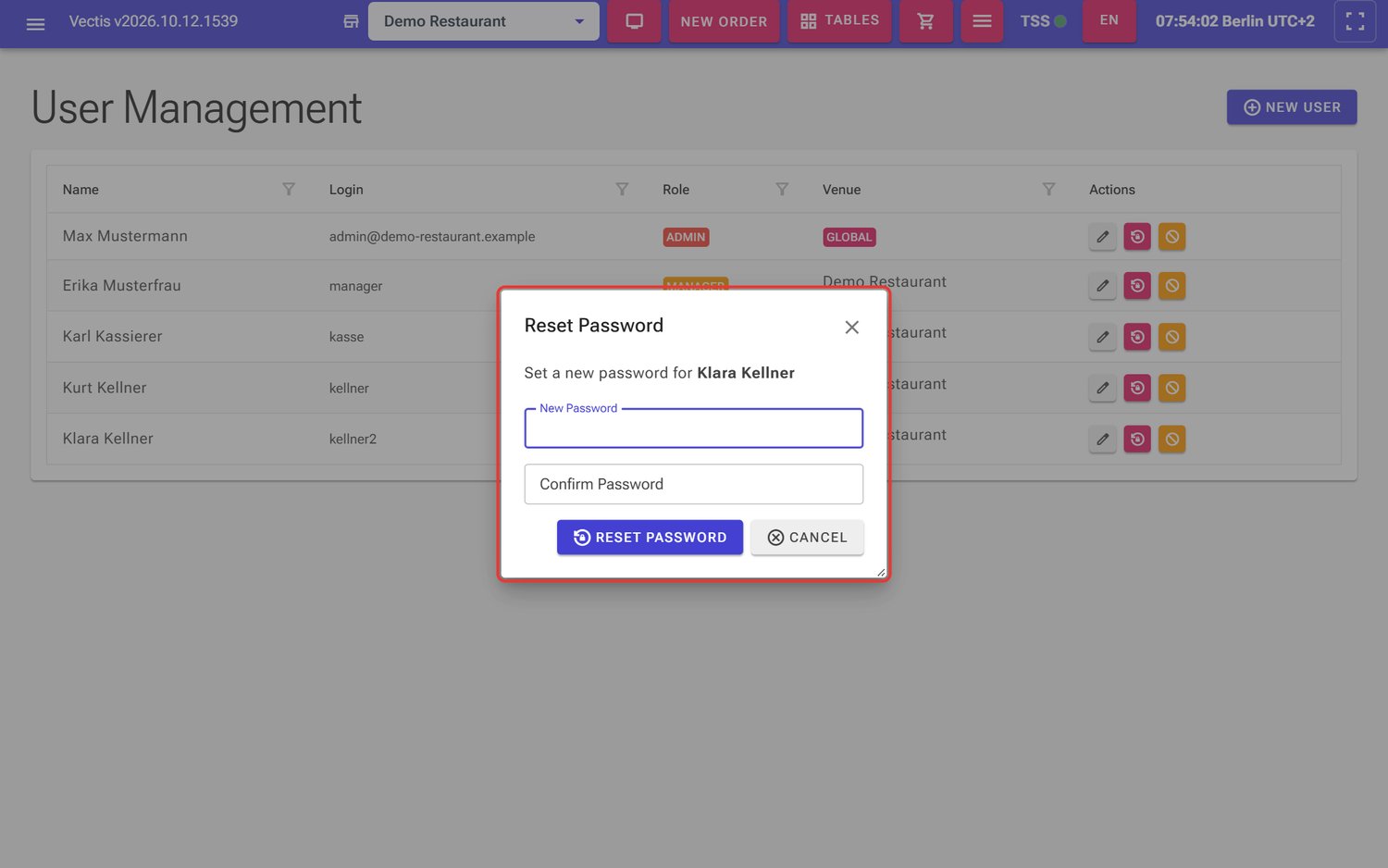 Reset Password window for «Klara Kellner»
 - Tap Reset Password. "Password Reset" appears.
- Tell the employee the new password in person.
Note: Always use at least 6 characters.
Deactivate or reactivate a user
Goal: Lock out an employee who has left, without losing their data.
Who can do this: Admin.
- Open Menu › User Management › Users.
- Tap the orange "no entry" sign in the user's row.
- The "Deactivate User" window asks "Are you sure you want to deactivate '…'? They will no longer be able to log in." Confirm with Yes (No cancels).
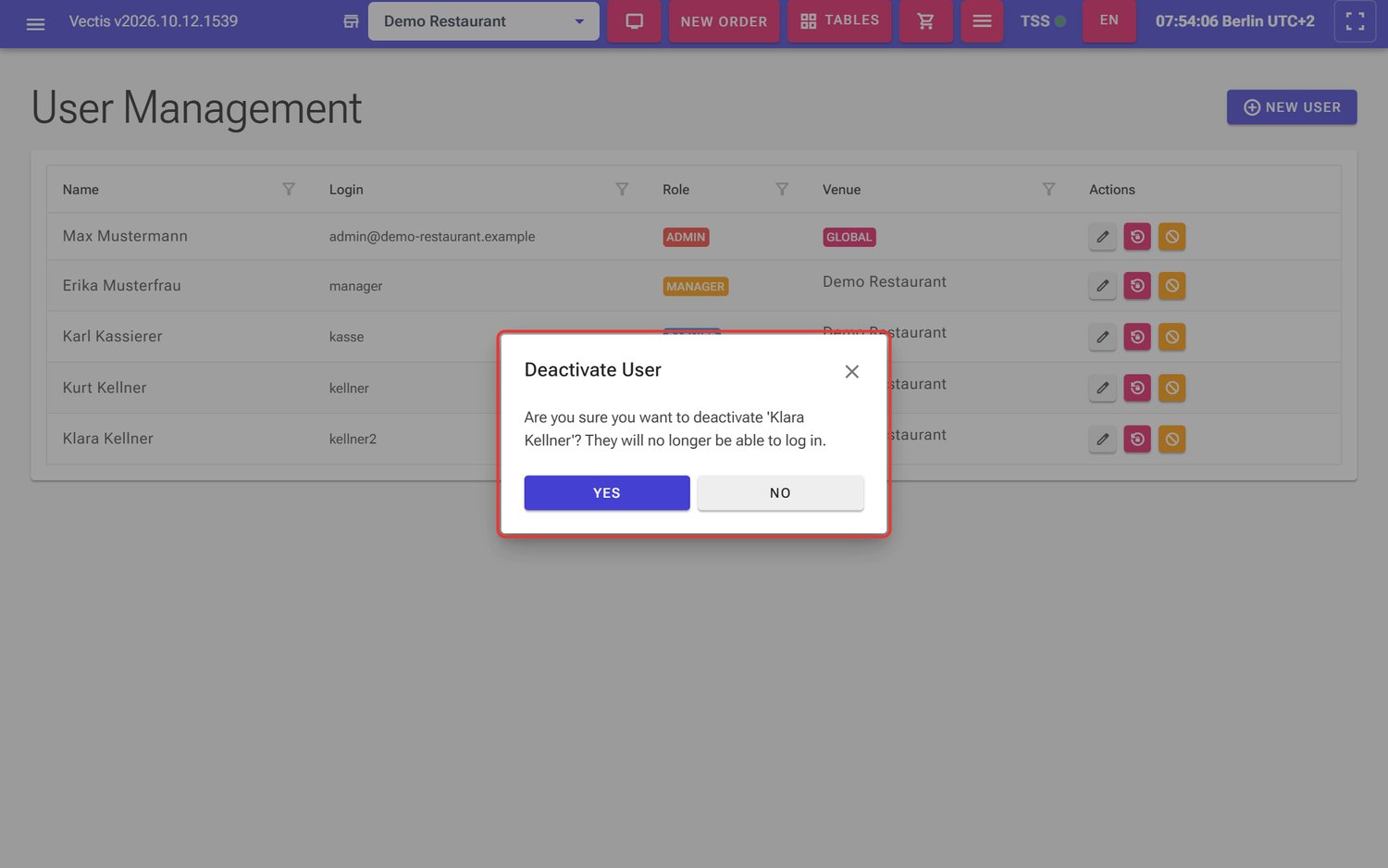 Deactivate User question for «Klara Kellner» with Yes and No
 - The user gets the Inactive badge and can no longer log in.
- To unlock, tap the green tick in their row. The account is active again at once (no question).
Note: Users cannot be deleted, only deactivated. That way their name and orders stay in the reports and the fiscal journal.
Caution: If the employee is still logged in on a device, also log them out there.
Grant the storno right
Goal: Decide who may storno or return receipts that are already paid.
Who can do this: Admin.
A storno or return creates its own signed counter-receipt. That is why not everyone may do it.
- Open the user as described in Change a user.
- Tick or untick Allow storno (fiscal return/void).
- Tap Save.
- Ask the employee to log out and in again so that the storno buttons appear or disappear for them.
How the right works per role:
| Role | Storno / return of a receipt |
|---|---|
| Admin | always allowed (box greyed out, note "Admins can always perform storno.") |
| Manager, Cashier, Waiter | only with the Allow storno tick |
| Terminal, Kitchen, OrderDisplay | never (box greyed out, note Storno is not available for this role.) |
Caution: A paid receipt is signed and stored in the fiscal journal. It cannot be deleted; a storno books the amount back with a new receipt. Grant the right only to trusted employees.
Note: Cancelling an order that is not paid yet is not a fiscal storno and does not need this right.
Note: Reversing a tip payout (on Cash Movements) can only be done by an Admin or a Manager with the storno right, not by a cashier.
Only my orders (waiters) and past days
Goal: Understand which orders an employee sees in the list.
Who can do this: Information for all roles.
Waiters: On Menu › Order Management › Orders a waiter sees two buttons: All waiters and Me. When the page opens, Me is selected; the list then shows only their own orders. With All waiters they see the orders of all colleagues.
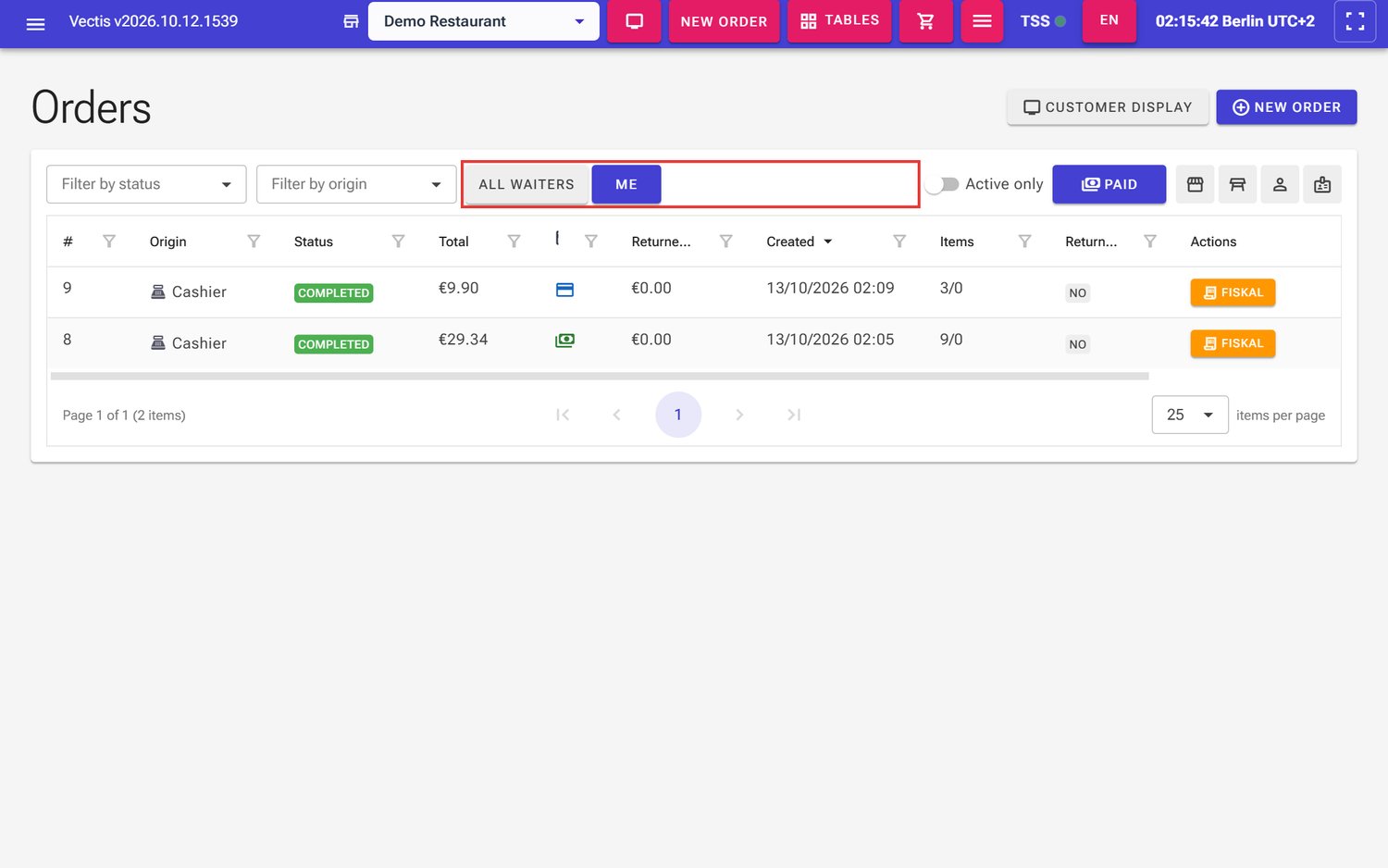 Orders as a waiter: All waiters / Me filter (outlined in red), Me is selected and shows the own orders 8 and 9
Note: Me is a display filter for the overview, not a lock. A waiter can also open and edit colleagues' orders, for example when taking over a table. Their statistics on the phone (Profile), however, always show only their own figures.
Admin, Manager and Cashier have the Waiter selector in the header bar instead (All waiters or one name).
Past days: Only Admin and Manager see the period buttons (Today, 7d, 30d …) in Orders and can open older days. Cashiers and waiters see only the current business day, i.e. all orders since the last Z closing.
Terminals (only for self-checkout kiosks)
Note: The page Menu › POS Setup › Terminals is only meant for self-checkout kiosks where guests order and pay by themselves. Your Vectis service partner sets up such a kiosk. Till staff do not need a terminal profile: they simply log in with their own user account.
Frequently asked questions
Q: How many administrators should I have? At least one, better two (for example owner and deputy). Only an Admin can create users and reset passwords.
Q: Can a manager create new waiters? No. Only the Admin may create and change users. The manager sees the menu entry but gets Access denied.
Q: Can I delete a user? No, only deactivate. Their data stays for reports and the fiscal journal.
Q: Can employees change their own password? No. The Admin sets a new password with the lock icon in the user list.
Q: I gave a cashier the storno right, but they do not see a storno button. They need to log out and in again once.
Q: May a waiter storno? Only if the Admin has ticked Allow storno for them.
Q: Why don't I see all employees in the user list? The list shows only the venue selected in the header bar (plus all administrators). Select the other venue.
Q: Can an employee work at two venues? An account (except Admin) belongs to exactly one venue. If an employee works at several venues, contact your Vectis service partner.
Q: Does every cashier or waiter need a terminal profile? No. Terminal profiles exist only for self-checkout kiosks (see Terminals). Till staff log in with user name and password only.
Q: A waiter only sees their own orders in "Orders". Is that a bug? No, that is the Me filter. With All waiters they see all.
Q: Why can't our cashier see yesterday's orders? Cashiers and waiters see only the current business day. A manager or admin opens older orders.
Q: What is the PIN on kitchen accounts? The password of the device account. It is set in the PIN field when creating the account and reset with the lock icon like any password.