14 Troubleshooting and FAQ
This chapter collects problems that really happen in daily restaurant work. For each problem you find the sign (symptom), the cause and the steps you can take yourself. If nothing helps, contact your Vectis service partner (see Reach support).
Note: On the PC the till shows errors directly on the page or in the dialog, not as short pop-up messages. After an action, read the text on the page.
TSS indicator is red
Goal: Understand the TSS indicator and react correctly.
Who can do this: All users (indicator); fixing it only by your Vectis service partner.
Symptom: The header shows TSS with a coloured dot. The dot is red (or grey) instead of green.
 TSS indicator in the header, here with a green dot (TSE set up and active)
What the colours mean:
| Colour | Meaning |
|---|---|
| Green | The TSE (technical security device) is set up and active – bookings are signed. |
| Yellow | Notice for your service partner (e.g. a new TSE version is available). You can keep working normally. |
| Red | No active TSE is set up – bookings are not signed. |
| Grey | The state could not be read. |
Hover the mouse over the indicator to see a short reason. On narrow screens the indicator is in the ☰ menu at the top right.
What to do:
- Reload the page (F5). The indicator is checked again when the page loads.
- If the dot stays red or grey, call your Vectis service partner straight away.
What the till does meanwhile: The till does not block sales. Payments are booked and the order is completed as paid. If a booking cannot be signed (e.g. because the TSE cannot be reached), then – depending on the error – either a receipt with the note TSE-Ausfall (TSE outage) and the reason (e.g. "SIGNATURFEHLER") is printed, or no fiscal receipt at all (see chapter 06, "Paying when the TSE is not signing"). The till shows no separate message.
Once the problem is fixed, open Menu › Order Management › Orders, filter Paid, and tap Fiskal for orders without a fiscal receipt. The till then signs the order afterwards (see chapter 06).
Caution: Receipts with the TSE-Ausfall note are not signed. Report a TSE outage to your service partner immediately – they will clarify with you what has to be done for tax purposes.
No internet or no network
Goal: Keep working when the internet is down.
Who can do this: All users.
Symptom: The restaurant's internet is down. In Vectis Manager, Server Connection is red ("Unavailable").
Cause: The till runs on the till PC with its own database. It needs the internet only for TSE signing (with a cloud TSE), for updates and for sending data to your service partner.
What to do:
- Keep working normally on the till PC. Orders and payments are saved locally.
- Expect receipts during this time to carry the TSE-Ausfall note, or no fiscal receipt to be printed (see above).
- Get the internet back (restart the router) and report longer outages to your service partner.
Note: Data meant for your service partner (orders, fiscal transactions, cash point closings) is collected by the till and sent automatically as soon as the connection is back. You do not need to do anything.
Note: If the local network (restaurant Wi-Fi) fails, the waiters' phones can no longer reach the till. On the till PC itself the till keeps working. There is no separate "offline" indicator.
Printer does not print
Goal: Get receipt printing working again.
Who can do this: All users (check the printer); Admin, Manager (printer settings).
Symptom: No receipt after payment. The page shows e.g. "Failed to print receipt."
What to do:
- Check the printer: switched on, paper loaded, cover closed, no red light, cable or network connected.
- Check the Windows print queue (Settings › Bluetooth & devices › Printers & scanners › printer › Open print queue). Delete stuck jobs and resume the printer if it is paused.
- Under Menu › POS Setup › Receipt Options, check that the right printer is chosen (Select printer or Use system default printer). For a new printer click Refresh printers.
- Reprint the receipt: Menu › Order Management › Orders, filter Paid, Fiskal in the order's row, then Print receipt (see chapter 06).
Caution: If Use system default printer is set and "Microsoft Print to PDF" is the Windows default printer, the till does not print on paper. That printer opens a save window and is rejected for silent background printing (message: "Printer '…' is interactive and not supported for silent background printing."). Choose the receipt printer explicitly or make it the Windows default printer.
Kitchen ticket missing
Goal: Find out why a kitchen ticket was not printed.
Who can do this: All users (check the printer); Admin, Manager (settings).
Symptom: The order is booked, but no ticket arrives in the kitchen.
Cause: Possible reasons: - The order contained only drinks. Drinks do not go to the kitchen when Alcohol and Non-alcoholic are set to "Do not print". - The kitchen ticket is printed only After payment (setting per printer), but the order is not paid yet. - The kitchen printer is off, out of paper or cannot be reached.
What to do:
- Check the kitchen printer (power, paper, network, Windows queue as above).
- Under Menu › POS Setup › Receipt Options, check the kitchen printer's setting Production receipt timing by product group for Food, Alcohol and Non-alcoholic (Do not print, On confirmation, After payment).
- If the order is already paid, you can send the ticket to the kitchen printers again: Menu › Order Management › Orders, filter Paid, Fiskal, then Print short receipt (see chapter 09).
- If the order is still open, tell the kitchen about the missing order in person.
Note: If kitchen printing fails, the till shows no error message. It retries automatically in the background until Windows accepts the job (see chapter 09) – once the printer is ready again, the ticket may arrive late. So do not reprint too quickly, or the kitchen gets the ticket twice.
Note: "Microsoft Print to PDF" cannot be used as a kitchen printer.
Wrong amount or wrong item booked
Goal: Correct a mistake in an order.
Who can do this: Before payment: everyone allowed to edit the order. After payment: Admin and users with the storno right (Allow storno (fiscal return/void), see chapter 02).
Before payment:
- Open the order and change the items (change the quantity, remove the item, add the right item).
After a first partial payment, before completion: The items are locked ("Items can no longer be changed once a payment has been recorded."). Remove the payment first (see the next section); then you can change the order again.
After completion (order paid):
- Open Menu › Order Management › Orders, filter Paid, and tap Fiskal in the order's row.
- Tick the wrong items at the bottom and tap Return selected – or Return all for the whole order (see chapter 06, "Booking a return").
- Book the correct order again.
Caution: Return selected and Return all are executed immediately, without a confirmation question. Check your selection carefully first. A paid order is fiscalized and cannot simply be deleted – that is why a return is needed, which is signed as a booking of its own.
Payment booked with the wrong payment method
Goal: Correct a payment that was recorded e.g. as cash instead of card.
Who can do this: Before the order is completed: everyone allowed to take payments. After completion: Admin and users with the storno right.
There is no "change payment method" function.
- While the order is not fully paid yet: On the payment page, under Payments Received, tap the red × in the row of the wrong payment. The till asks, e.g. "Remove the payment of €20.00 (Manual Cash)?". Tap Remove and then record the correct payment (see chapter 06, "Removing a payment").
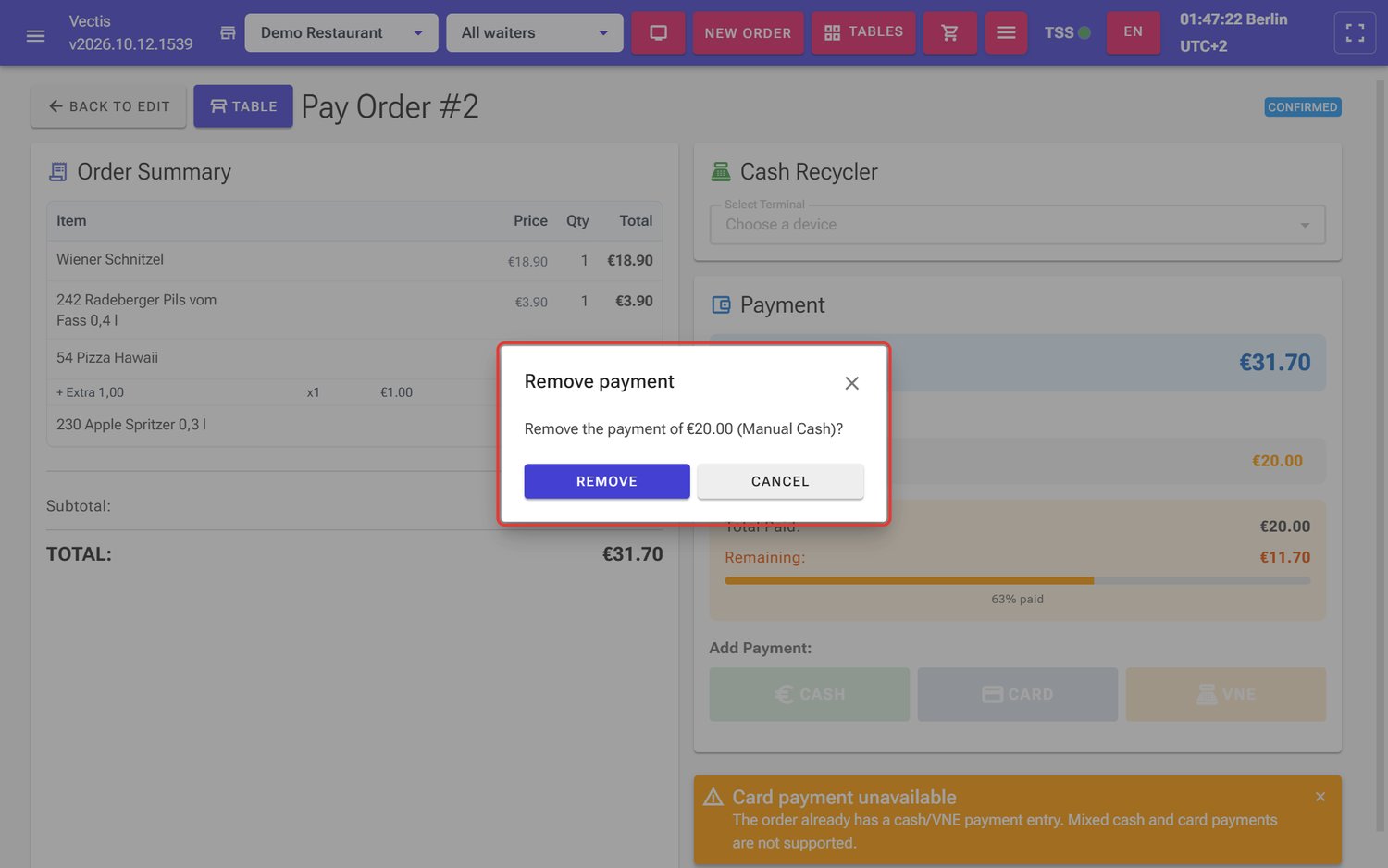 Remove payment question with Remove and Cancel (outlined in red)
The × is missing for payments through the cash recycler (VNE) and for orders that are already paid.
Remove payment question with Remove and Cancel (outlined in red)
The × is missing for payments through the cash recycler (VNE) and for orders that are already paid. - After completion: Return the order (Return all, see above) and take payment again with the correct method.
Note: Cash and card together on one order is not possible. If a cash payment is already recorded, card is blocked: "Card payment unavailable – The order already has a cash/VNE payment entry. Mixed cash and card payments are not supported."
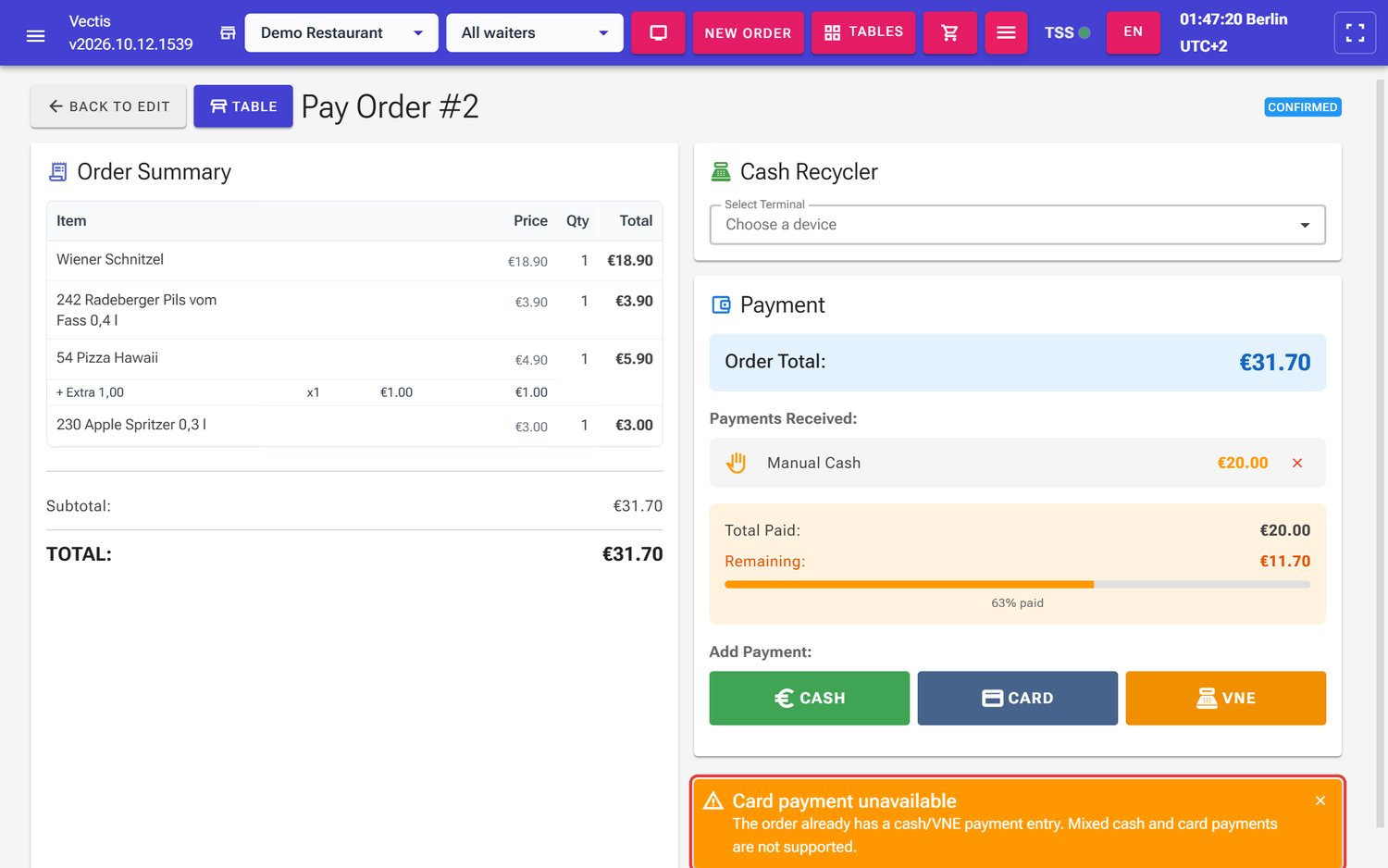 Card payment unavailable notice after a cash payment of €20.00 (outlined in red)
Card terminal does not respond
Goal: Keep taking payments when the card terminal fails.
Who can do this: All users allowed to take payments.
Cause: The card terminal is a separate device and is not connected to Vectis. With Card in Vectis you only confirm that the terminal has accepted the payment.
What to do:
- Restart the card terminal or check its connection (see the terminal provider's instructions).
- If it still does not work, ask the guest for another payment method (e.g. cash).
- Only confirm the card payment in Vectis when the terminal has really accepted the payment.
Caution: If you see "The card payment was not booked. Please press «Card» again – do NOT charge the terminal again.", the terminal has already charged the card; only Vectis has not booked it yet. Press Card again, but do not charge the card on the terminal a second time. "No connection to the till – do nothing on the terminal and try again once the connection is back." means the connection to the till PC is missing.
Note: The Terminals page under POS Setup is only for self-checkout kiosks, not for card terminals.
Forgotten password
Goal: Be able to log in again.
Who can do this: Only an Admin sets a new password.
Symptom: Login shows "Invalid email or password".
- Ask an Admin to tap the lock-with-arrow icon in your account's row under Menu › User Management › Users and set a new password. The dialog Reset Password opens with the fields New Password and Confirm Password (at least 6 characters) and the button Reset Password (see chapter 02).
- Log in with the new password.
There is no "forgot password" function. If the Admin has forgotten their own password, your Vectis service partner helps.
User cannot log in (deactivated)
Goal: Find out why an account does not work.
Who can do this: Admin.
Symptom: "Invalid email or password" although the password is correct.
Cause: The account is deactivated. The till shows the same message as for a wrong password. There is no automatic lock after several failed attempts.
- The Admin checks under Menu › User Management › Users whether the account is active and activates it if needed (see chapter 02).
- If that does not help, the Admin sets a new password (see above).
"Access denied"
Goal: Understand why a page is blocked.
Who can do this: All users.
Symptom: Instead of the page you see Access denied – "Your account does not have permission to open this page. Contact an administrator."
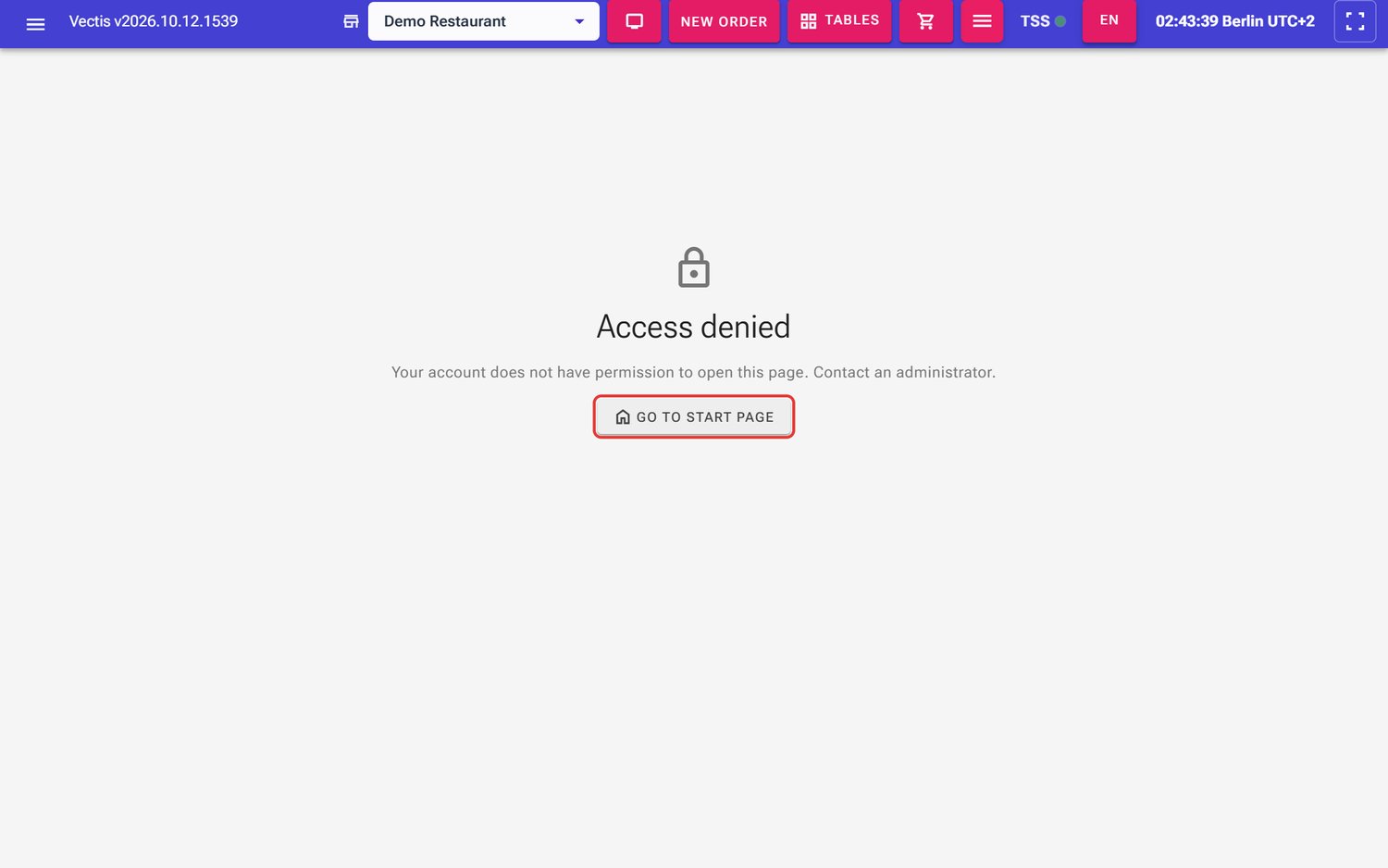 Access denied page
Cause: Your role may not open this page (e.g. a waiter the cash or report menus, a manager the user management).
- Tap Go to start page.
- If you really need the function, ask an Admin to do the task or to adjust your role.
Z closing fails
Goal: Complete the daily closing anyway.
Who can do this: Admin, Manager, Cashier.
Symptom: You tapped Close under Menu › Compliance & Reports › X report, but the receipt list is not empty and Next Z number has not changed. The till on the PC shows no error message in this case (see chapter 11).
What to do:
- Reload the page (F5) and check that a binding is selected at the top.
- Check under DSFinV-K export whether the closing was created after all – if so, do not close again.
- If it is missing, check the internet connection and tap Close again after a few minutes.
- If it still fails, write down the time and the user and call your service partner.
Caution: The Z closing is required by the tax office. Repeat a failed closing as soon as possible – not days later.
Orders from yesterday are still open
Goal: Close open orders from the previous day properly.
Who can do this: Admin, Manager (cashiers and waiters see only the current business day in Orders).
Symptom: Menu › Order Management › Orders still lists open orders from the previous day. The till does not warn about this specifically.
- Open each open order.
- If the guest paid but the payment was not recorded: take the payment now. If it was never paid (e.g. test order, guest left): cancel it (only possible while it is not fiscalized).
Note: Open orders do not block the Z closing. If an open order is paid after the Z, its receipt is in the next Z closing. Cashiers and waiters no longer see open orders created more than 24 hours before the last Z (see chapter 11, "What happens to open tables?").
Screen frozen or showing an error
Goal: Make the till usable again.
Who can do this: All users.
Symptom: Buttons do not react, or a light-yellow bar appears at the bottom: "An unhandled error has occurred. Reload X".
- Click Reload in the yellow bar or press F5.
- If that does not help, close the browser and open the till again.
- If the till hangs on all devices, restart the till service in Vectis Manager with Restart (see chapter 13).
Note: If the message "A new version is available." appears at the top, tap Refresh when convenient (or Later). The till then loads the new version.
Parts of the screen are German instead of English after a reload
Goal: Restore the chosen language.
Who can do this: All users.
Symptom: You work in English. After reloading the page (F5), some pages (e.g. Products, Categories, Tax groups, "Access denied") show German texts again. The header and the menu stay English.
- Use the language button in the header to switch the language once and back to EN. The interface is fully English again.
Phone cannot connect to the till
Goal: Open the waiter view on a phone.
Who can do this: All users (firewall: your service partner or IT support).
Symptom: On the phone, http://<till-IP-address>:10110 does not load.
- Connect the phone to the same Wi-Fi as the till PC (not the guest Wi-Fi, not mobile data).
- Check the till PC's IP address (in Windows: Settings › Network & internet › connection properties, "IPv4 address"). Enter exactly this address with
:10110on the phone. - Check that the till runs on the PC itself (Vectis Manager: status Running).
- The Windows firewall on the till PC must allow incoming connections on TCP port 10110. The installation does not create this rule. Have your service partner or IT support set it up.
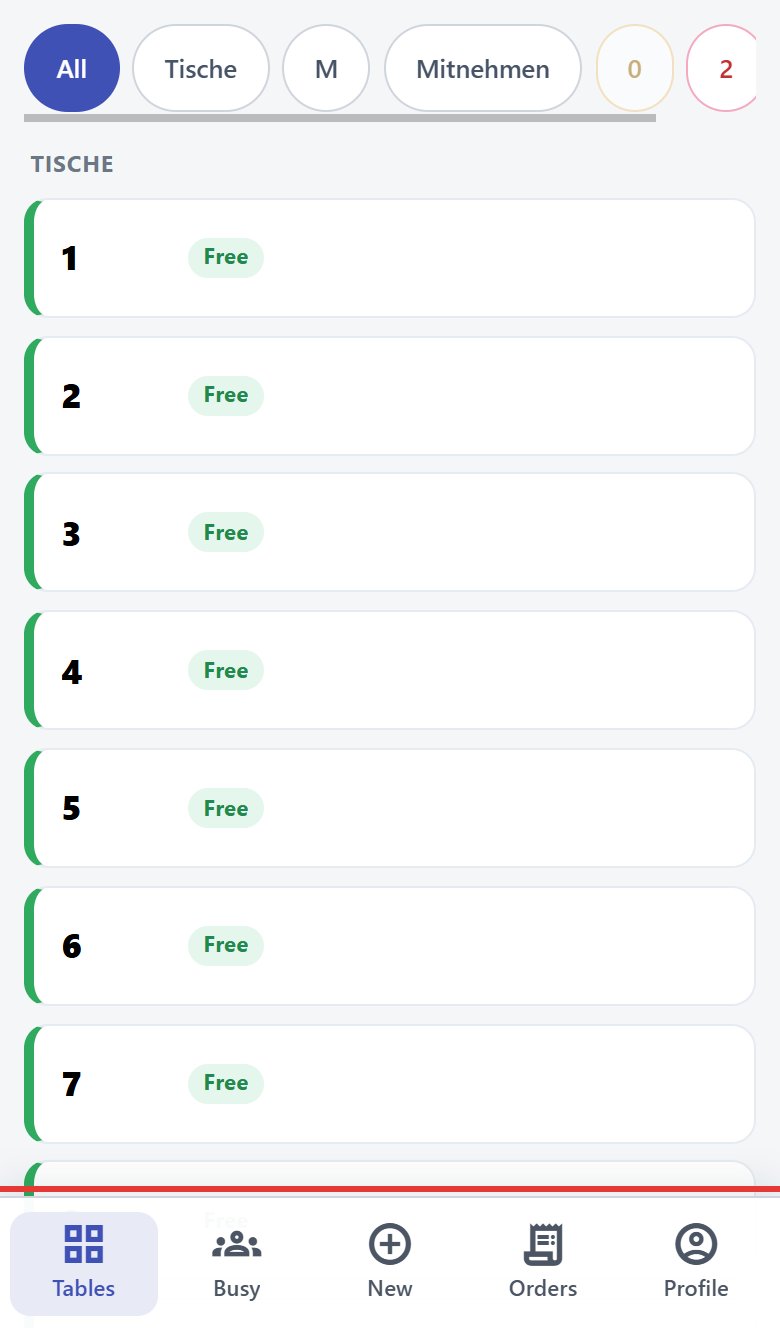 Waiter view on the phone
Note: If the PC's IP address changes (e.g. after a router restart), the saved bookmark no longer works. Ask your IT support to give the till PC a fixed IP address.
Clock is wrong
Goal: Show the correct time on the till.
Who can do this: Admin, Manager (time zone); Windows administrator (PC clock).
Symptom: The clock in the header or the times on receipts are off.
- Under Menu › POS Setup › Cash Register Setup, check the field Cash register time zone (for Germany "Europe/Berlin"). If no time zone is set, the till shows UTC.
- Check the Windows clock on the till PC (Settings › Time & language › Date & time, switch on "Set time automatically").
Note: The PC time also defines the nightly update window (02:00–05:00, see chapter 13).
Update was not installed
Goal: Get a new version onto the till.
Who can do this: Anyone with access to the till PC.
Cause: Updates are installed only between 02:00 and 05:00 while the PC is on, or shortly after switch-on if the PC was off for more than 4 hours. Without internet the update does not arrive at all.
- Open Vectis Manager and click Check for updates.
- If it then shows "POS: … -> … (update available …)" and the button Update POS to … appears in the Vectis POS Service section, click it at a quiet time (see chapter 13). "(up to date)" means the till is already current.
- If Server Connection is red ("Unavailable"), check the internet.
- If it shows "Failed: …", export the logs and call your service partner.
Reach support
Goal: Get the right help quickly.
Who can do this: All users.
The till itself shows no support contact details. Your contact is your Vectis service partner (phone and email from your contract).
- Write down what happened: time, device, user, exact error text (photo of the screen).
- Write down the version (Vectis Manager, "Version:" in the Vectis POS Service section).
- Export the logs in Vectis Manager with Export Logs (file on the desktop, see chapter 13) and send them only to your service partner.
Frequently asked questions
Q: May I keep selling when the TSS indicator is red? The till does not block sales; receipts may then carry the TSE-Ausfall note. Call your service partner immediately.
Q: Does the till work without internet? Yes, on the till PC. Only signing, updates and data transfer need the internet; the transfer catches up later.
Q: Can I delete a product we no longer sell? No. Products can only be deactivated, not deleted.
Q: Can I change a paid order? No. After the first payment the items are locked. Correct it with a return.
Q: Can I mix cash and card on one order? No. The till blocks the second payment method with a message.
Q: Who resets my password? Only an Admin, under Menu › User Management › Users.
Q: Is an account locked after several wrong passwords? No. There is no automatic lock.
Q: Where do I reprint a receipt? In Menu › Order Management › Orders, filter Paid, Fiskal, then Print receipt.
Q: Can I reprint a kitchen ticket? For paid orders yes: Fiskal › Print short receipt sends the ticket to the kitchen printers. For open orders no – tell the kitchen about the order.
Q: Why is there no error message when the kitchen printer is off? The till retries kitchen printing silently in the background. Check the printer when a ticket is missing.
Q: The till is gone on all devices. What first? On the till PC, open Vectis Manager, check the status, and use Restart or Start if needed.
Q: When are updates installed? At night 02:00–05:00 with the PC on, shortly after switch-on after a longer power-off, or immediately with Update POS to … in Vectis Manager.