10 Cash and cash movements
Cash that does not come from a sale is booked on the Cash Movements page (page title Cash Movements (drawer)): putting change into the till, taking money to the bank, paying an expense from the drawer, or paying out tips to staff. Every cash movement is signed by the TSE just like a sale and appears on the X and Z reports. At the end of the chapter you learn how a payment with a cash recycler (cash machine) works.
Who sees what?
| Role | What appears on the Cash Movements page |
|---|---|
| Admin, Manager | all tiles, the Now tile, Recent tip payouts, the Cash movement history and the period picker |
| Cashier | only the Pay out tips tile, the Now tile and Recent tip payouts |
| Waiter | no access (Access denied) |
Admins and managers find the page under Menu › Compliance & Reports › Cash Movements; cashiers find it under the same menu item Compliance & Reports.
Read the cash balance and open tips
Goal: See how much cash should be in the drawer according to the till.
Who can do this: Admin, Manager, Cashier.
- Open Menu › Compliance & Reports › Cash Movements.
- The Now tile shows two values:
- Cash balance: the cash that should be in the drawer right now,
- Open tips: card tips from guests that have not yet been paid out to staff. This is not cash in the drawer but what the till owes the employees.
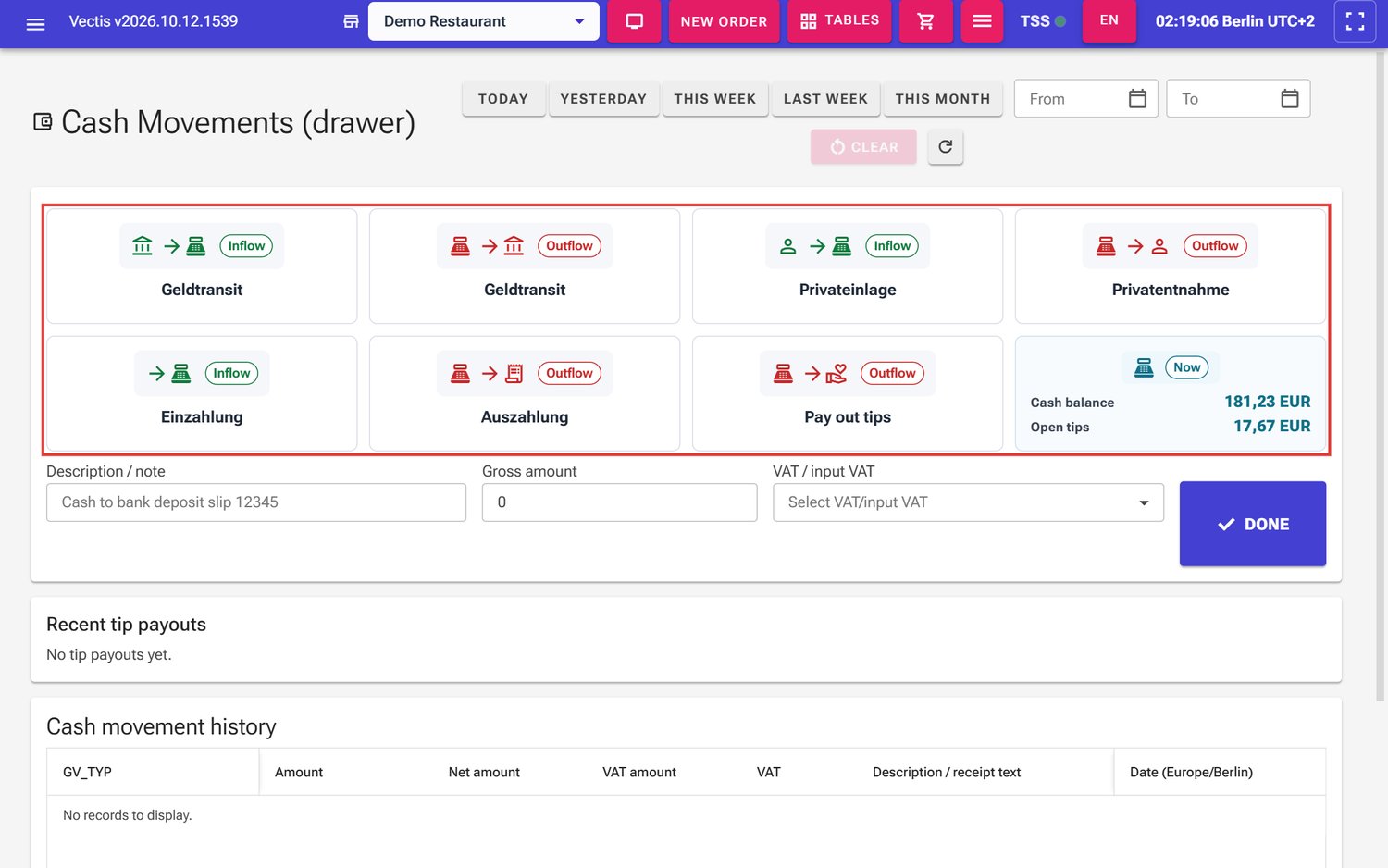 Cash movement tiles (outlined in red); bottom right the Now tile with the cash balance and open tips
Note: If a value cannot be loaded, it shows Unavailable. Reload the page.
Note: Vectis has no counting aid (count sheet by coins and notes). Count the drawer by hand and compare with the Cash balance.
Put cash in or take cash out
Goal: Book a cash movement, for example change at the start of a shift or money to the bank.
Who can do this: Admin, Manager.
The tiles carry the names of the DSFinV-K business cases (German terms, also in the English UI). Under the icon it says Inflow (money comes into the till) or Outflow (money leaves the till):
| Tile | Use it for |
|---|---|
| Geldtransit (Inflow) | cash from the safe or bank into the drawer, for example the change at the start of a shift |
| Geldtransit (Outflow) | cash from the drawer to the safe or the bank |
| Privateinlage (Inflow) | the owner puts private cash into the till |
| Privatentnahme (Outflow) | the owner takes cash out of the till privately |
| Einzahlung (Inflow) | other cash coming into the till that is not revenue |
| Auszahlung (Outflow) | paying a business expense from the drawer, for example a purchase |
| Pay out tips (Outflow) | see Pay out tips |
- Open Menu › Compliance & Reports › Cash Movements.
- Tap the right tile, for example Geldtransit with Inflow. The tile gets a green frame.
- In Description / note, write what it is for, for example "Change from safe" or "Office supplies receipt 12345".
- Enter the Gross amount, for example 150 (always positive; the direction comes from the tile).
- Under VAT / input VAT, choose the rate: 19% Allgemeiner Steuersatz, 7% Ermäßigter Steuersatz, 0% Steuerfrei or 0% Nicht steuerbar. Below you see the calculated Net amount and VAT amount.
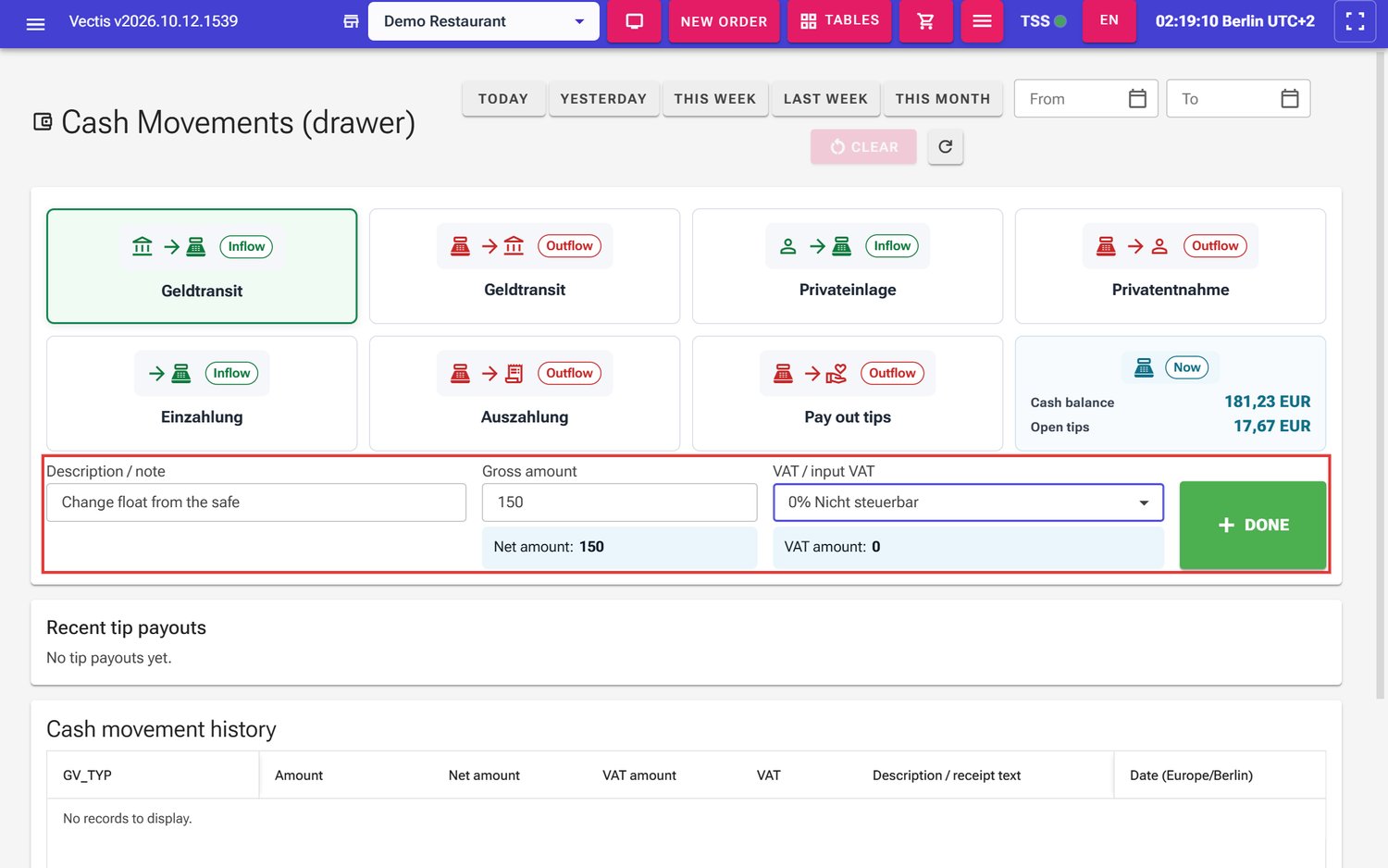 Filled-in cash movement: Geldtransit inflow, 150, 0% Nicht steuerbar
 - Tap Done.
- The window Confirm cash movement shows GV_TYP, gross, net, rate and tax. Check the values and tap Done. Cancel books nothing.
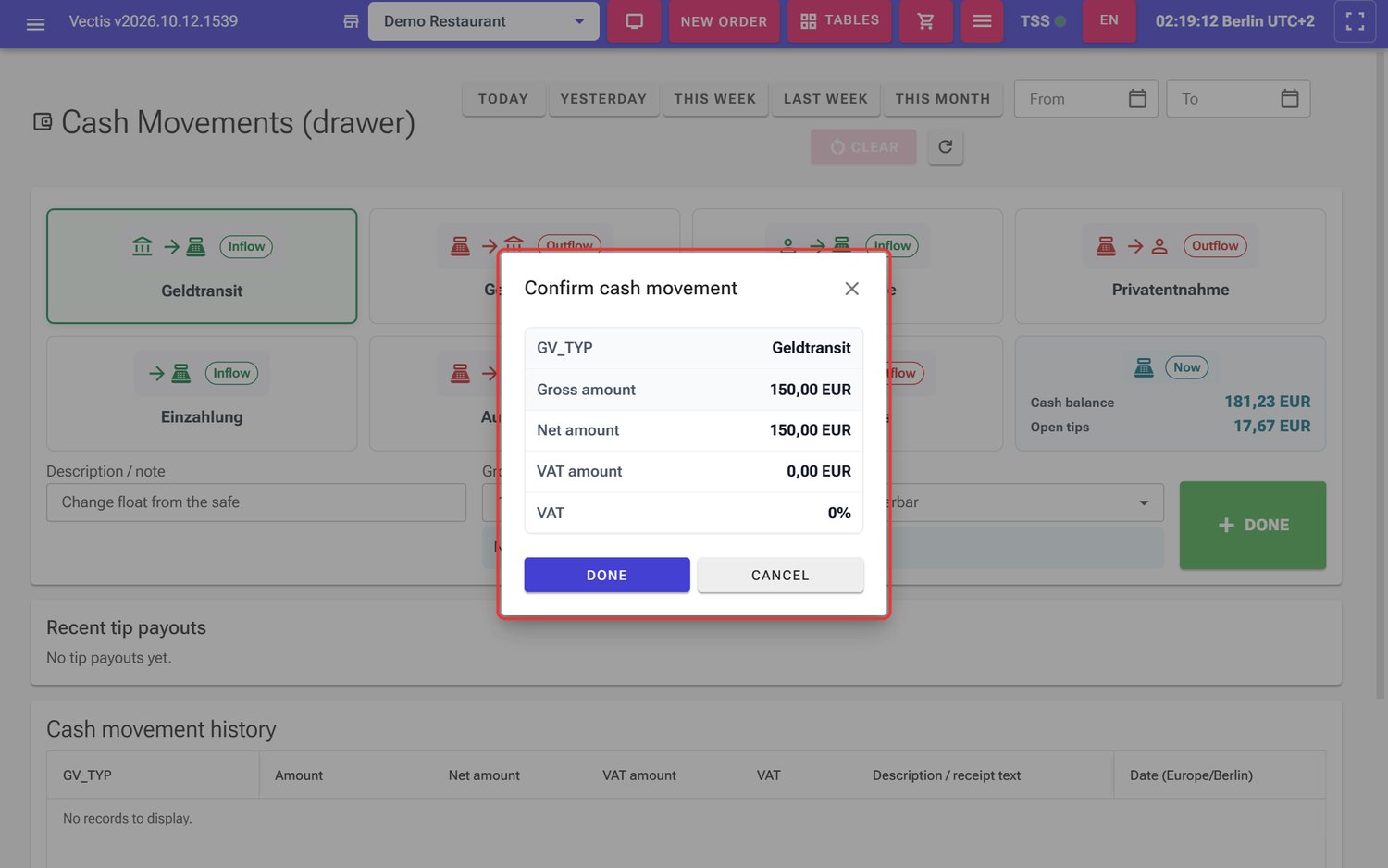 Confirm cash movement window: Geldtransit, 150.00 EUR, 0% VAT
 - The fields are cleared, the Cash balance changes (in the example from 181.23 EUR to 331.23 EUR) and the booking appears in the Cash movement history. Check this – the page shows no success message.
Note: For Geldtransit, Privateinlage and Privatentnahme, 0% Nicht steuerbar is usually right. For an Auszahlung for a purchase, use the VAT rate of the purchase receipt. If in doubt, ask your tax adviser.
Caution: A cash movement is signed by the TSE and cannot be deleted. If you made a mistake, book a counter-movement (for example Geldtransit Inflow against a wrong Geldtransit Outflow) and write the reason in the description.
Note: There is no separate "opening balance" action on this page. Book the change at the start of a shift as Geldtransit (Inflow) from the safe.
Note: Vectis prints no receipt for normal cash movements. Receipts exist only for tip payouts.
View the cash movement history
Goal: Check which cash movements were booked in a period.
Who can do this: Admin, Manager.
- Open Menu › Compliance & Reports › Cash Movements.
- At the top right, choose the period: Today, Yesterday, This week, Last week, This month, or your own dates in the two date fields. The clear button resets the dates; the arrow button reloads.
- At the bottom, Cash movement history shows for each booking the GV_TYP, amount, Net amount, VAT amount, rate, Description / receipt text and, on the right, the date. To see the fiscal ID, scroll the table to the right.
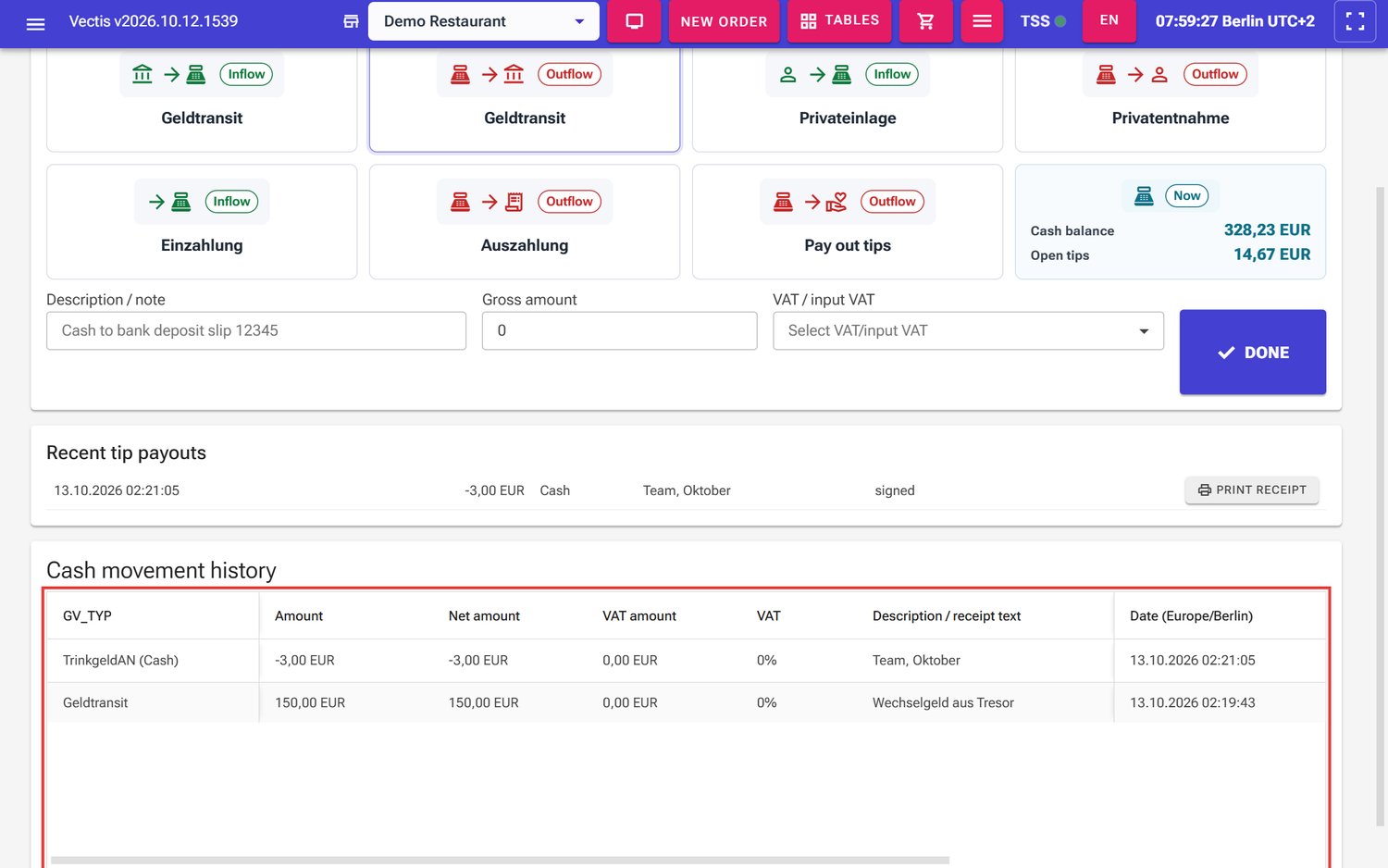 Cash movement history (outlined in red) with the booking Geldtransit 150.00 EUR "Wechselgeld aus Tresor"
Pay out tips
Goal: Pay card tips out to an employee and document it.
Who can do this: Admin, Manager, Cashier.
Guests often tip by card. This money belongs to the staff and is not revenue. Vectis collects it as Open tips until you pay it out.
- Open Menu › Compliance & Reports › Cash Movements. For a cashier, the Pay out tips tile is already selected.
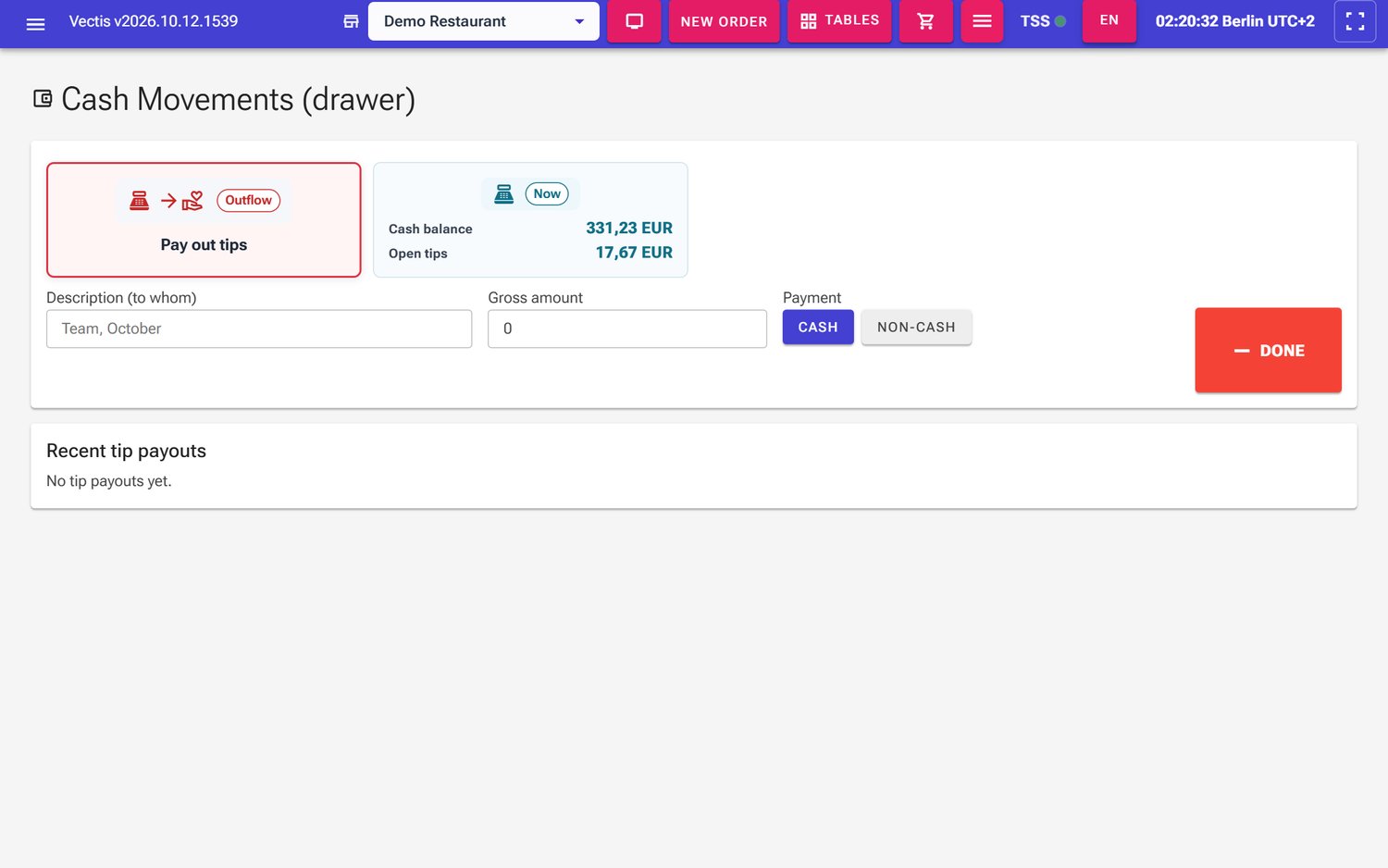 Cashier view: only the Pay out tips tile and the Now tile
 - (Admin or manager) tap Pay out tips.
- In Description (to whom), write who gets the money, for example "Team, October". Only letters, digits and punctuation are allowed.
- Enter the Gross amount. It must not be higher than the Open tips.
- Choose the Payment (Cash is preselected):
- Cash – you pay the money out of the drawer; the Cash balance goes down.
- Non-cash – the money goes by bank transfer or payroll; the Cash balance stays the same.
- Tap Done. In the window Confirm tip payout, check the values and tap Done again.
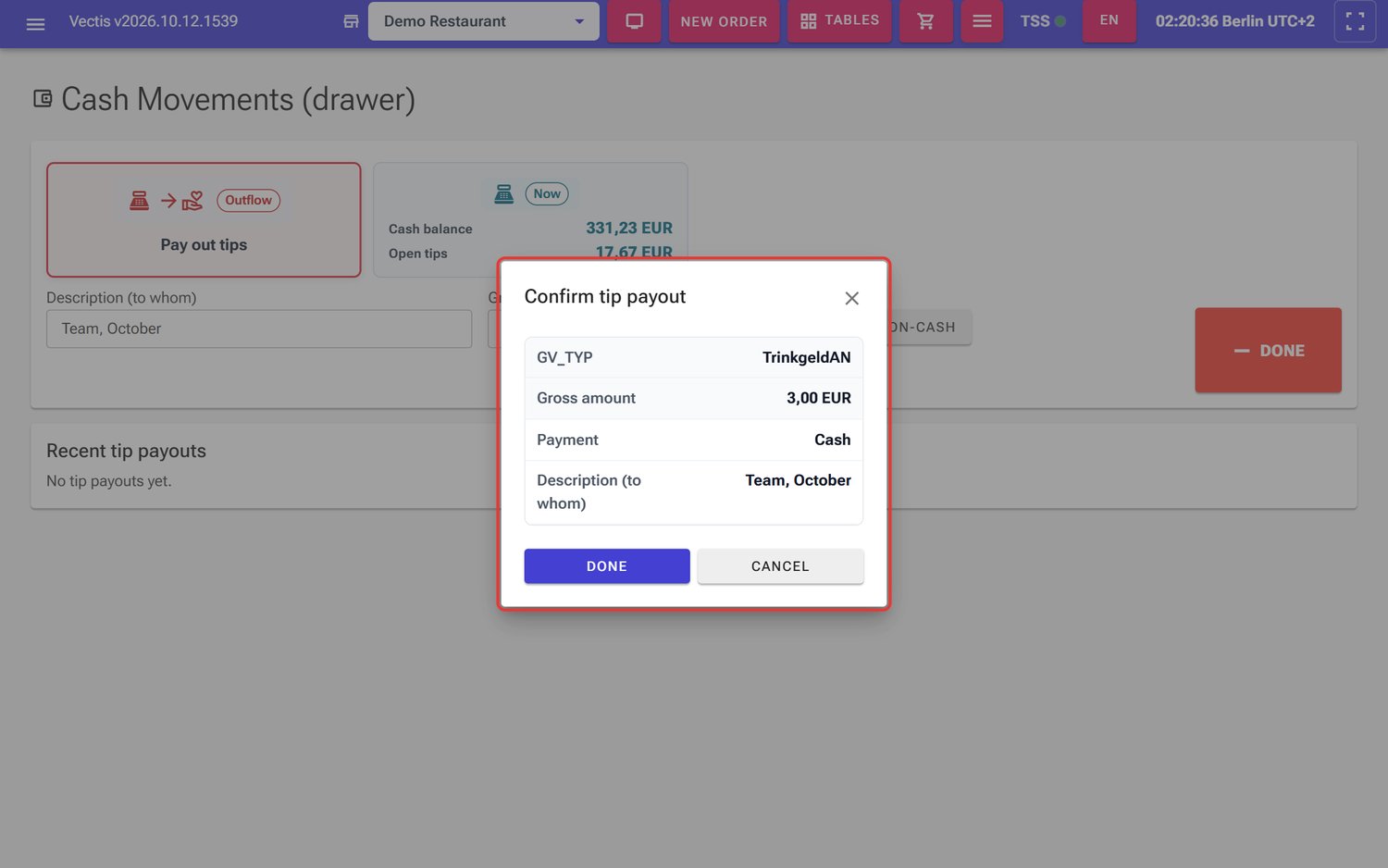 Confirm tip payout window: TrinkgeldAN, 3.00 EUR, cash, "Team, October"
 - A green message appears at the top, for example "Tip payout 3.00 EUR (cash) is booked – hand out the cash and have the employee sign the receipt." The receipt prints automatically; below it, "Receipt sent to the printer." appears in blue. The Cash balance and Open tips go down by the amount (in the example to 328.23 EUR and 14.67 EUR).
- Hand out the money and have the employee sign the receipt. Keep the receipt.
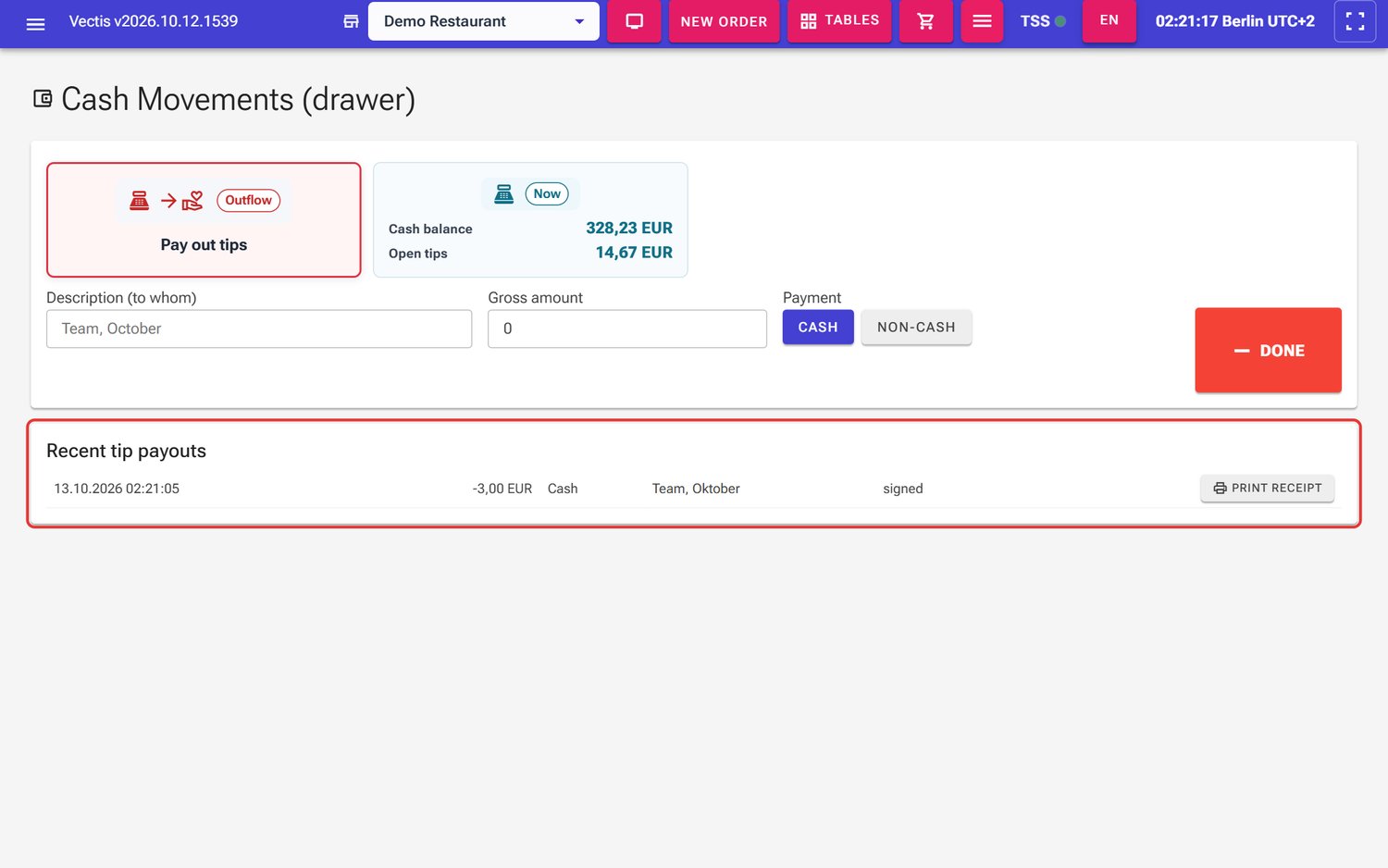 New row under Recent tip payouts (−3,00 EUR, Cash, signed, Print receipt)
Note: Recent tip payouts lists the latest payouts with the state signed, signature pending or TSE outage. Print receipt prints a receipt again.
Note: signature pending means the payout is booked but not yet signed by the TSE. Tap Complete signature – nothing is booked twice. The receipt prints afterwards.
Caution: If you see "Outcome unknown … Do not pay out anything yet", do not hand out any money yet. Tap Done again until the booking is confirmed. Vectis does not book twice.
Note: Messages that stop a payout: Amount exceeds the open tips, Not enough cash in the drawer. (only with Cash) and "Open tips are negative …" – then no payout is possible until new card tips come in.
Reverse a tip payout
Goal: Undo a wrong tip payout.
Who can do this: Admin, Manager with the storno right.
- Open Menu › Compliance & Reports › Cash Movements.
- Find the payout in the Cash movement history.
- Tap Storno in its row and confirm the question.
- Vectis prints a storno receipt. The amount goes back to the Open tips, and for Cash also to the Cash balance. The row then shows reversed.
Open the cash drawer
Vectis has no "open drawer" button of its own. Ask your Vectis service partner how the cash drawer opens at your till.
Paying with a cash recycler
Some restaurants have a cash recycler: a machine into which the guest inserts notes and coins and which gives the change by itself. In Vectis this payment type is called VNE.
Cash recyclers in the device list
Goal: See which machines are set up, and switch a machine on or off.
Who can do this: Admin, Manager (the menu item is shown only to Admin and Manager).
- Open Menu › Devices › Cash Recyclers.
- At the bottom of the page, the list shows each machine with name, vendor, model and the status Active or Inactive.
- Use the switch in the status column to switch a machine off, for example when it is faulty, and on again later.
Note: Adding a machine (the form at the top of the page) and changing its connection data is done by your Vectis service partner. Do not change anything there yourself.
Take cash through the cash recycler
Goal: Let the guest pay an order at the machine.
Who can do this: Everyone who takes payments (Admin, Manager, Cashier, Waiter). Detach Session only Admin.
- Open the payment page Pay Order for the order.
- In the Cash Recycler card, check in Select Terminal that the right machine is selected.
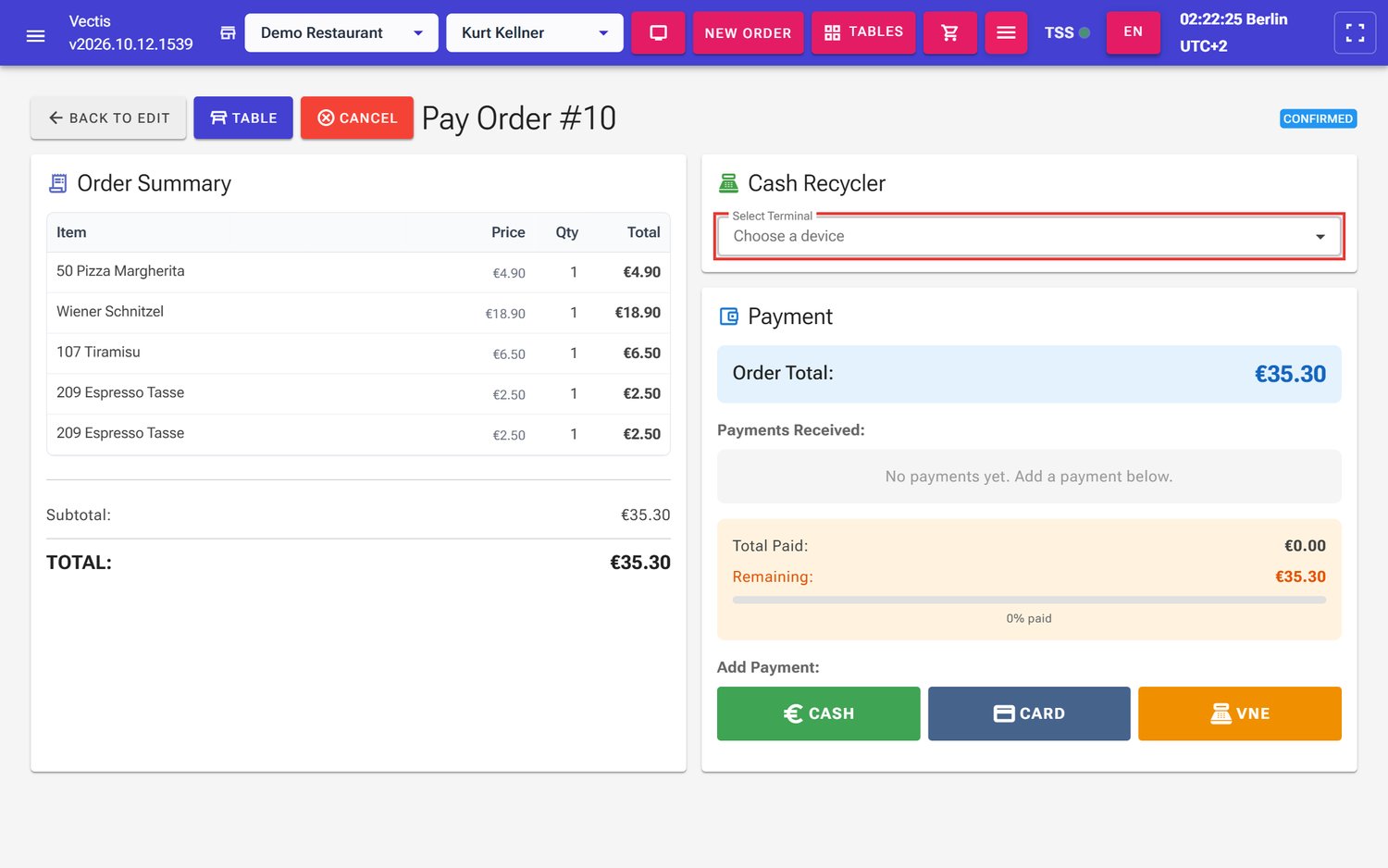 Payment page: Cash Recycler card with Select Terminal (outlined in red) and the Cash, Card and VNE buttons below
 - Under Add Payment, tap VNE.
- The window Bill Acceptor Active opens. It shows Requested (the amount to pay), Inserted and Returned (change).
- The guest puts the money into the machine. At the bottom it says "Waiting for cash insertion…".
- Once enough money is inserted, the machine pays out the change and the payment is taken over.
- Tap Complete Payment.
Buttons in the window:
- Cancel Payment – the machine returns the inserted money.
- Accept Current – the money inserted so far is taken as payment.
- Detach Session – Admin only; releases a stuck connection to the machine.
Note: If the machine reports a problem, it is shown in the window, for example Insufficient Change, Recycler Attention Needed or Return Incomplete. Then Retry Return or Accept Partial appear, plus Orders and New Order so you can carry on. With Insufficient Change, keep the order open until the machine is refilled; the same payment then continues.
Note: Pending means the machine is still finishing the payment or the return. Wait – the screen updates by itself.
Note: Cash and card cannot be mixed on one order. Once cash has been accepted, Card is blocked – and the other way round.
Frequently asked questions
Q: How do I book the change at the start of a shift? As Geldtransit (Inflow) with 0% Nicht steuerbar, description for example "Change from safe".
Q: Why does the cashier only see the "Pay out tips" tile? Other cash movements and the history are reserved for Admin and Manager. The cashier only pays out tips.
Q: I booked a cash movement by mistake. Can I delete it? No. Book a counter-movement with the same amount and write the reason in the description.
Q: Why does the cashier's X report show no cash balance, while the Cash Movements page shows one? On the X report the cashier only sees Cash taken today. The current Cash balance is shown to the cashier only in the Now tile on Cash Movements.
Q: What are "Open tips"? Card tips from guests minus tips already paid out. It is not cash in the drawer.
Q: Can I pay out more tips than are open? No. The till refuses it.
Q: What is the difference between "Cash" and "Non-cash" for tips? Cash takes the money from the drawer. Non-cash only books the payout (for example via payroll); the drawer stays the same.
Q: The tip receipt did not print. The booking is still valid. Tap Print receipt under Recent tip payouts.
Q: How do I open the drawer without a sale? Vectis has no button for that.
Q: The cash recycler stopped responding. Tap Cancel Payment. If that does not help, an admin can use Detach Session. Then inform your Vectis service partner.
Q: Where do I see all tip payouts of a month? In the Tip report, see chapter 11 Closing and reports.