06 Payment
In this chapter you take payment for an order: in cash with change, by card (with or without a tip) or through the cash recycler (VNE). You learn how to split a bill between guests, how to reprint a receipt and how to book a return after payment. Finally you find out what can no longer be changed after payment, and why.
Overview: getting to the payment
Goal: Know where to start a payment and what the payment page shows.
Who can do this: Admin, Manager, Cashier, Waiter.
- Open the order (for example from the floor plan, or from Menu › Order Management › Orders and then Edit).
- Below the cart on the right, next to Kitchen, you see the payment buttons Cash, Card and VNE (VNE = the cash recycler, the cash machine). They are active only when the order has at least one item and a table.
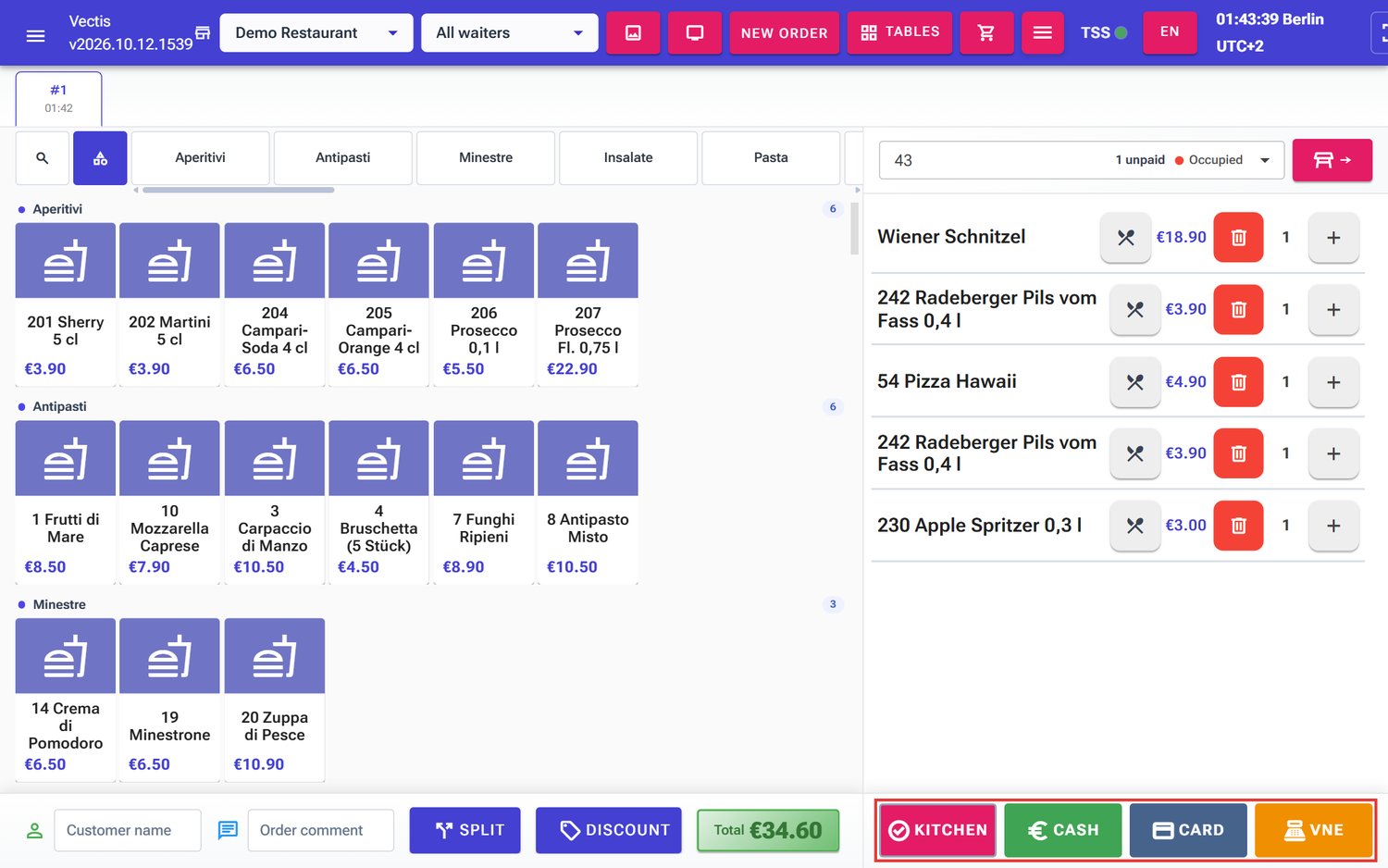 Order at table 43 with the Kitchen, Cash, Card and VNE buttons (outlined in red)
 - Tap Cash or Card. The till saves the order, opens the page Pay Order #… and immediately opens the matching entry window.
- If you close the entry window with Cancel, you stay on the payment page. It shows:
- on the left the Order Summary with all items (extras on a line of their own, for example "+ Extra 1,00"), discounts, deposit and the TOTAL,
- on the right the Payment box with Order Total, Payments Received, Total Paid, Remaining and, under Add Payment, the buttons Cash, Card and VNE.
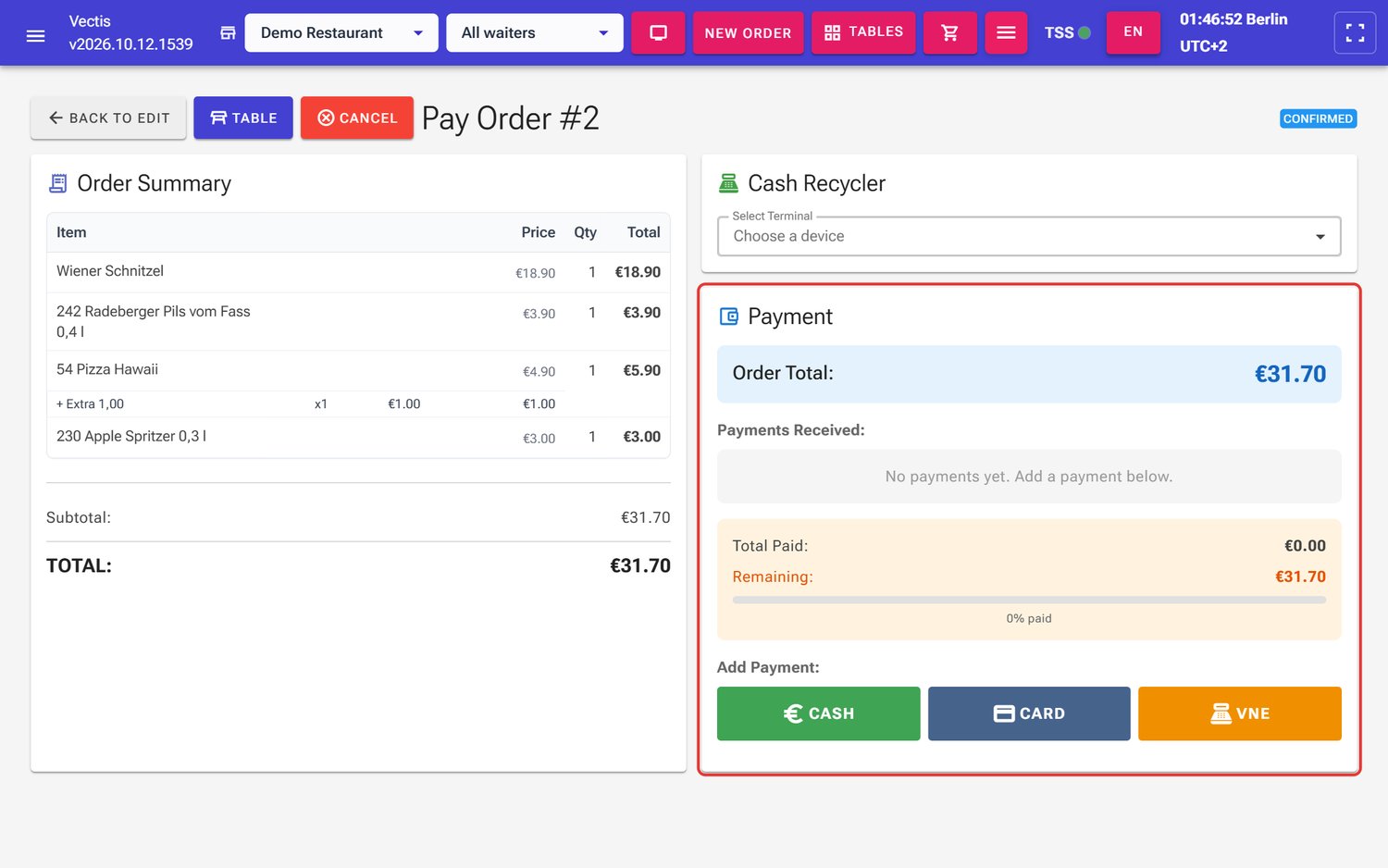 Payment page of order #2 (€31.70), no payment recorded yet
- Back to Edit takes you back to the order, Table to the floor plan.
Note: You can also reach the payment page from Menu › Order Management › Orders with the Pay button in the order's row.
Note: As soon as the order is fully paid, the till completes the payment automatically, prints the receipt (depending on the settings, see Printing the receipt) and immediately opens a new, empty order. If you came from the floor plan, the till returns to the floor plan.
Note: While no payment is recorded yet, the payment page also shows Cancel at the top. It cancels the whole (still unpaid) order after the question Cancel order (Yes / No); the till then creates a new, empty order for the same table. After the first recorded payment Cancel is gone.
Taking cash and giving change
Goal: Take cash for an order and give the right change. Example: order #2 at table 43 for €31.70, the guest hands you €50.
Who can do this: Admin, Manager, Cashier, Waiter.
- Tap Cash in the order (or Cash under Add Payment on the payment page).
- The window Manual Cash Entry opens. At the top it says Total to Collect: €31.70, below it the tiles Cash Received (€0.00) and Remaining (€31.70).
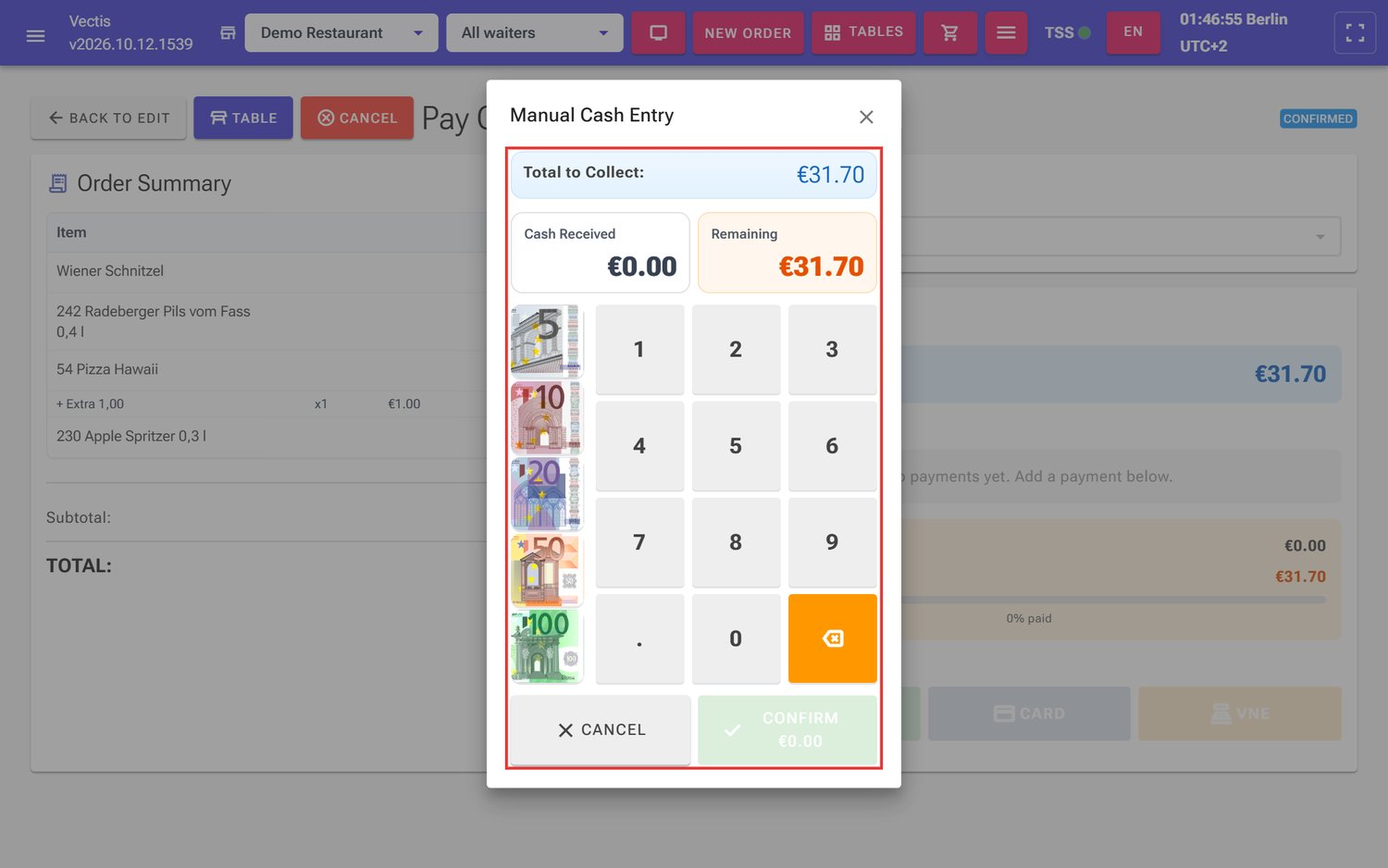 Manual Cash Entry window, no amount entered yet
 - Enter the amount the guest gives you:
- Quick amounts: tap a banknote (5, 10, 20, 50 or 100 €). Each tap adds the note, so tapping 20 € twice gives 40 €.
- Keypad: type the amount with the digits, the decimal key for cents. ⌫ deletes the last digit; holding ⌫ clears everything.
- The tile Cash Received shows the amount entered. The second tile shows the Change (€18.30 in the example) or, if the amount is not enough yet, the Remaining amount.
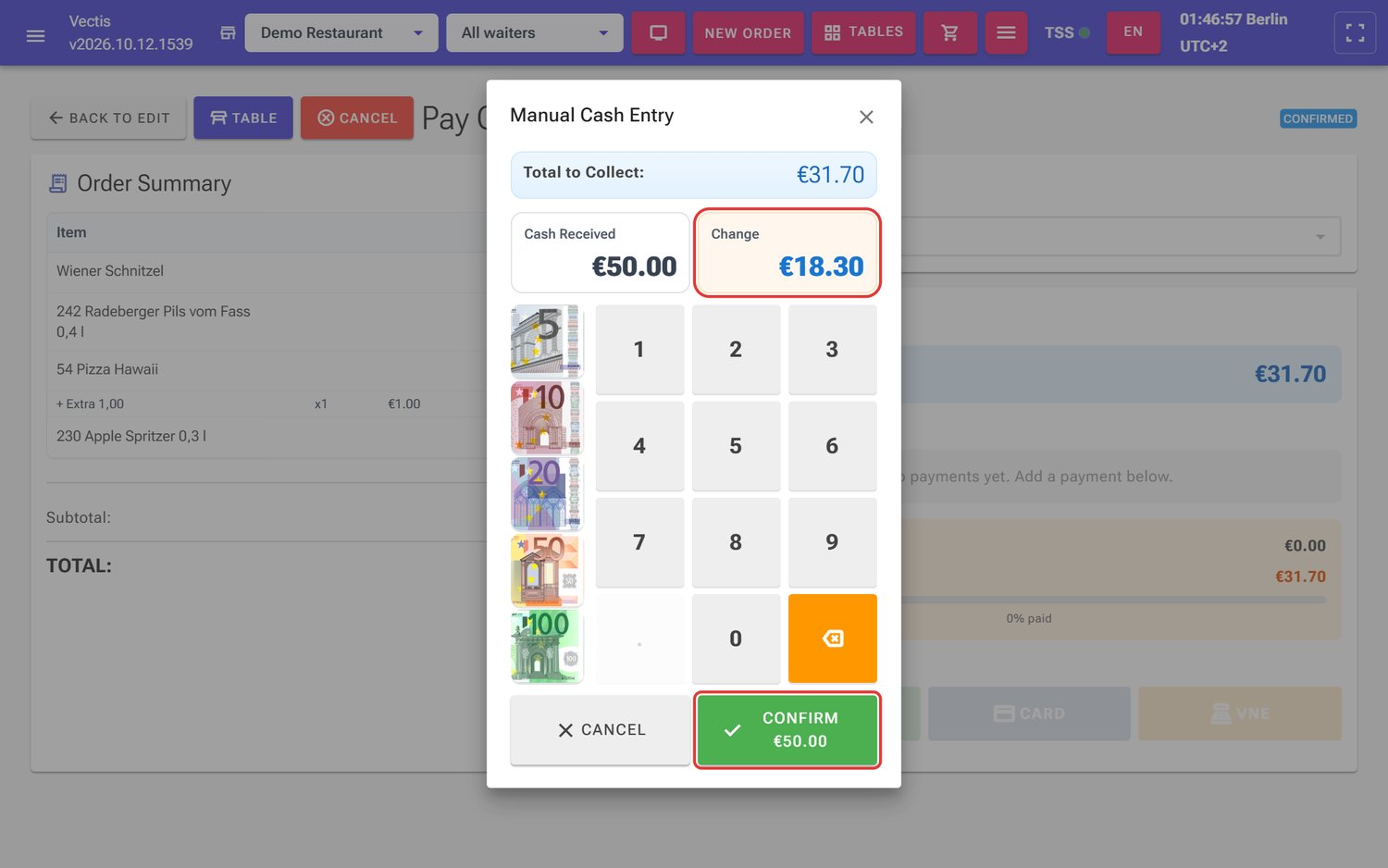 €50 received, change €18.30 (outlined in red)
 - Read the change and tap Confirm €50.00 (the button always shows the amount entered).
- The till books the payment, completes the order, prints the receipt and jumps straight to a new, empty order. Hand the change to the guest.
Caution: Note the change before you confirm. When the amount is fully paid, the till completes the payment at once and moves on to the next order.
Note: There are no cash tips in the till. If the guest leaves a cash tip ("keep the change"), enter only the bill amount or hand out the full change. Tips are recorded only with card payments.
Paying part of the bill in cash
Goal: A guest first pays only part in cash; the rest follows (also in cash).
Who can do this: Admin, Manager, Cashier, Waiter.
- In the Manual Cash Entry window enter the partial amount (for example €20) and confirm.
- On the payment page, Payments Received now lists Manual Cash €20.00 with a red ×. Below it you see Total Paid (€20.00), Remaining (€11.70 in the example) and a progress bar ("63% paid").
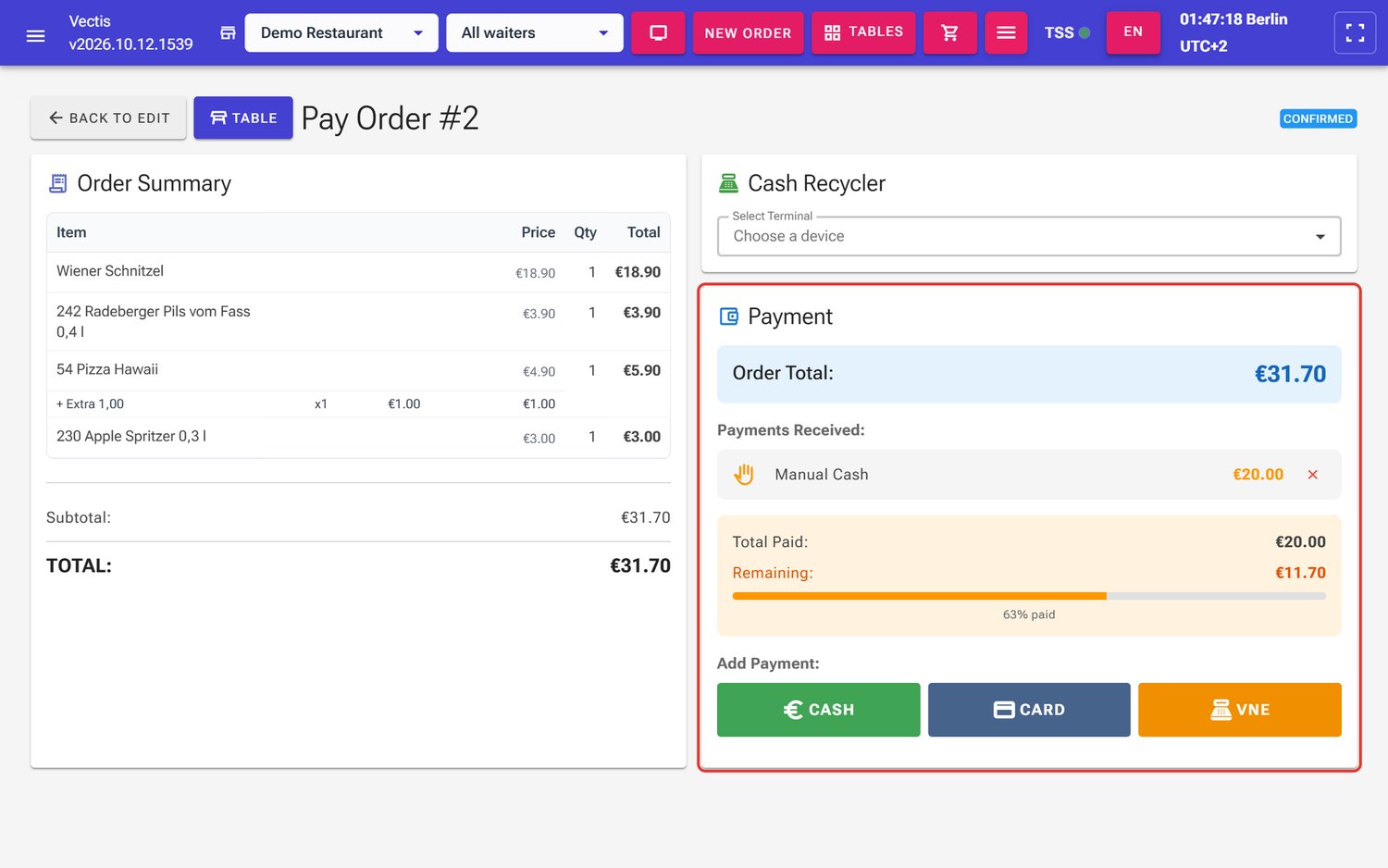 Partial cash payment of €20, €11.70 still open
 - Tap Cash again and collect the rest. The window now shows only the open amount as Total to Collect.
Caution: After the first recorded payment the order is locked: you cannot add, change or delete items, give a discount (the Discount button is grey) or split the bill any more. If you still need a change, remove the payment first (see below).
Removing a payment
Goal: Remove a payment recorded by mistake, as long as the order is not completed yet.
Who can do this: Admin, Manager, Cashier, Waiter.
- On the payment page, under Payments Received, tap the red × in the payment's row (tooltip Remove payment).
- A question Remove payment appears, for example "Remove the payment of €20.00 (Manual Cash)?".
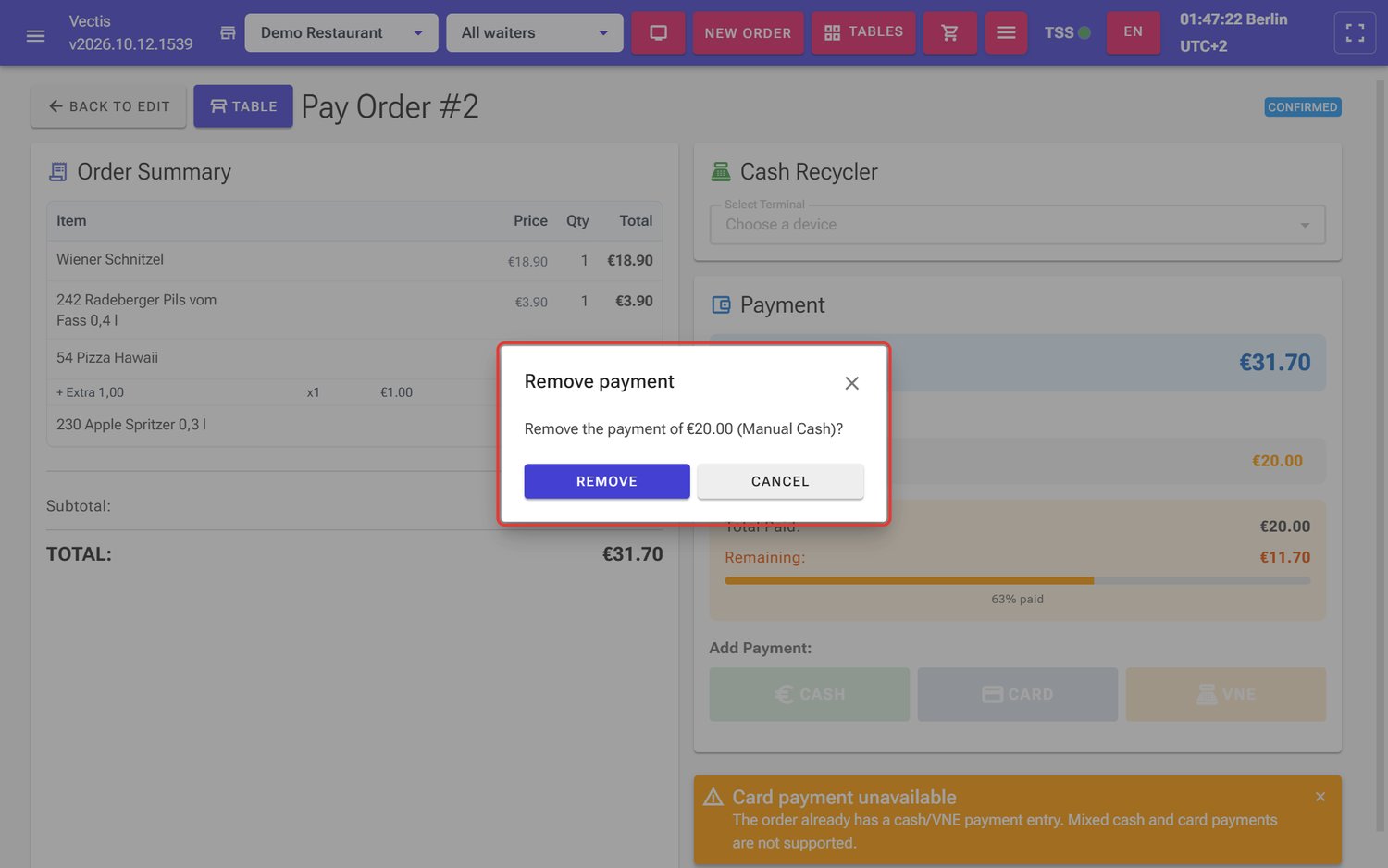 Remove payment question
 - Tap Remove. Cancel leaves everything as it was.
- Give the money back to the guest if it is already in the drawer.
Note: The × is missing when the order is already paid, and for cash recycler (VNE) payments: these are final.
Note: As soon as no payment is recorded any more, you can edit the order again.
Paying by card
Vectis is not connected to any card terminal. The card terminal works on its own: you type the amount into the terminal, the guest pays there, and only afterwards you confirm the card payment in the till by hand. The till does not check by itself whether the terminal accepted the payment. In the list of payments the card payment appears as Card Terminal.
Goal: Take a card payment with a tip. Example: order #3 at table 44 for €38.40, the guest gives a 10 % tip.
Who can do this: Admin, Manager, Cashier, Waiter.
- Tap Card in the order (or Card on the payment page).
- The window Card Payment opens. At the top it says Total to Collect: €38.40. Below it there are three tiles: Amount on the terminal, Tip and Remaining.
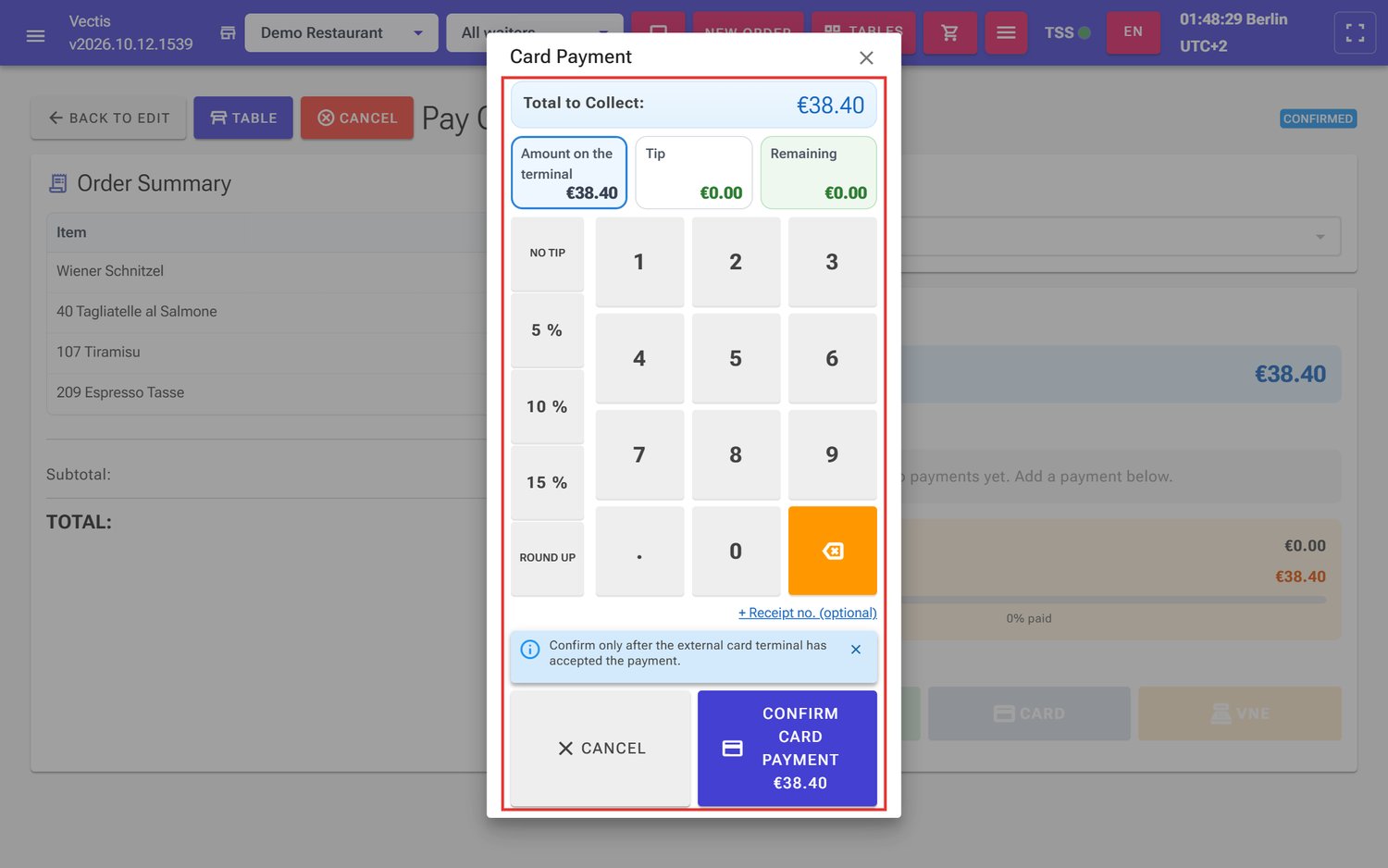 Card Payment window for €38.40, no tip yet
 - Choose the tip with the buttons on the left:
- No tip – the amount on the terminal is exactly the bill.
- 5 %, 10 %, 15 % – the till calculates the tip to the cent. In the example: 10 % of €38.40 = €3.84, Amount on the terminal €42.24.
- Round up – rounds the amount on the terminal up to the next whole euro (for example €38.40 to €39.00; the tip is then €0.60).
- Or type it yourself: tap the tile Amount on the terminal or Tip and enter the amount on the keypad. The other tile follows automatically.
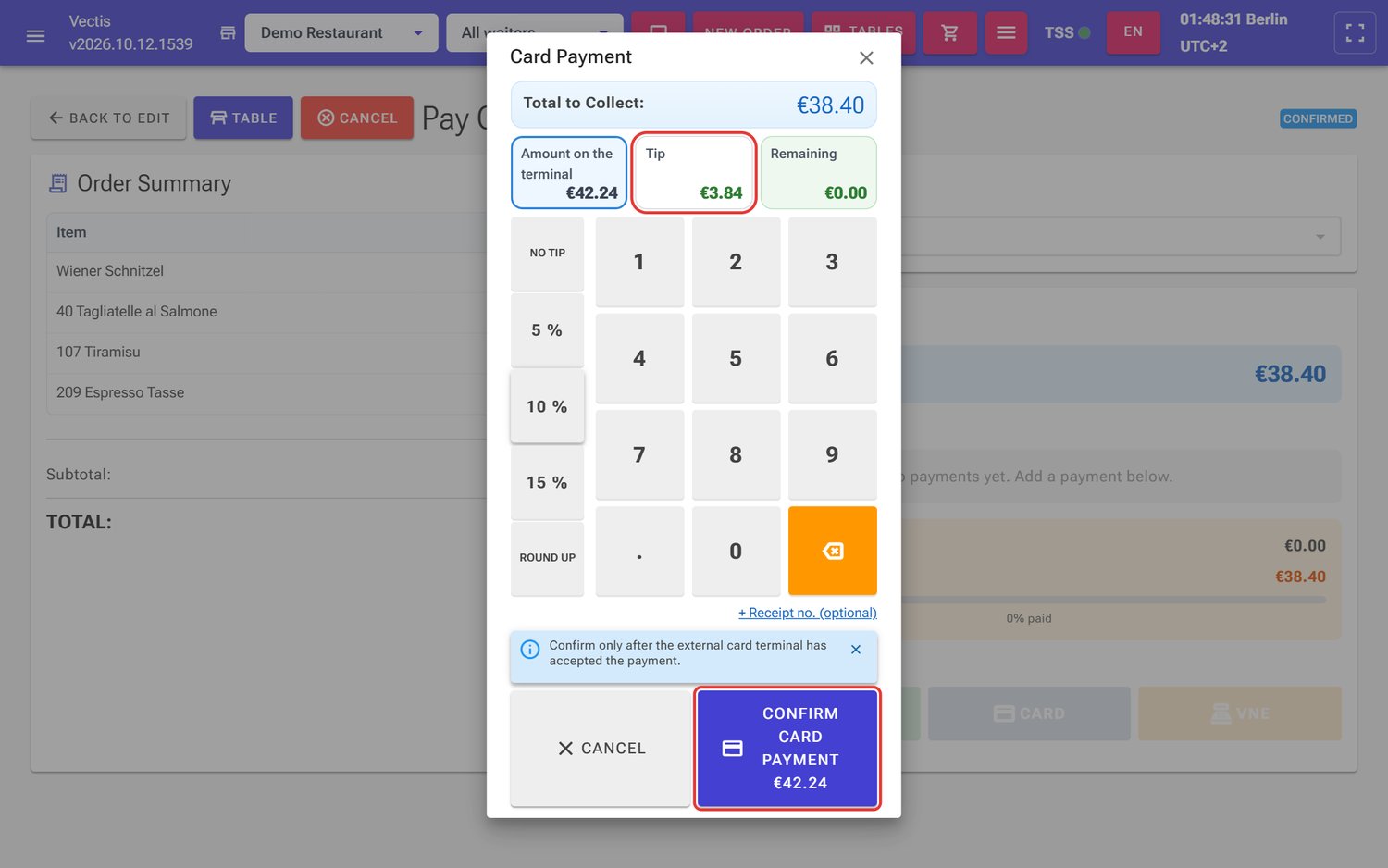 10 % tip: tip €3.84, amount on the terminal €42.24
- Enter the Amount on the terminal (€42.24 in the example) on the card terminal and let the guest pay.
- Optional: tap + Receipt no. (optional) and enter the number from the terminal slip. It later appears in the payment list as "Receipt no. …".
- Only when the terminal has accepted the payment: tap Confirm card payment €42.24 in the till (the button always shows the amount on the terminal).
- The till books the payment and the tip, completes the order and prints the receipt.
Caution: Confirm only after the external card terminal has accepted the payment. The window shows this as a hint, too: "Confirm only after the external card terminal has accepted the payment."
Note: The card always pays the whole open amount. If the amount on the terminal is below the amount due, the confirm button stays grey and the Remaining tile is orange.
Note: If the tip is higher than the bill, the till asks: Check the tip – "The tip … is higher than the bill … Is the terminal amount right?". Tap Yes, book it if it is right, otherwise Correct it.
When something goes wrong with a card payment
Goal: React correctly when the till could not book a card payment after you confirmed it.
Who can do this: Admin, Manager, Cashier, Waiter.
After any error the till checks by itself whether the card was booked and shows a window that you close with OK. Follow its text:
- Card payment not booked – "Please press «Card» again – do NOT charge the terminal again." Tap Card; the window starts with the amount already charged. Confirm again without letting the guest pay again.
- Void the card payment – for example "The order is already paid – void this card payment on the terminal." Void the payment on the card terminal; the guest gets the money back there.
- No connection – "No connection to the till – do nothing on the terminal and try again once the connection is back."
- Card payment booked – "Card payment booked – the order is not completed yet. Please press «Complete Payment»." Tap Complete Payment on the payment page.
Note: The till never books more than the open amount. Even if you press Card again, a card is never booked twice.
Cash and card mixed? Not possible – split the bill
Goal: Understand why an order cannot be paid partly in cash and partly by card, and what to do instead.
Who can do this: Admin, Manager, Cashier, Waiter.
An order is paid either in cash or by card. If you have already taken part of it in cash and then tap Card, an orange notice appears at the bottom of the payment page:
Card payment unavailable – "The order already has a cash/VNE payment entry. Mixed cash and card payments are not supported."
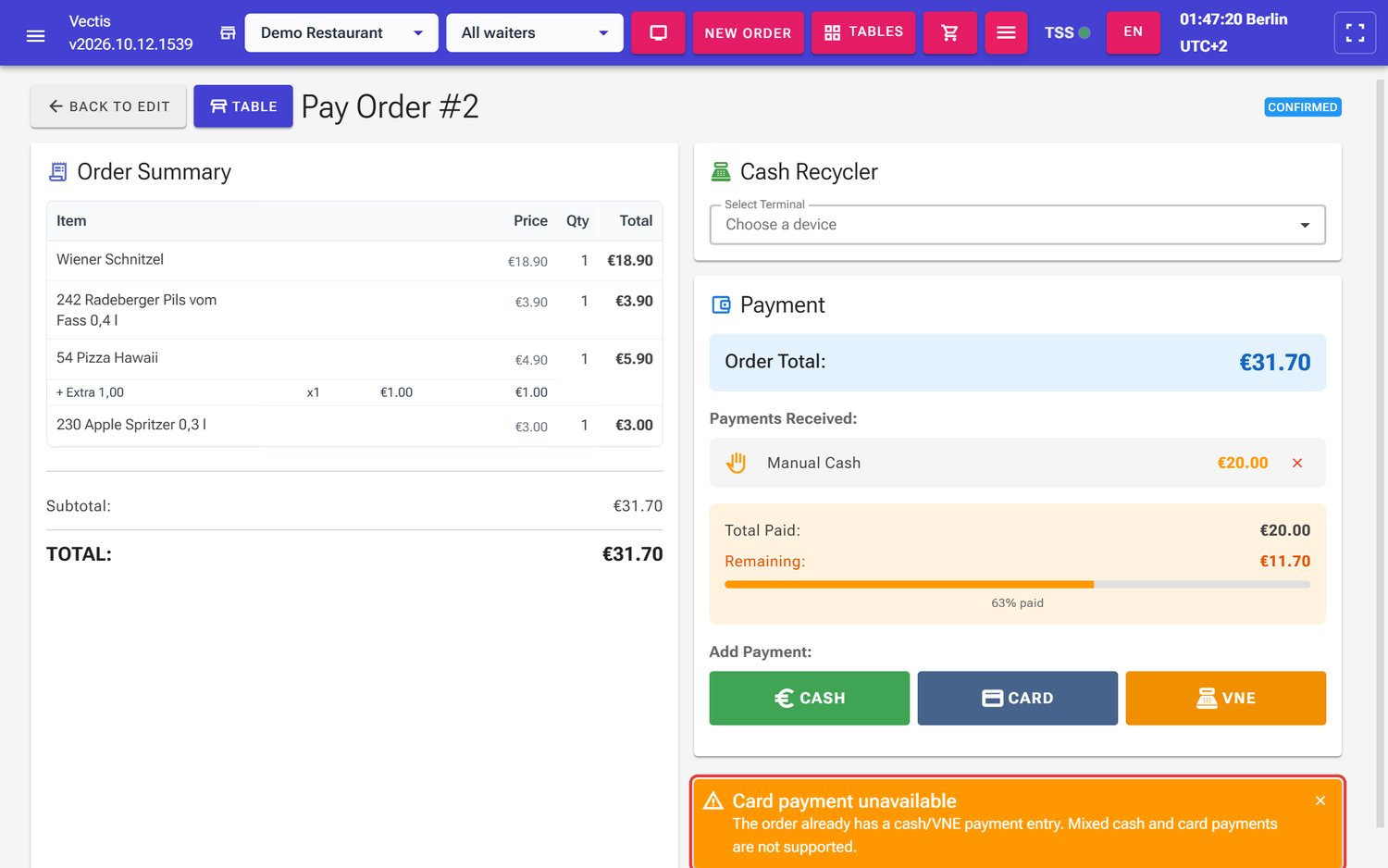 Card payment unavailable notice after a €20 partial cash payment
The other way round (card first, then cash) the notice reads Cash payment unavailable – "The order already has a card payment entry. Mixed cash and card payments are not supported."
How to solve it:
- If the guest wants to pay everything by card after all: remove the cash payment (see Removing a payment), hand the cash back and take the payment with Card.
- If several guests want to pay differently: split the bill by items before the first payment (see the next section). Then pay each part bill in cash or by card.
Note: Tips are card-only. If an order already has a tip stored and you choose Cash, the till asks Tips by card only – "A tip of … is only possible with a card payment. Remove the tip and take cash?". Remove and take cash deletes the tip and you take cash.
Splitting the bill (paying separately)
Goal: Guests at one table want to pay separately. You move one guest's items to a bill of their own. Example: table 46 with 8 items for €57.90; one guest pays his Wiener Schnitzel and one beer himself.
Who can do this: Admin, Manager, Cashier, Waiter.
- Open the table's order. Make sure all changes have been sent to the kitchen (button Kitchen).
- Tap Split in the bar below the products.
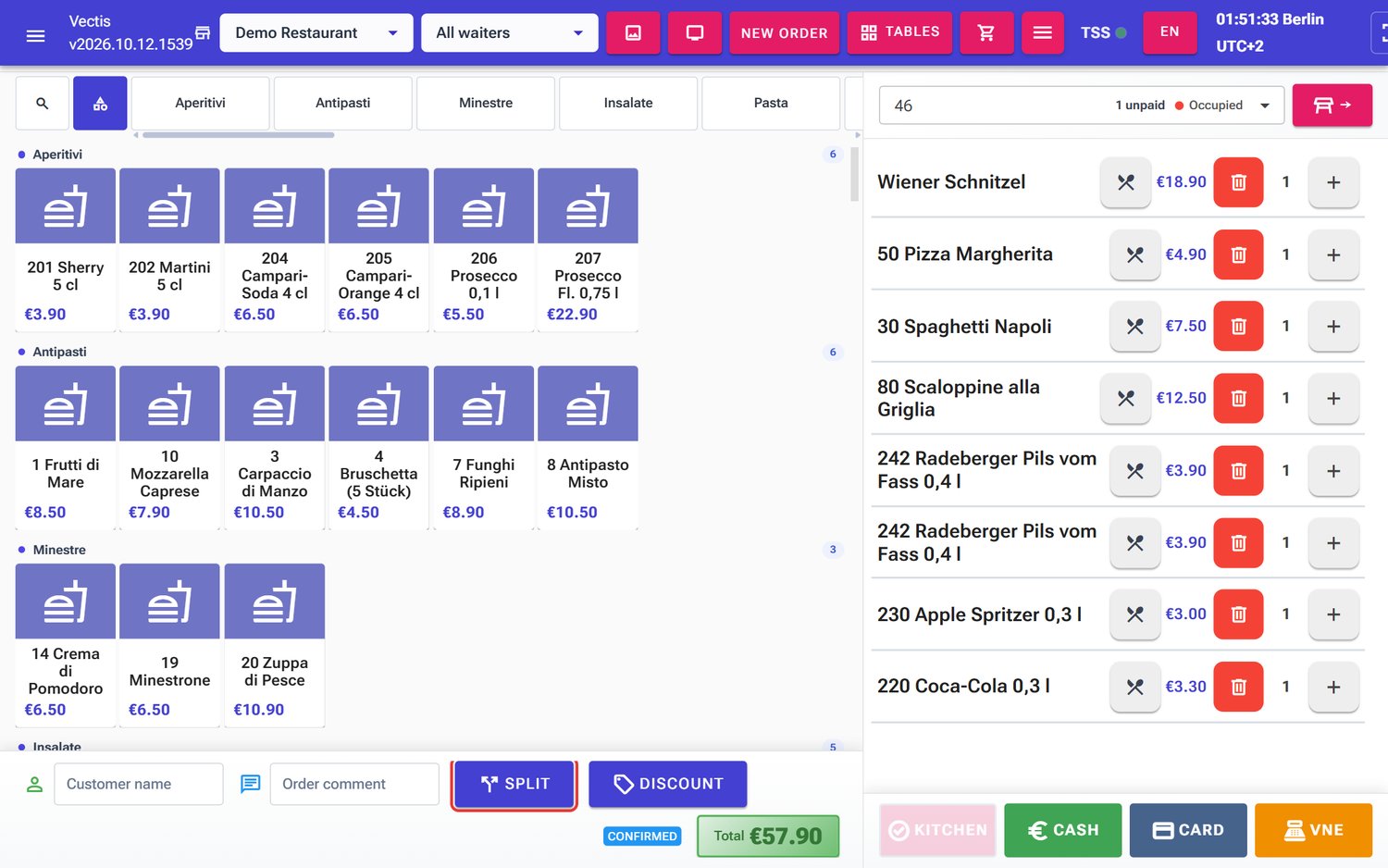 Order at table 46 (€57.90) with the Split button (outlined in red)
 - The window Split bill opens: "Select the items for the new bill. At least one item stays on the current bill."
- With + and − choose for each item how many go on the new bill. "1 / 1" means: 1 of 1 goes on the new bill.
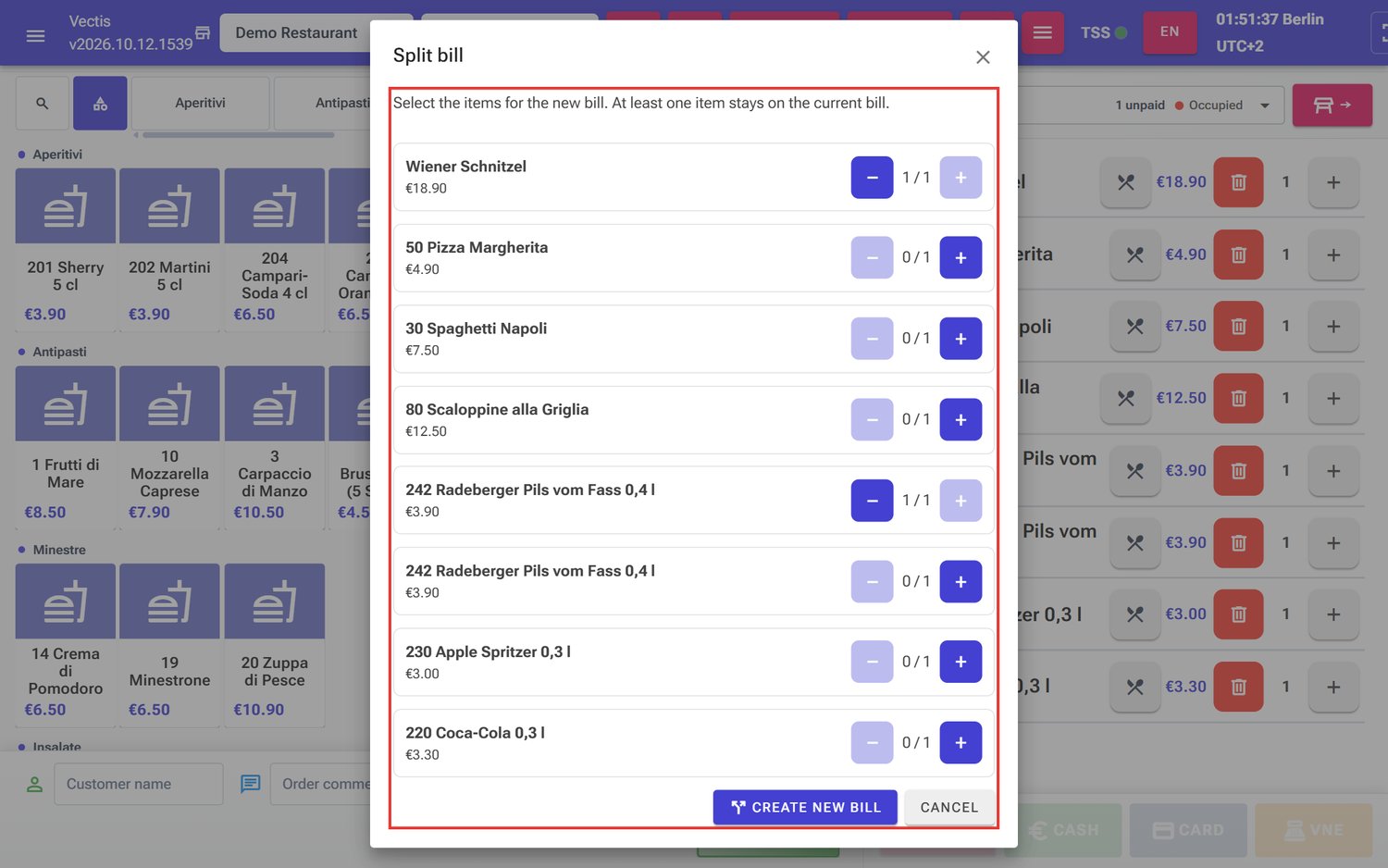 Split bill window: Wiener Schnitzel and one beer selected
 - Tap Create new bill.
- The till opens the new bill at once (in the example Wiener Schnitzel and beer, €22.80). Take payment with Cash or Card.
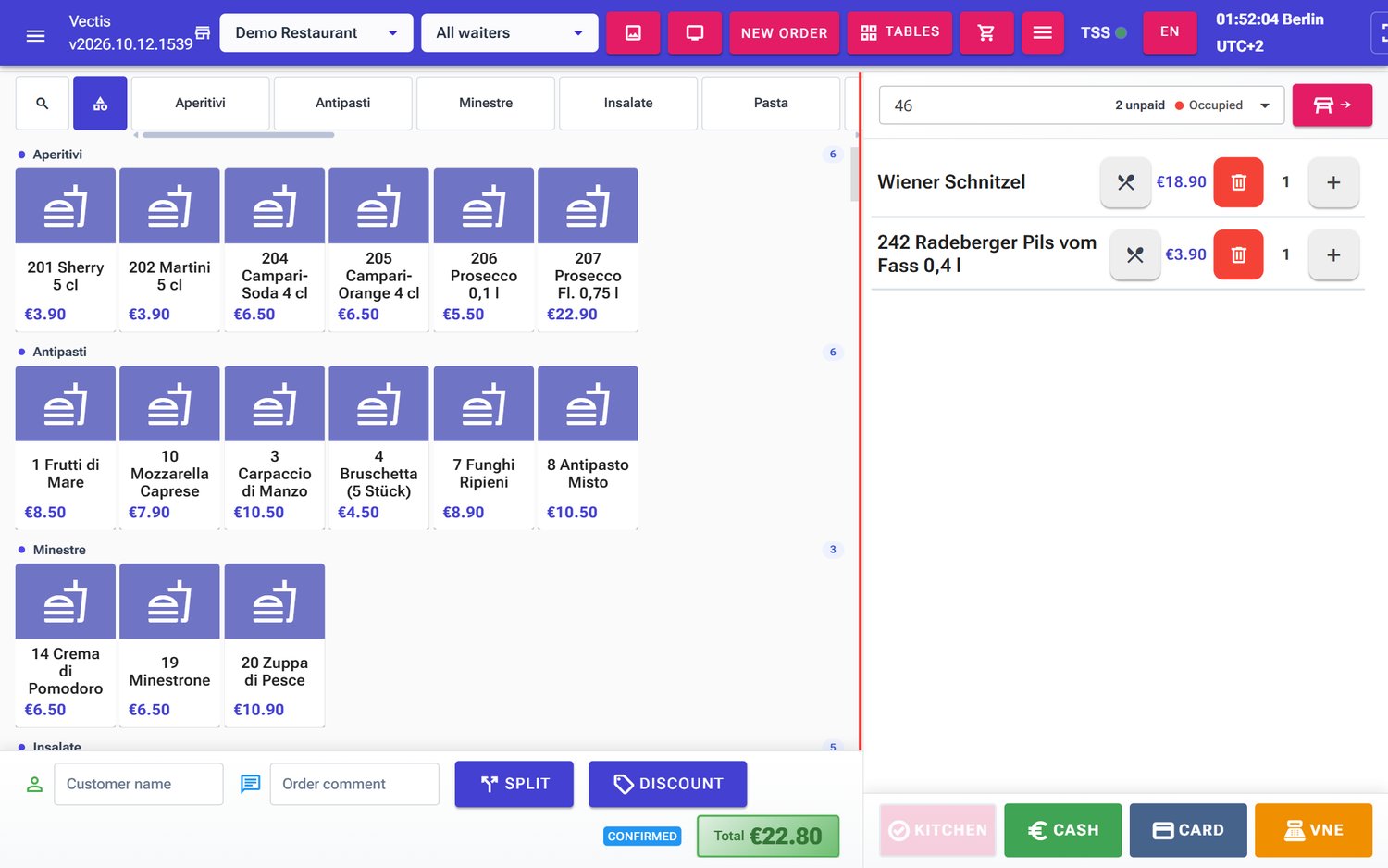 New part bill of €22.80 after splitting
 - The original order stays open at the table with the rest (€35.10 in the example). Take payment for it from the floor plan, or split again with Split for the next guest. The last guest pays the original order.
Note: Split is not possible when a payment is already recorded, when the order has a tip, when kitchen changes have not been sent yet, or when only one item is left. Greyed out ("This item cannot be split.") are custom items, combos, items with a catalog promotion and items that were sent to the kitchen only partly.
Note: A bill discount (for example 10 %) also applies to the new part bill.
Paying with the cash recycler (VNE)
Goal: Let the guest insert the cash into the cash recycler. The device gives the change itself.
Who can do this: Admin, Manager, Cashier, Waiter.
- Tap VNE in the order. If only one device is set up, it is selected automatically; otherwise choose it on the payment page in the Cash Recycler box under Select Terminal.
- The window Bill Acceptor Active shows Requested, Inserted and Returned. The guest inserts the money into the device.
- When enough has been inserted, the till books the payment and completes the order.
- If the guest wants to stop, tap Cancel Payment; the device returns the inserted money.
Note: If no cash recycler is connected, use Cash.
Note: If the device reports a problem (for example Insufficient Change), follow the text in the window or call a manager.
Printing the receipt after payment
Goal: Know when the receipt prints automatically, and reprint a receipt.
Who can do this: Admin, Manager, Cashier, Waiter (cashiers and waiters see only the current business day in Orders).
After payment the till prints the full fiscal receipt automatically if this is set in Menu › POS Setup › Receipt Options (Automatic fiscal receipt after cash payments / Automatic fiscal receipt after card payments). An Admin or Manager makes this setting.
To reprint a receipt:
- Open Menu › Order Management › Orders.
- Set the filter to Paid and find the order (column #, status Completed).
- Tap Fiskal in the row.
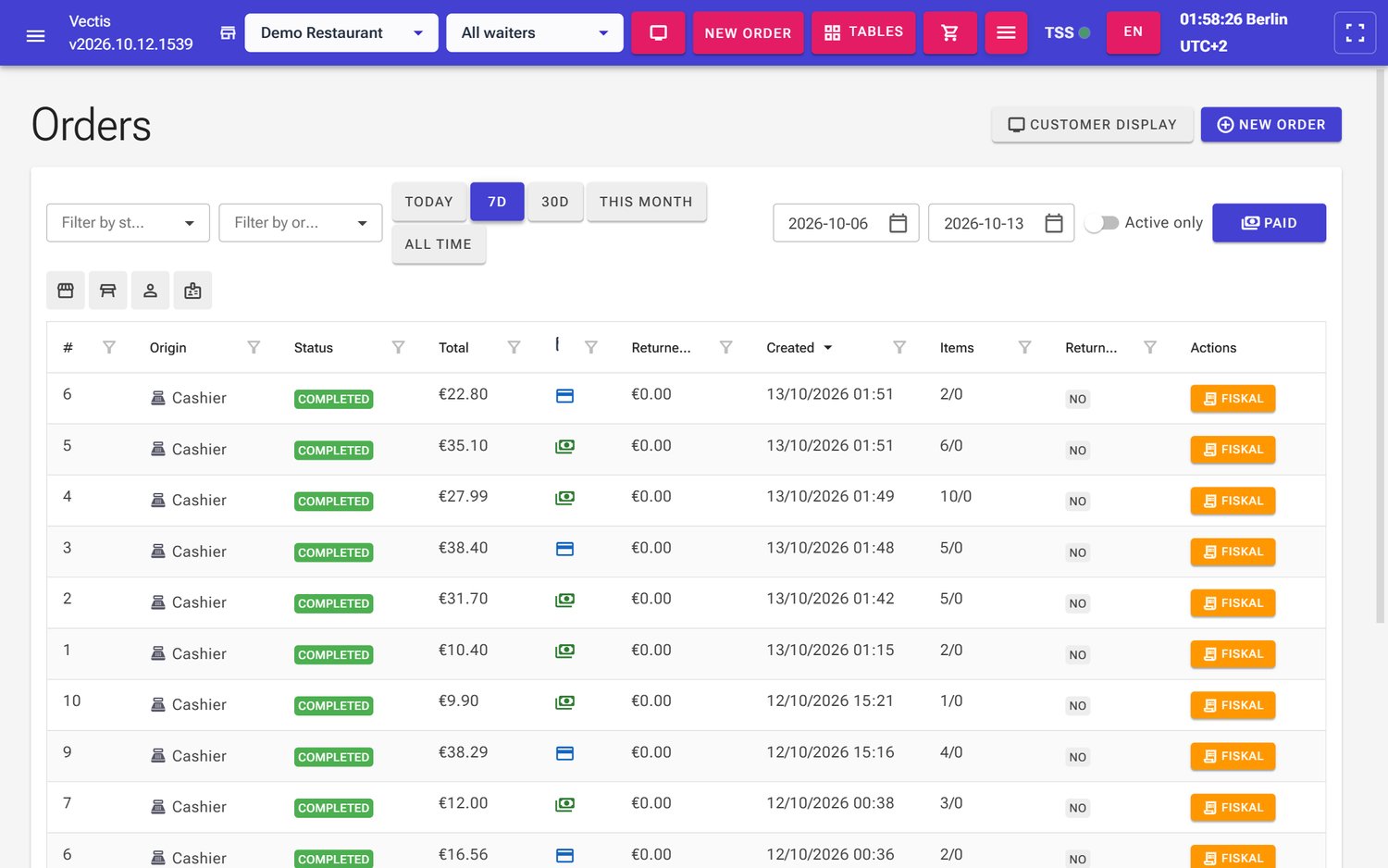 Orders list with the Fiskal button in every row
 - The window Order … ("Order 2" in the example) opens with the section Fiscal receipt: Bon ID, origin, employee, total amount, items, status, place (table), payment method and returned amount. Choose:
- Print receipt – print the full fiscal receipt again,
- Print short receipt – send a short receipt without prices to the kitchen printers,
- Print with hospitality form – print the receipt with the form for a business-meal receipt (Bewirtungsbeleg: occasion, guests, signature).
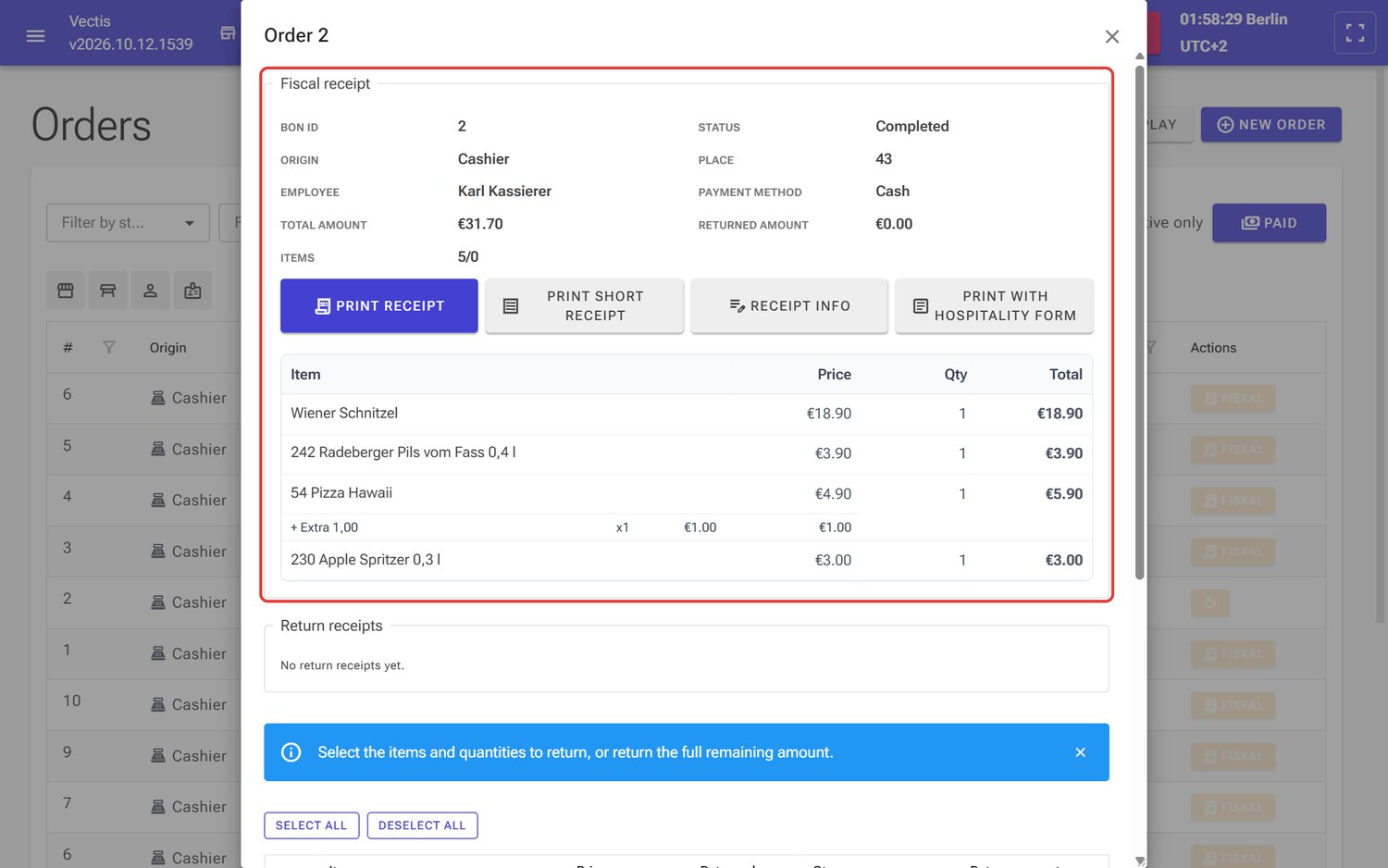 Order 2 window with the Fiscal receipt section and the print buttons
- Close the window with Close (at the very bottom) or the × at the top right.
Note: Receipt info stores a short text for the order (up to 500 characters), for example a guest's company name and address. Tap Receipt info, type the text in the window Edit receipt info and tap Save.
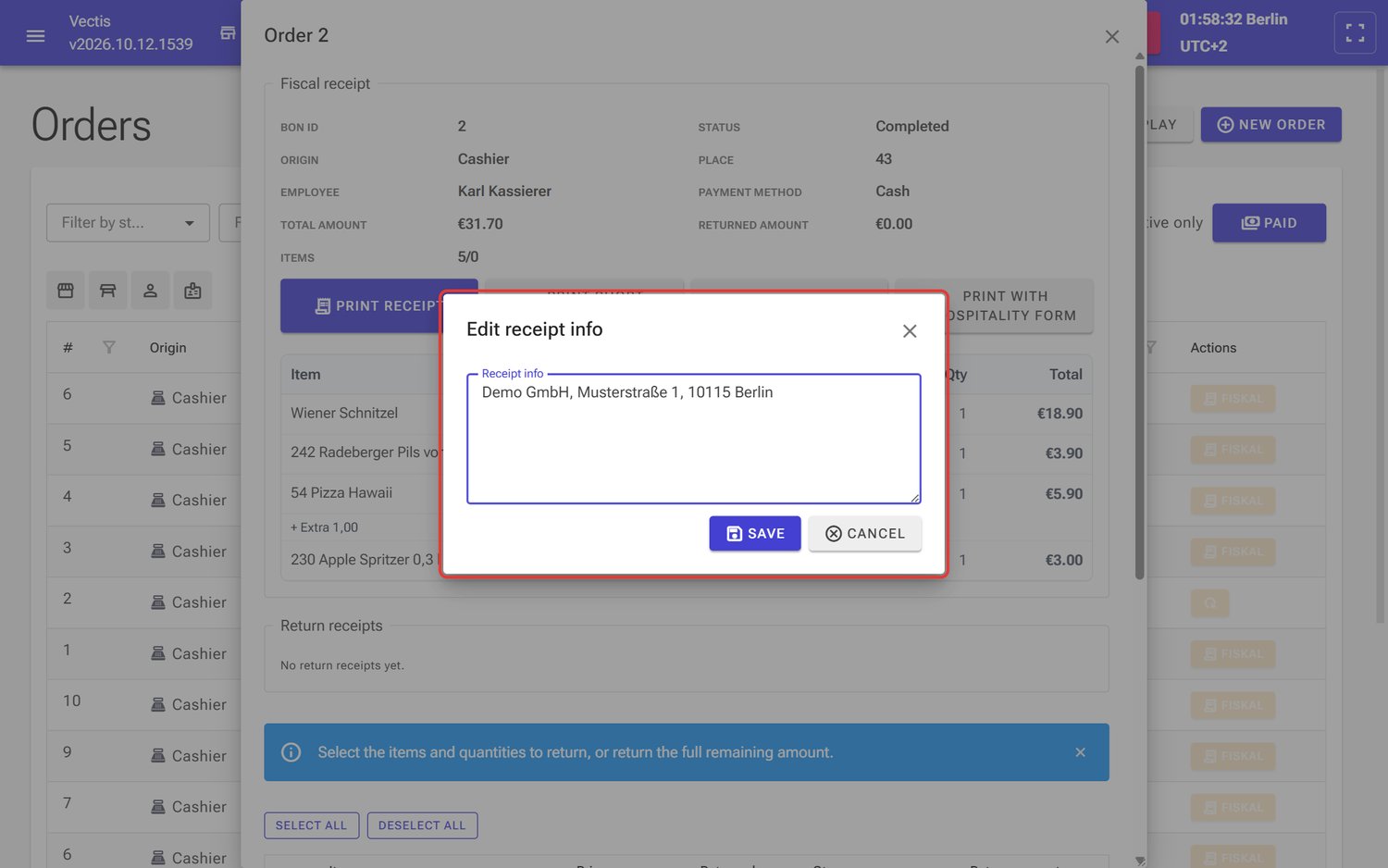 Edit receipt info window with a sample address
Note: The fiscal receipt shows the TSE data and, depending on the receipt options, a QR code. Vectis has no digital receipt by e-mail.
Note: If an order still has no fiscal transaction (for example after a TSE fault), Fiskal first tries to sign the order afterwards. Only then does the window open.
Booking a return (partial or full)
Goal: Take back an item after payment, for example a drink that was not right. Example: returning the "230 Apple Spritzer 0,3 l" (€3.00) from the paid order #2.
Who can do this: Admin always; other users only if the administrator ticked Allow storno (fiscal return/void) for their user.
- Open Menu › Order Management › Orders, filter Paid.
- Tap Fiskal in the order's row.
- Scroll down in the window. Below the hint "Select the items and quantities to return, or return the full remaining amount." you see all items with Price, Returned, Qty and Return amount. Select all / Deselect all tick or untick all items at once.
- Tick the item ("230 Apple Spritzer 0,3 l" in the example). The quantity is set to the whole quantity still open; change it in the Qty column if needed.
- Check the Return amount and Total at the bottom (a negative amount, −3.00 EUR in the example).
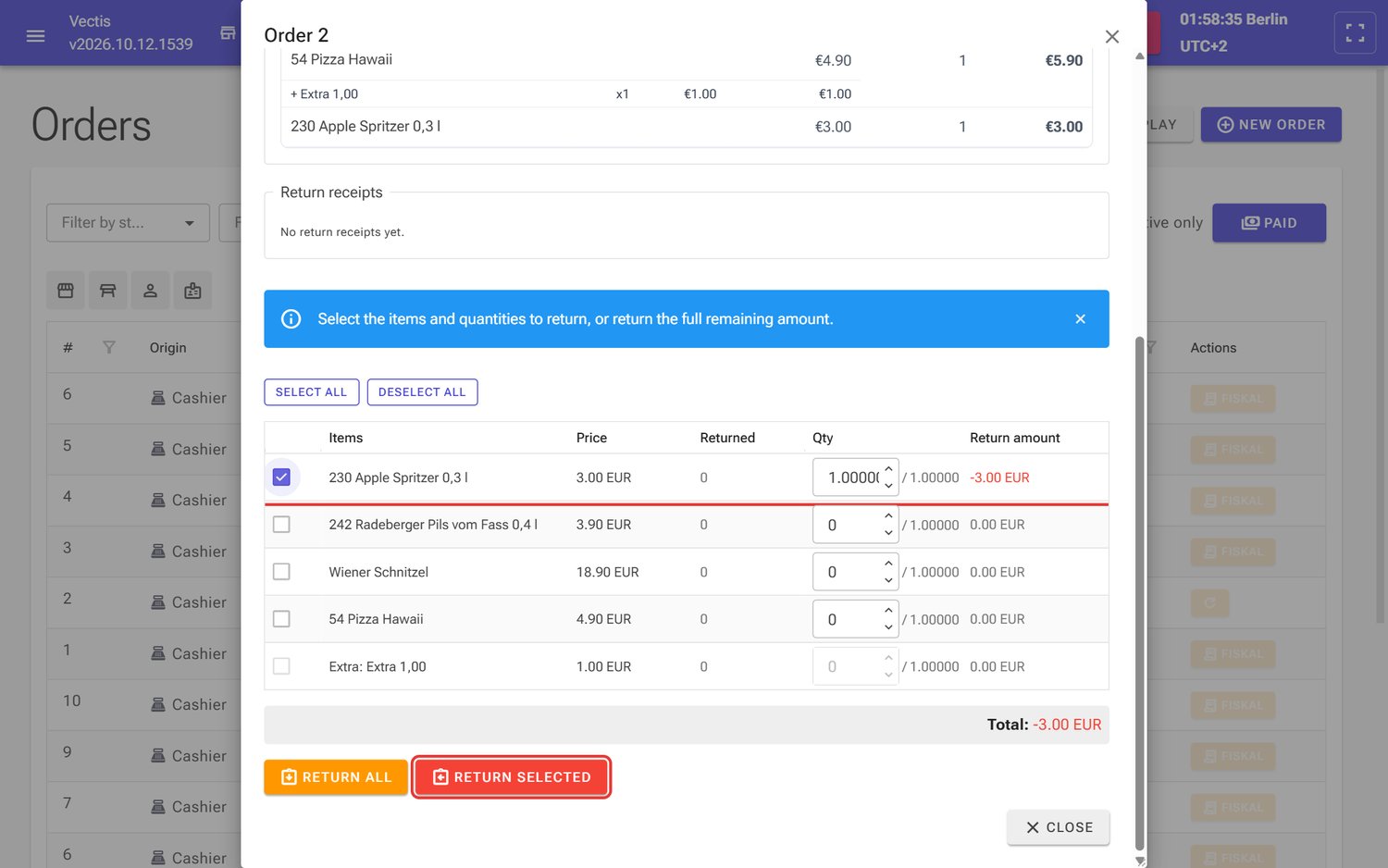 Apple Spritzer selected for return, total −3.00 EUR, Return selected button (outlined in red)
 - Tap Return selected. For a full return tap Return all instead. The return is booked at once – there is no confirmation question.
- The till books the return as a separate, signed fiscal transaction with its own Bon ID (7 in the example) and prints the return receipt. It appears in the section Return receipts with Bon ID, created time and amount (shown without a minus sign in the list, €3.00 in the example). Print prints it again. The Returned column now shows the returned quantity; in the Fiscal receipt section you see Returned amount €3.00 and Items 5/1.
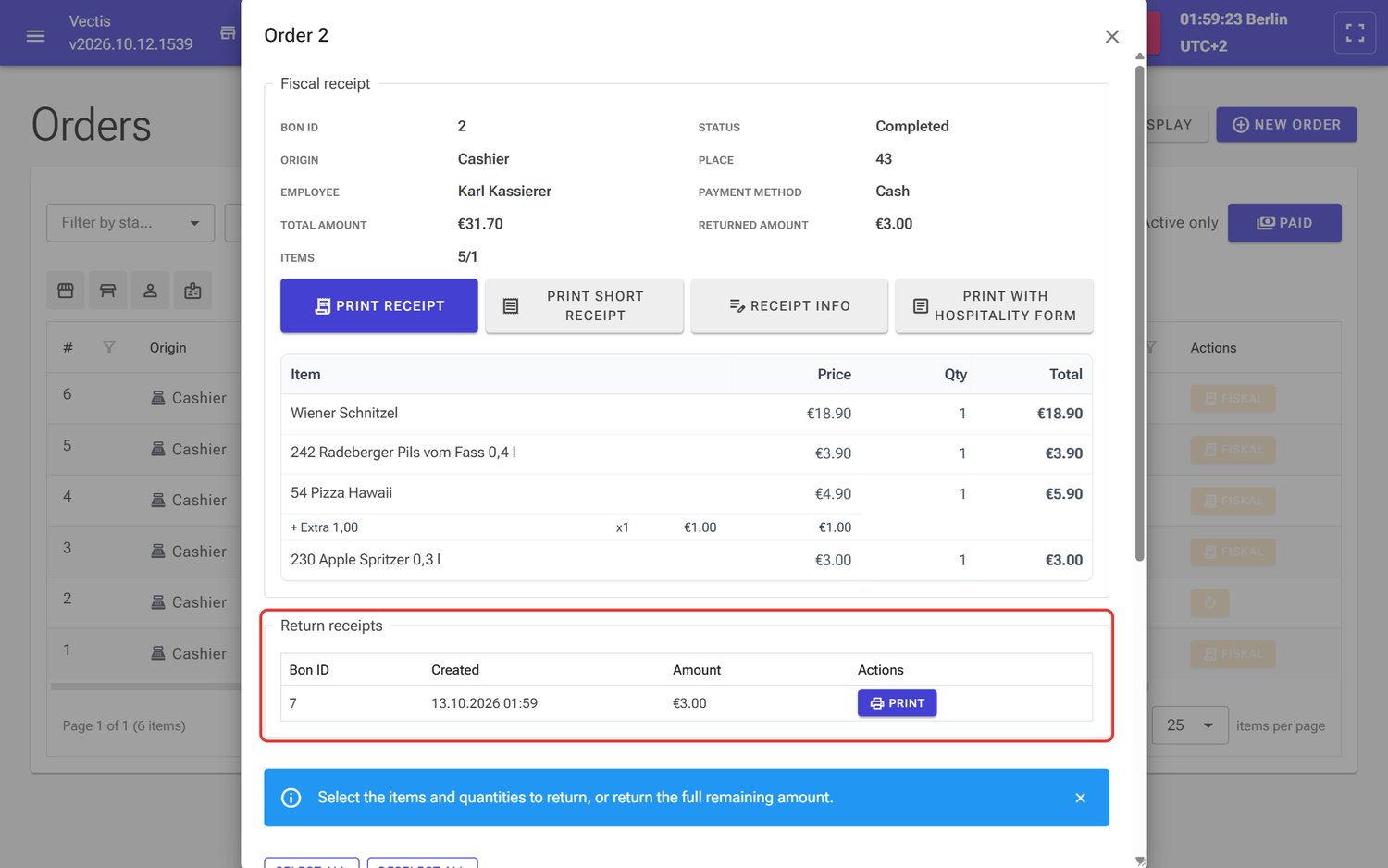 Return receipt Bon ID 7 for €3.00 in the Return receipts list
 - Pay the amount back to the guest.
Caution: A return cannot be undone. Check item and quantity before you tap Return selected or Return all – the till does not ask again.
Note: The return receipt is a storno receipt with negative amounts. Depending on the receipt options it shows the title STORNO and details of the original receipt (original receipt, original BON_ID, original date, original TSE transaction).
Note: Without the storno right, Return all and Return selected are grey. The tooltip reads "Storno is not allowed for this account. …"
Note: Ingredient surcharges (for example "Extra: Extra 1,00") cannot be ticked on their own – their box is grey; they belong to their item. If the tips of an order were already paid out, Return all warns with Tip already paid out.
Note: Cashiers and waiters see only the current business day in Orders. For returns from earlier days ask a manager or admin.
What is no longer possible after payment – and why
Goal: Understand which changes are locked after payment.
Who can do this: Everyone.
As soon as an order is paid, the till signs the sale with the TSE (technical security device). Under the German KassenSichV a signed sale must not be changed or deleted. That is why:
- A paid order can no longer be edited ("Paid orders cannot be edited.").
- It cannot be cancelled, split or discounted.
- Payments can no longer be removed.
- Corrections are only possible through a return (see above). The return is a separate, also signed receipt that offsets the original receipt.
Even before completion: after the first recorded payment the items, the discount and splitting are locked until the payment is removed.
Caution: A mistake on a paid bill is never "overwritten"; it is always offset by a return. Both receipts appear in the Z report and in the DSFinV-K export.
Paying when the TSE is not signing (TSS red)
Goal: Know what happens when the TSE cannot sign right now.
Who can do this: Everyone.
At the top right of the header, the dot next to TSS shows the signing state: green = TSE set up and active; red (blinking) = nothing is being signed right now.
 TSS indicator with a green dot in the header
- You can take payments even when it is red. The payment is booked and the order is completed as paid.
- Inform your Vectis service partner or support.
- Once the problem is fixed, open Menu › Order Management › Orders, filter Paid, and tap Fiskal for the affected orders. The till signs the order afterwards; then you can print the receipt with Print receipt.
Caution: Returns are only possible while the till can sign.
Customer display
Goal: Show the guest the order and the payment progress on a second screen.
Who can do this: Admin, Manager, Cashier, Waiter.
- Open Menu › Order Management › Orders and tap Customer Display at the top right. The customer display opens in a new window of the same browser; drag it to the customer screen.
- While you are still editing the order, the customer display shows Welcome – "Please wait for your order".
- As soon as you open the payment page, it shows the items and, at the bottom, the table, Payment, the number of items, Paid, Remaining and Total. After completion it shows Thank You.
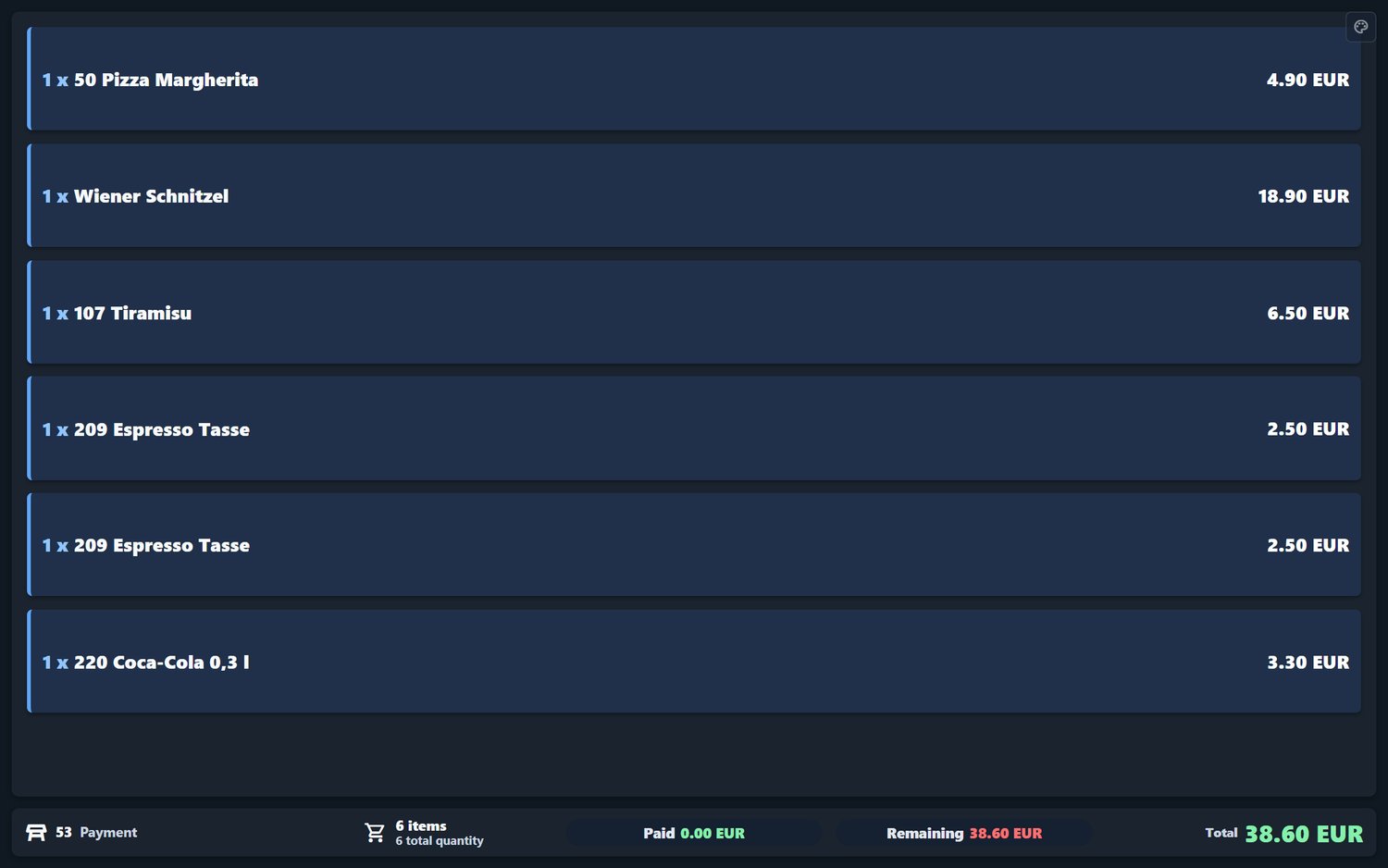 Customer display during payment: table 53, 6 items, remaining 38.60 EUR
Note: With a discount the customer display also shows the Discount savings.
Frequently asked questions
Q: Can a guest pay part in cash and the rest by card? No. An order is paid either in cash or by card. Split the bill by items first (Split) and take payment for each part bill separately.
Q: Is the till connected to our card terminal? No. You enter the amount on the terminal and confirm the payment in the till by hand only afterwards.
Q: How do I book a tip with a cash payment? You don't. Tips are recorded only with card payments. Cash tips stay outside the till.
Q: I confirmed a wrong cash amount by mistake. What now? If the order is still open, remove the payment with × and take it again. If it is already completed, book a return and take payment for the order again.
Q: Why can't I add items any more? Because a payment is already recorded. Remove the payment or start a new order for the new items.
Q: The terminal charged the card, but the till says "Card payment not booked". Does the guest have to pay again? No. Tap Card again and confirm without charging the terminal again.
Q: Where do I reprint a receipt? Menu › Order Management › Orders, filter Paid, Fiskal, then Print receipt.
Q: Can I print a business-meal receipt (Bewirtungsbeleg)? Yes, in the same window with Print with hospitality form.
Q: Can I cancel a paid order? No, only return it (Return all). You need the storno right for that.
Q: Why are the return buttons grey? Either nothing is ticked (then only Return selected is grey), or your user has no storno right. An administrator can grant it under Menu › User Management › Users; then log out and in again (see chapter 02).
Q: Can I undo a return? No. Ring the item up in a new order if the guest keeps it after all.
Q: Is there a receipt by e-mail? No. The receipt is printed, with a QR code depending on the settings.
Q: The TSS indicator is red. May I keep taking payments? Yes, the till books the payments. Inform your Vectis service partner at once and discuss with them what to do with the affected receipts.
Q: Why can't I see the change any more after a cash payment? The till completes a fully paid order at once and opens a new order. Read the change in the Manual Cash Entry window before you confirm.